IP Series Installation Manual System programming: an introduction
C.1
System programming: an introduction
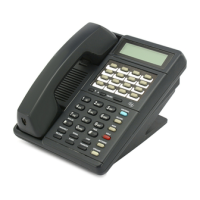
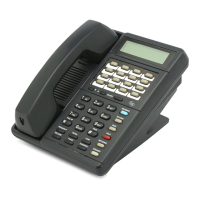
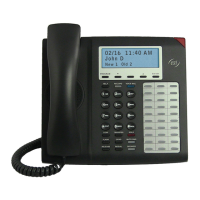
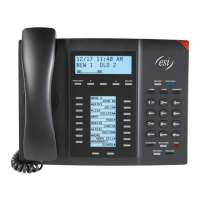
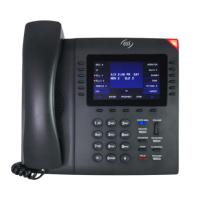
You can program the IP Series either from an IP Feature Phone or through the Windows
®
95/98-based
Esi-Access package. Both methods follow the same programming steps. This manual focuses on
programming from an IP Feature Phone; the respective documentation for Esi-Access details the
differences in programming from that environment.
Read the User’s Guide first. Programming features require a clear understanding of the user inter-
face and application.
You can program the IP Series system from any IP Feature Phone while the system is operating.
Once you’ve accessed programming mode, the system will prompt for — and confirm — each
keystroke action via voice commands and the LCD display. You program both configuration data
and recordings in the same manner.
Programming keys
During programming, the top line of the LCD will display the current item being programmed and
the bottom line will be the entry line. You can enter values as directed by the combination of the
voice prompts and LCD display. To enter multiple values, such as a list of extension numbers,
separate each value by # (to exit the list, enter # #).
To. .. Press ... What this does
Enter #
Confirms new or existing entry and advances to next program-
ming step.
Back up (i.e., re-
verse direction)
* Backs up to previous prompt without changing its value.
Delete HOLD
Deletes data or recording.
Exit
RELEASE (or
just hang up)
Exits programming mode and removes extension from DND.
Help HELP
Provides more detailed instructions during programming.
▼ (left-side
scroll key)
• During entry of a value, backs up
• If a list is present (> is displayed), scrolls to left
Select
/ Scroll
▲ (right-side
scroll key)
• Selects from options presented
• If a list is present (> is displayed), scrolls to right
• Inserts a space during entry of a name.
Note: Either < or > in the display indicates that additional choices or values are available by press-
ing a corresponding scroll (▼ or ▲) key.



 To Next Page