3.1 Power On
1. Please read the entire manual and become familiar with the operation of the
Centurion prior to installation of the autosampler. NOTE: Only a trained operator
may run the Centurion.
2. Be sure that all electrical connections are in place and the plumbing connections, both
water and gas, are free of leaks.
3. Check all waste lines and ensure that they are properly routed and contained before
powering on the autosampler.
4. Press ON at the power switch located on the right side of the rear panel.
5. The embedded Windows XPe
™ operating system will load and the IO System
Configuration will load. The IO System Configuration is a self-loading
communication device between the Centurion and the Windows XPe™ operating
system.
3.2 Open the Centurion Application
1. The user will control the operation of the Centurion with a mouse and keyboard.
2. <click> the Centurion icon on the desktop.
3. The EST Analytical screen will appear while the application is loading.
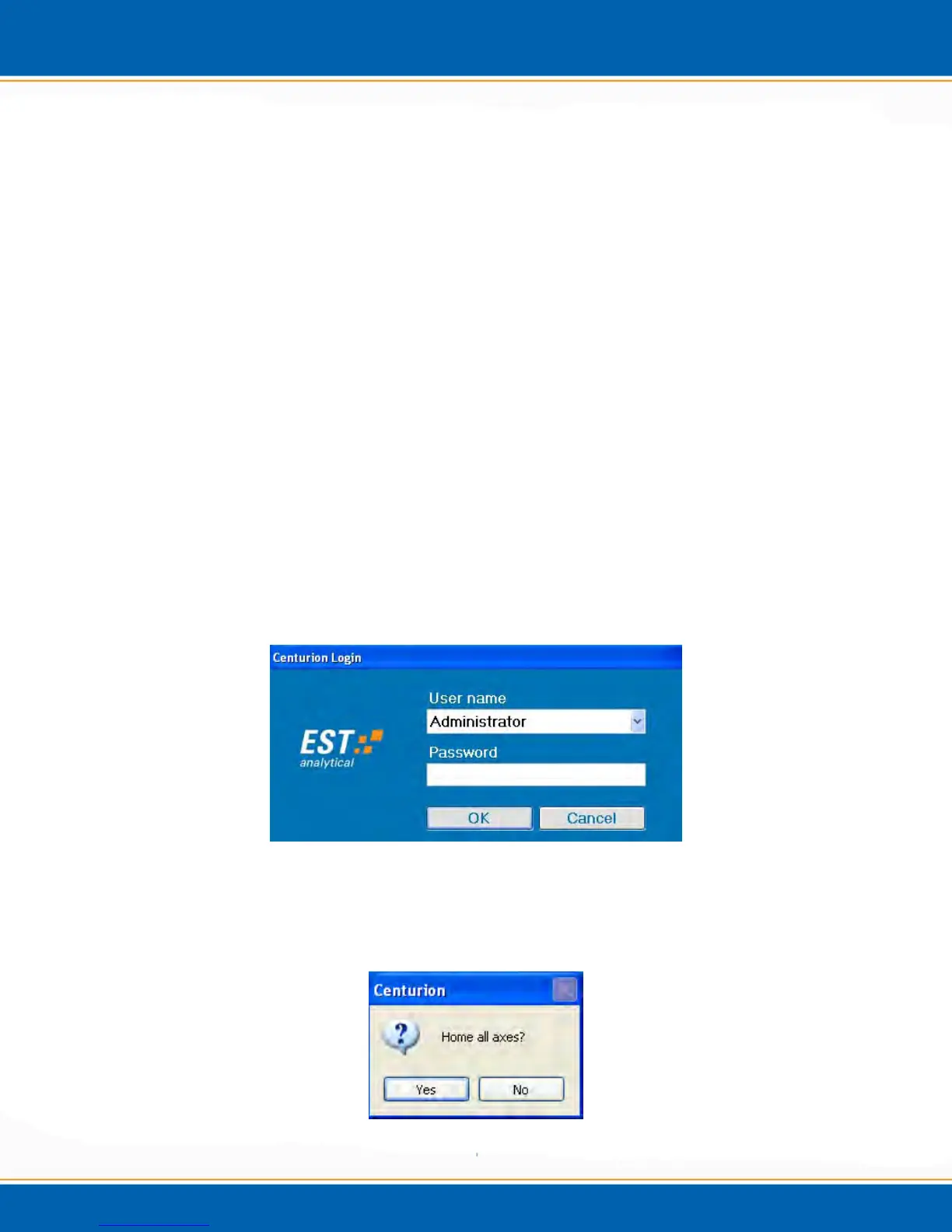
4. After the application has loaded the user will be prompted to log on with a password
as shown in Figure 3a. NOTE: The password for the Centurion is ESTAnalytical
(case sensitive).
Figure 3a: Log in Screen
5. The user will then be prompted to Home All Axes as shown in Figure 3b. The
Centurion must be homed prior to operation.
Figure 3b: Home Axes Screen



 To Next Page