ETAS 2 Configuration Creation
The file is moved from the first column into the third column that
displays all replaced files.
3. To undo the replacement, click the undo icon on the right side of
the replaced file.
The cell is cleared and the file is added to the list in the first
column again.
4. Click Ok.
All measure files in the first column are added and all measure
files in the third column replace the ones in the second column.
To replace a measure file
To see how you can replace a measure file, watch our video Replacing
Measure Files.
To resolve the "No-Match" situation, see "To replace a signal" on page49.
1. Do one of the following:
In the File Explorer, select a single measure file. On the Con-
figuration tab of the ribbon, click .
In the File Explorer, hover the cursor over a measure file and
click .
Right-click a measure file and select Replace Measure File.
2. Select the new measure file in your file system.
In the File Explorer, the selected measure file is displayed instead
of the previous measure file. If signals from the previous measure
file had been assigned to an instrument, they are displayed in the
instrument as follows:
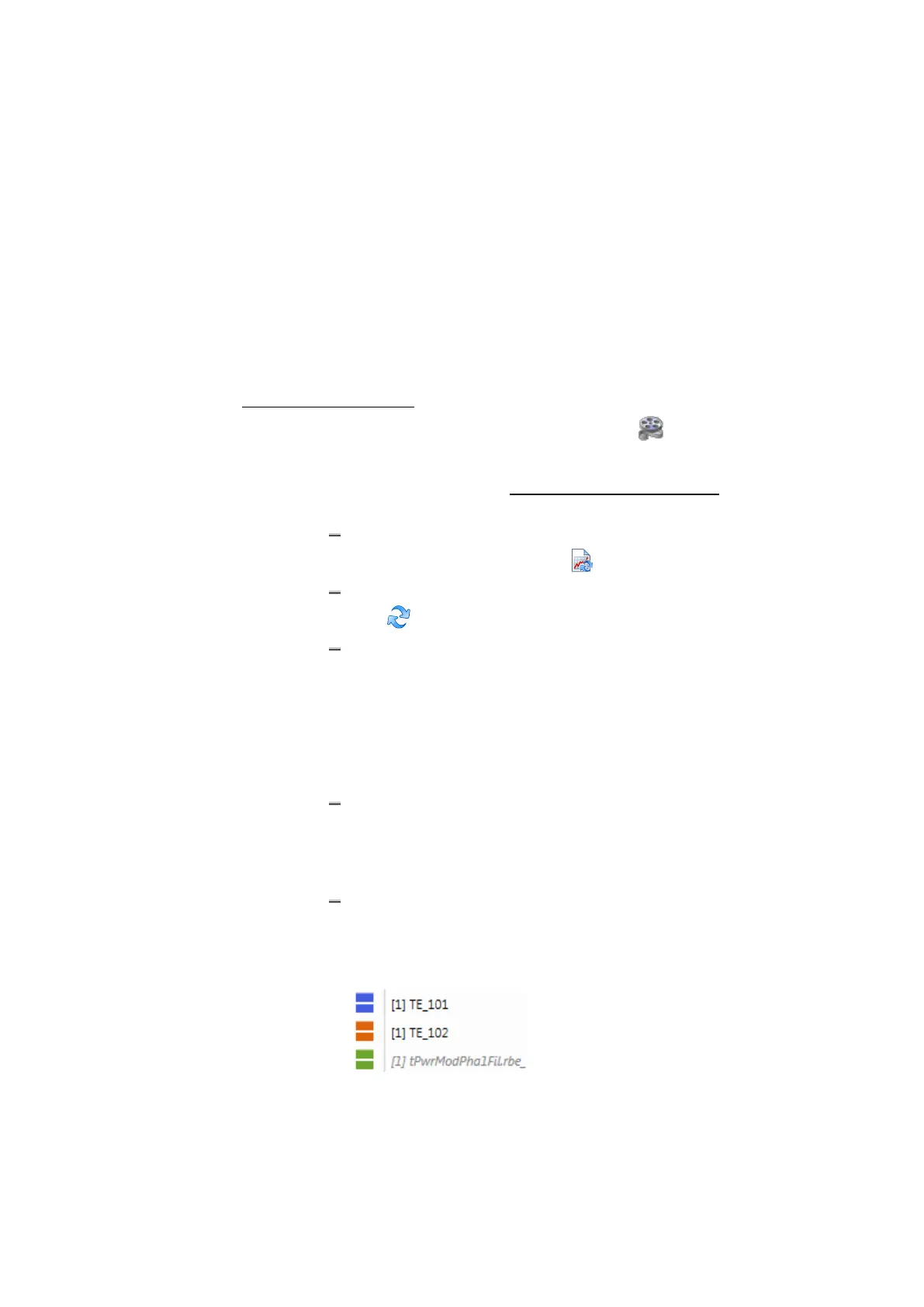
Signal names that are contained in the new measure file are dis-
played in black color as before. This means the signals could
be mapped and are displayed with the data from the new meas-
ure file.
Signal names, that are not contained in the new measure file or
cannot be mapped clearly, are displayed in gray color. This
status is called "No-Match". For "No-Match" signals no meas-
ure data can be displayed.
If you have a assigned a specific data representation to a signal
before replacing the measure file and the desired rep-
resentation is not supported for the signal in the new measure
MDA V8.5 - User Guide 30



 To Next Page