122 Eos Family Operations Manual
Assuming that channel 9 is already patched to an address, this will create a part 2 and address it at
540.
[8] [Part] [2] [At] [5] [1] [3][Enter]
This will create a part 2 for channel 8 and address it at 513. If you wish to patch by address while in
the channel view, press:
[Address] [5] [1] [3] [At] [8] [Enter]
Assuming channel 8 was previously patched to an address, this will create a part 2 and address it at
513.
To patch a multipart channel in address format:
[5] [1] [3] [At] [8] [Enter]
This will perform the same action as the previous example, assuming channel 8 was previously
patched to an address.
To select multiple parts for editing:
[1] [Part] [1] [Thru] [5]
This is useful for deleting or assigning new addresses to existing parts.
To patch a compound channelin channel format:
[1] [Part] [2] [At] [5] {Type} <scroller profile>
Creates a part 2 for channel 1 and assigns it the selected scroller profile. See {Patch} Display and Set-
tings (on page132) for more information on using {Type}.
Patching Moving Lights, LEDs, and Accessories
The process of patching moving lights requires more detail than patching a dimmer. Specific inform-
ation is required for more advanced control of the features offered by moving lights.
Note: It is recommended that when patching moving lights, LEDs, and accessories that
you work in patch by channel mode. See Patching ByChannel (on page116).
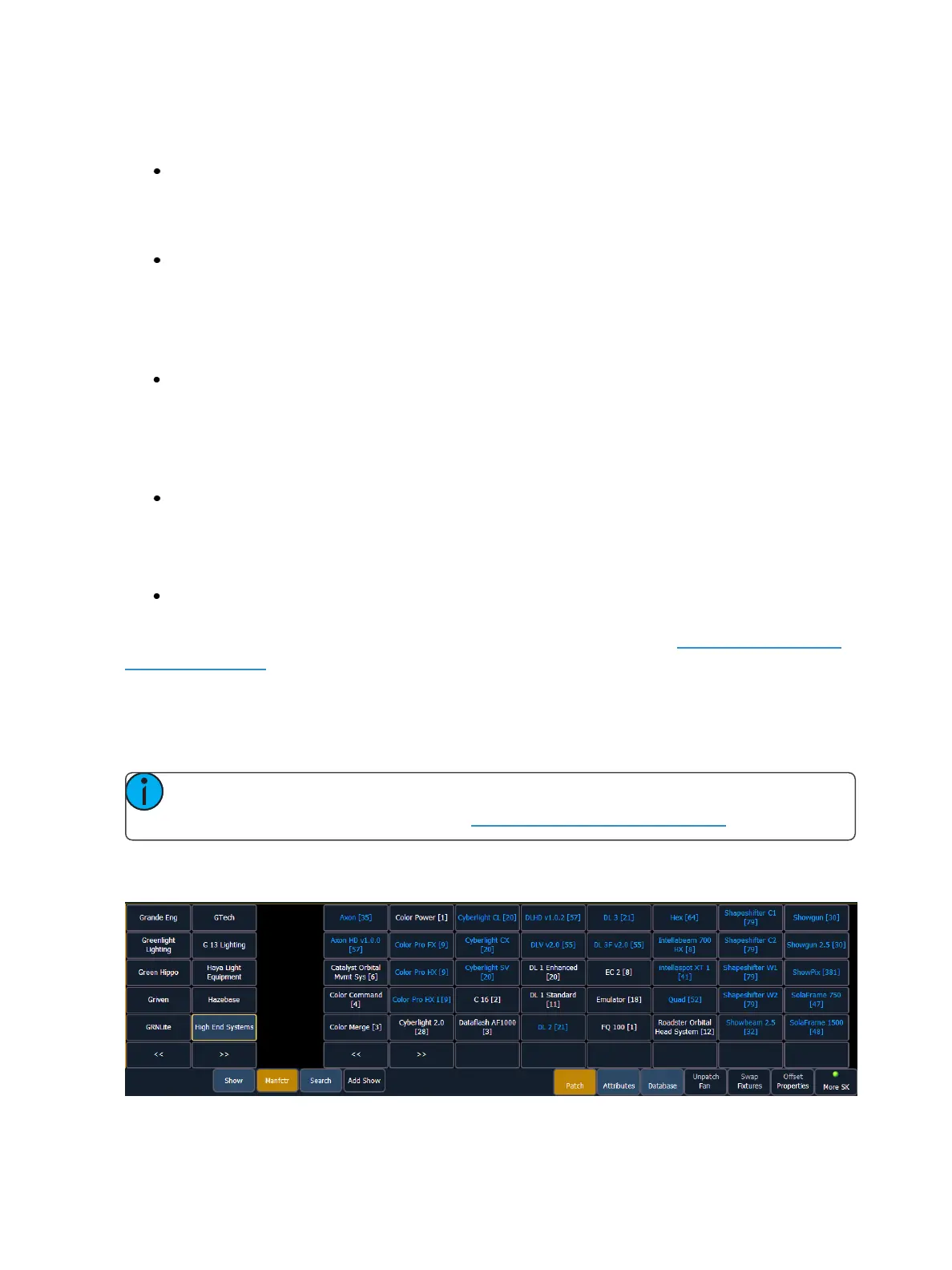
After you have entered the channel number, click {Type}. You will then select a device type from the
fixture library.
Notice the four softkeys {Show}, {Manfctr}, {Search}, and {Add Show} located beneath the CIA.



 To Next Page