488 Eos Family Operations Manual
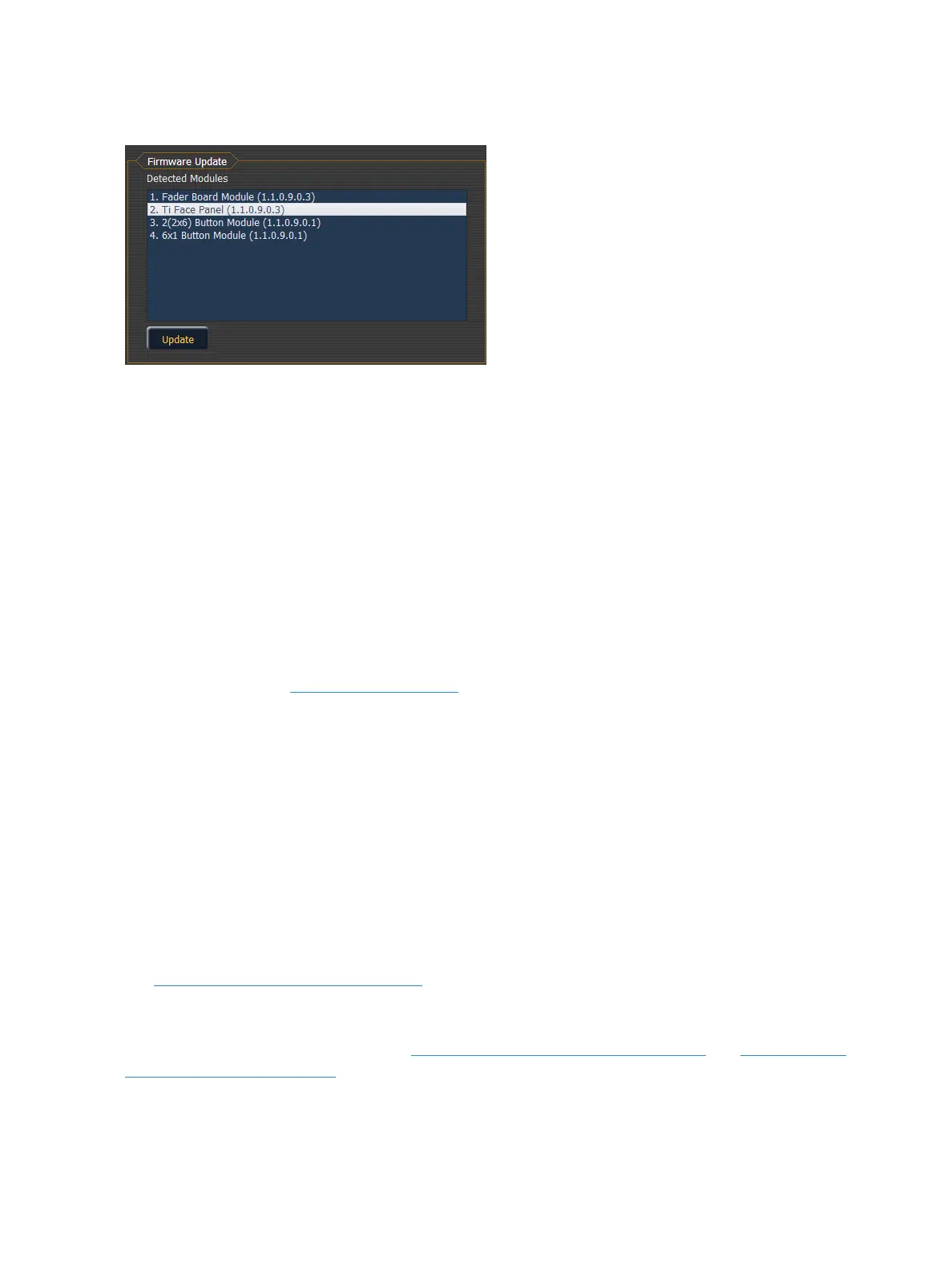
yellow. If the button is grayed out, an update is not available.
Buttons
RPU Face Panel Buttons
This area is for configuring the buttons on the front of a RPU or RVI. Clicking on a button will open a
dialog window for selecting what type of button, macro, hardkey, or none, you wish to assign.
If hardkey is selected, a list of the various hardkeys on your desk will be available to select from. If
macro is selected, a list of available macros will display. Selecting none will assign no action to the
selected button.
{Import} allows you to import a RPU/RVI button configuration file. {Export} allows you to export a
RPU/RVI button configuration file. {Restore Defaults} will restore the factory defaults for the RPU/RVI
buttons.
For more information, please see the Setup Guide for your RPU. Setup Guides can be downloaded
from the ETC website, www.etcconnect.com.
Face Panel Buttons
This area is for configuring the buttons the customizable hardkeys on the Eos Ti, Gio, and Gio @ 5
facepanels.
Clicking on a button will open a dialog window for selecting what type of button, macro, hardkey, or
none, you wish to assign.
If hardkey is selected, a list of the various hardkeys on your console will be available to select from. If
macro is selected, a list of available macros will display. Selecting none will assign no action to the
selected button.
{Import} allows you to import a button configuration file. {Export} allows you to export a button con-
figuration file. {RestoreDefaults} will restore the factory defaults for the buttons
See Customizable Hardkeys (on page32) for more information.
Local I/O
This screen allows you to configure the Local DMX Outputs (on the facing page) and Show Control
Outputs (on the facing page) on the back of your device.



 To Next Page