Patch 125
Note: If the master channel has only a virtual intensity over the cells, an address will not be
displayed, as that is a virtual parameter.
Labeling
To label a channel or address, press the [Label] key with the channel or address selected on the com-
mand line. You can use the virtual alphanumeric keyboard or an external keyboard to enter the
desired label text.
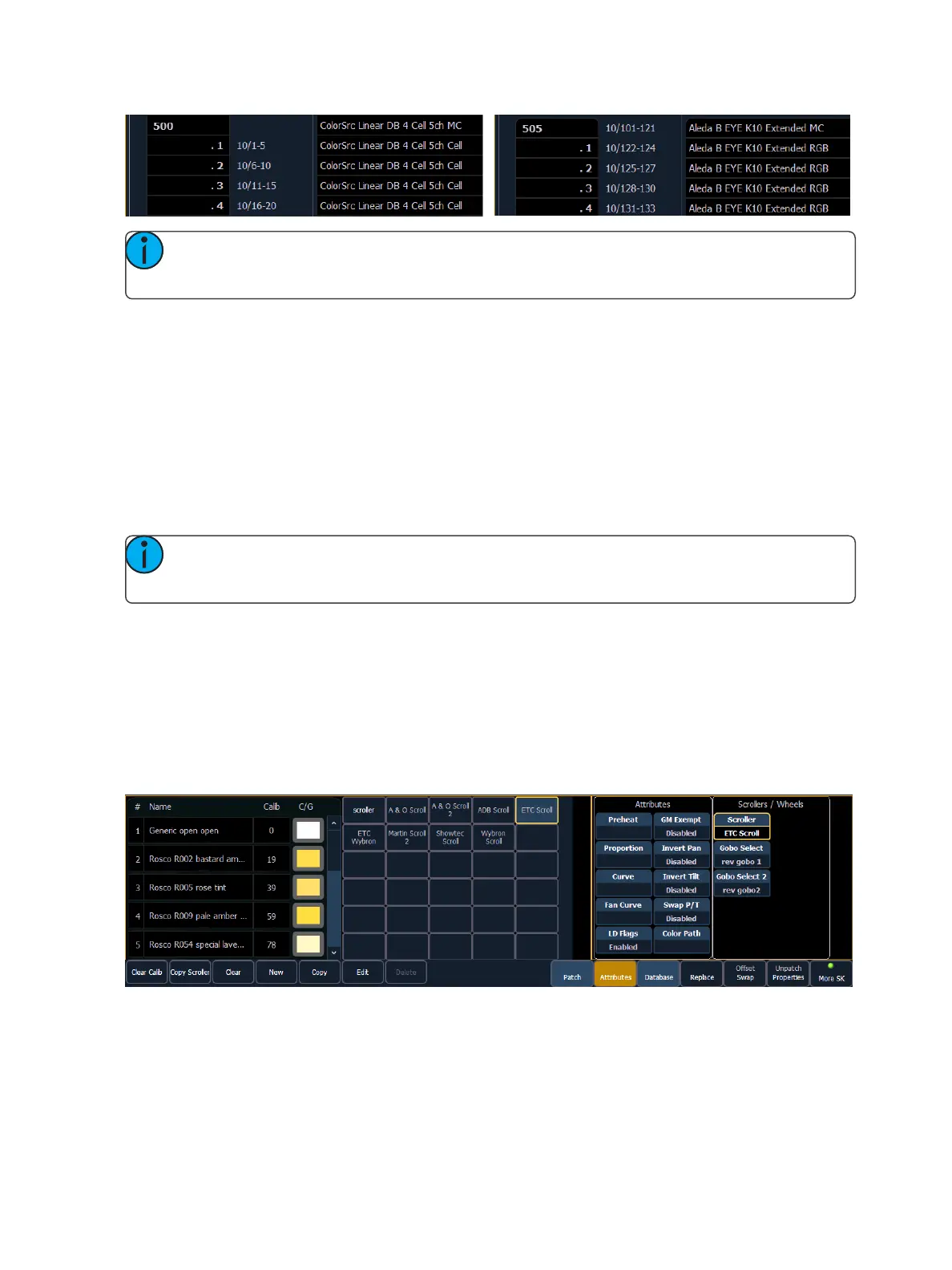
Using the Scroller/Wheel Picker and Editor
The scroller and wheel picker allows you to choose a specific scroll, color wheel, gobo wheel, or
effect wheel from standard manufacturers and associate them with fixtures. You may also create
customized scrolls/wheels using the editor to match custom devices installed in your fixture.
Note: Scrollers, color wheels, gobo wheels, and effect wheels can be created without first
selecting or patching a fixture.
Using the Picker
Default color and pattern media for the selected fixture, as determined in the fixture library, is dis-
played in the {Attributes} page. Only the media attributes that are available for the selected fixture
will display.
In the image below, the selected channel is a Source Four Revolution® with a color scroller and two
gobo wheels. If the selected channel included other wheels, each device would be represented in the
display with a button.
The picker displays on the left half of the CIA when you select the specific attribute ({Scroller}, {Color
Wheel}, {Gobo Wheel}, or {Effect Wheels}). The picker displayed is specific to the selected attribute
(the scroll picker will display when {Scroller} is pressed, the color wheel picker will display when {Color
Wheel} is pressed, and so on).



 To Next Page