Working with a Single Cue List 263
[Record] <Cue> [8] [Label] [Block] [Enter] - records cue 7 and applies the name of the hardkey
as the label
Pressing [Label], when a label has already been applied to a cue, will display the label on the com-
mand line for editing. Pressing [Label] a second time will clear the label, or you can press [Clear] to
remove the label one character at a time.
Cue Notes
Cues can have notes attached to them.
These notes can be viewed in the Playback Status Display and the Cue List Index by hovering a mouse
over or tapping on the + in the Label column.
To add a note to a cue:
[Cue] [n] {Attributes}{Notes}
To add a note to the currently selected cue, you can use [Shift] + [Label].
You can use the virtual alphanumeric keyboard or an external keyboard to enter the desired text.
See Playback Status DisplayConfiguration (on page74)for additional display options.
See Copy To and Move To for Labels, Scenes, and Notes (on page299) for more information.
Scenes
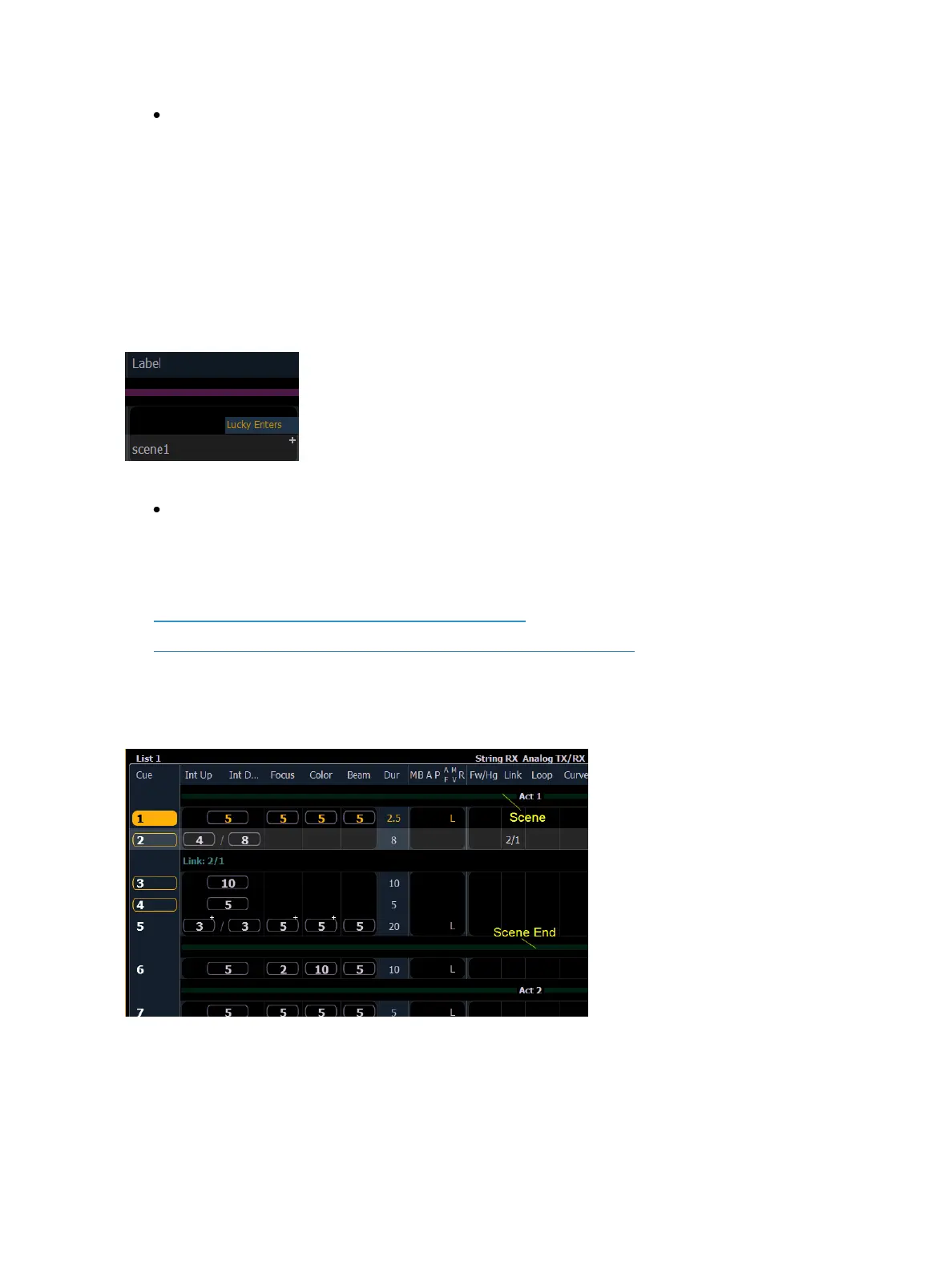
Scenes are a cue organization tool that provide a visual identifier for breaks in your show. Scenes
allow for quick cue list navigation without needing to remember a cue's number.
Scenes display in the cue list index and the playback status display as a green bar above the cue they
are associated with in the list. An end of scene can also be created, and those display as a green bar
under their associated cue.



 To Next Page