94 Ion Classic User Manual
Moving Displays
To move the active display from one monitor to another, press and hold the [Tab] key and use
the page arrow keys to move the display in the direction of the desired screen. One press of
the left or right page keys will move the display to the next screen in that direction. To move it
back, press the opposite arrow key.
Clickable Displays
Several displays have click supported cells. Clicking on a cell will select and place it on the
command line. You can click on multiple cells to select a range of items. Double-clicking a row
header will select that row and deselect any other rows. In-Cell editing must be enabled in
Setup>Device>Displays. See
In-Cell Editing (on page215)
The following displays have clickable support:
Show Control List
Cue List
Playback Status Display
Palette Lists
Sub List
Preset List
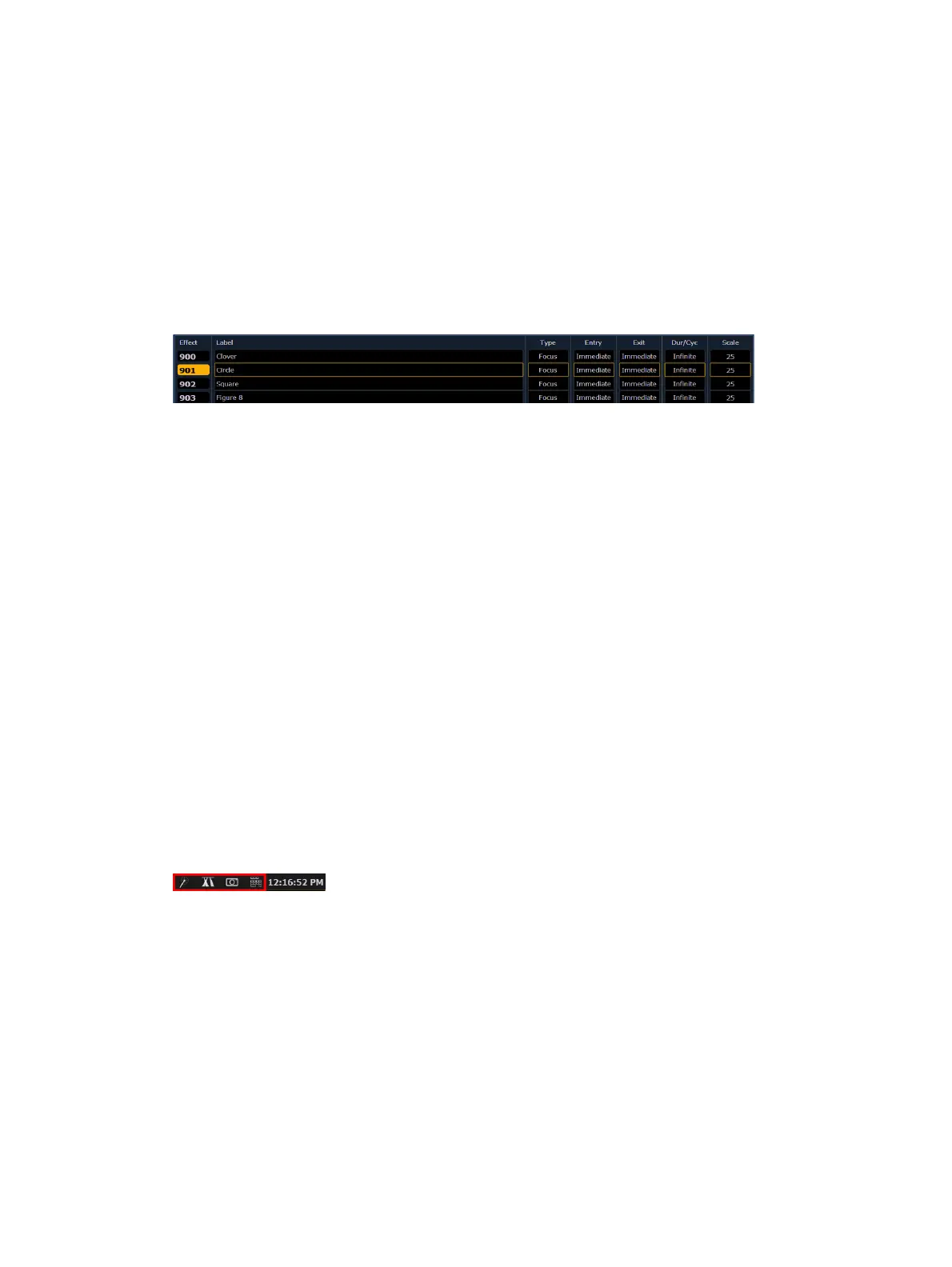
Effect List
Group List
Snapshot List
Curve List
Partition List
Pixel Map List
Magic Sheet List
Park Address List
Patch Display
Spreadsheet Display
Macro List
Quick Access
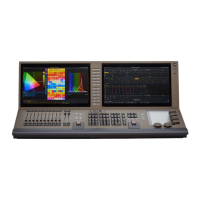
Quick Access tools are available at the top of each display.
There are three icons:
Wand - pop-up magic sheet
Automated fixture beams - pop-up MLControls
Camera -pop-up Snapshots
Pop-up Magic Sheet
This option allows you to view a favorite magic sheet in a small pop-up window over your
current display. The pop-up magic sheet functions just like a traditional magic sheet and is
interactive. .
Press the wand icon to close the display when opened.


 To Next Page