82 Ion Classic User Manual
Collapsing the Parameter Display
The parameter display can be collapsed when working with some displays that use the CIA,
such as About and Query. A collapse/ expand arrow will display in the last column where this
option is available.
When collapsed, only the {All NPs}, {All Speed}, and {Expand Arrow} buttons will be displayed.
Labeling
[Label] is used to attach an alphanumeric label to an object such as cues, channels,
submasters, etc.
[Label] [Label] when appended to a record target command, clears the current label. This
includes show file labels.
Editing Labels
The page arrow keys on the console or an external alphanumeric keyboard can be used to
move the cursor within a label to aid in editing.
[Page Up] - takes the cursor to the beginning of the label
[Page Down] - takes the cursor to the end of the label
[Page Left] - moves the cursor to the left
[Page Right] - moves the cursor to the right
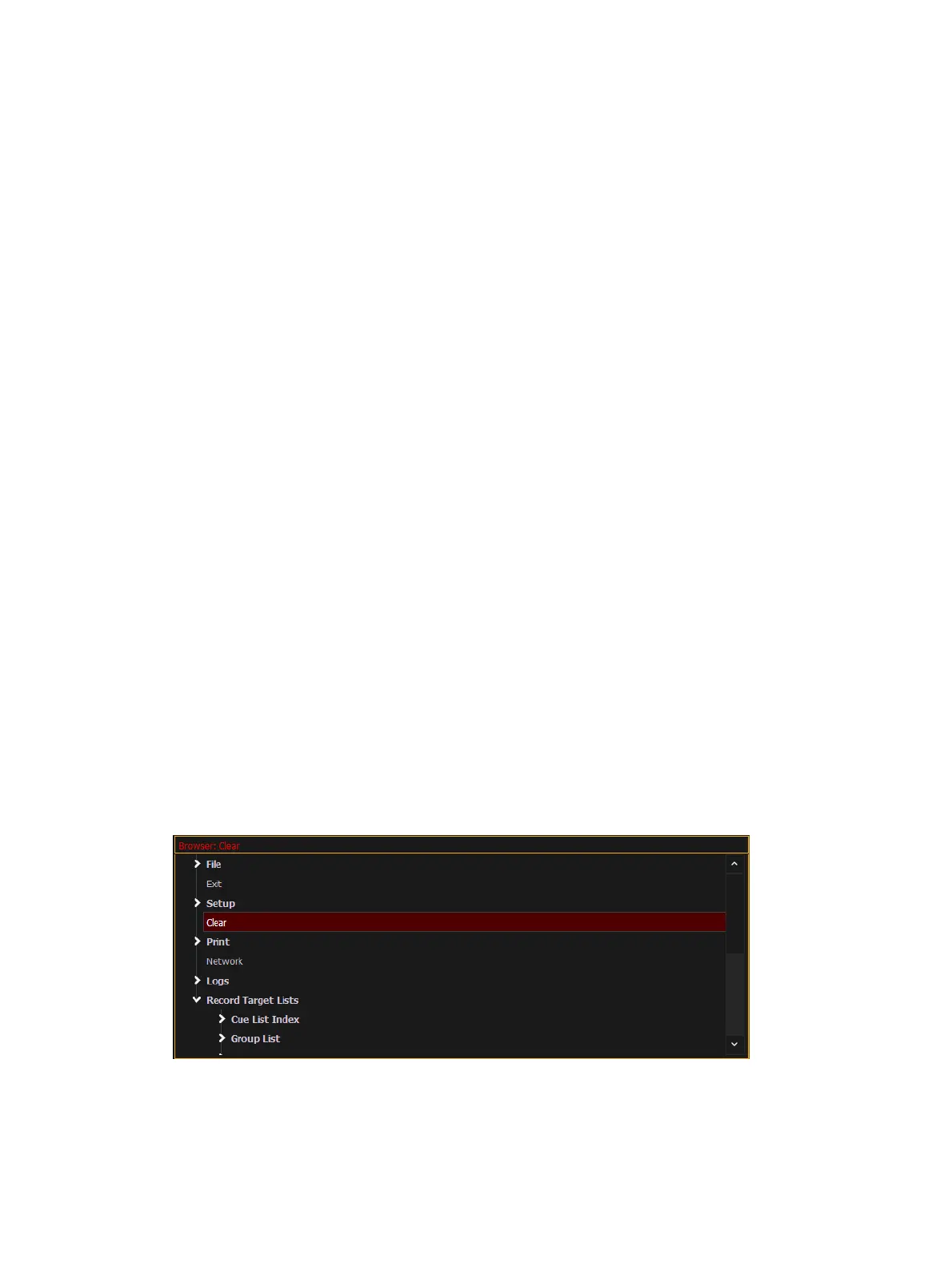
Browser
The browser is the interface for numerous functions including saving a show, loading a show,
opening displays, and many other functions. Press [Displays] to open the browser. See
Using
the Browser (below)
.
To learn more about saving and loading a show file, see
About Managing Show Files (on
page142)
for more information.
Using the Browser
To use the browser, you must first draw focus to it by touching anywhere in the browser area
of the CIA. If the browser is not visible, pressing [Displays]>{Browser} will bring up the
browser.
When focus is on the browser, the window border highlights in gold. The paging keys will now
control selection in the browser.
Use the page arrow keys to move the selection bar up and down the list. You may also
use the level wheel to scroll through the list.
When the bar highlights the desired menu, press [Page Right] to open the menu.



 To Next Page