System Basics 81
To expand the CIA into view again, click the arrow at the bottom of the screen. The CIA will
reopen.
Lock the CIA
You can lock the CIA in place to prevent it from being collapsed or viewed.
To lock the CIA, click on the lock above the browser. The lock will “lock”.
To unlock the CIA, click the sunken lock again.
Note:
While locked, the CIA can still be collapsed or expanded by clicking the arrow
icon. You can also use [Displays] & [Page ▲ ] to expand or [Displays] & [Page ▼ ] to
collapse.
The Command Line
This is the area where commands appear when entered. When in Live, this line is bordered in
gold. The command line will display in blue when in Blind.
Note:
Press [Clear] to remove commands from a terminated command line. Use
[Shift] & [Clear] to remove commands from a command line that is not terminated.
See
Syntax Structure (on page5)
for more information on using the command line.
Command Line Search
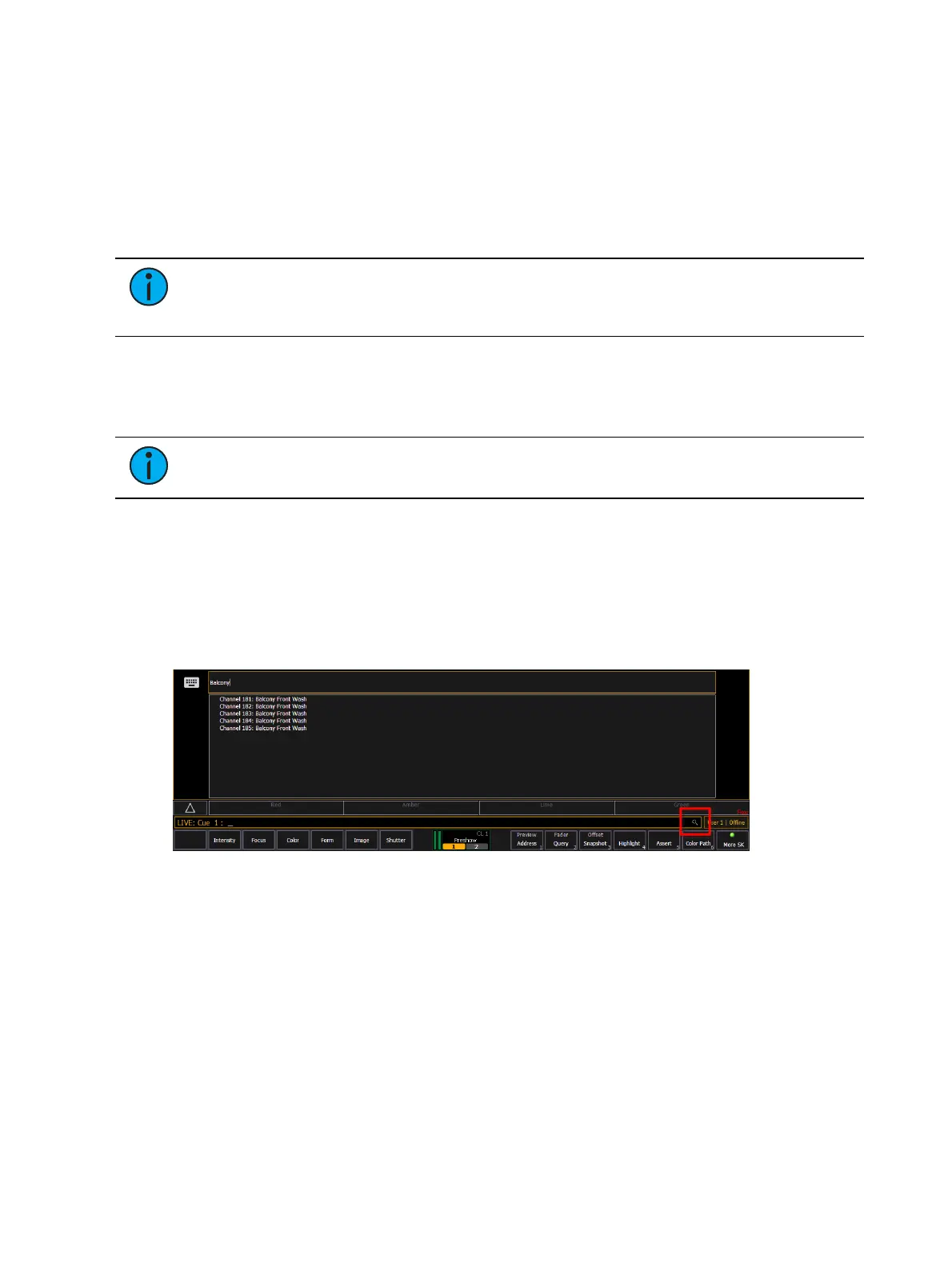
Command line search allows you to search your recorded targets, effects, and channels. The
search window will display the object, it's number, and any label you have given it.
Press the Search icon at the end of the command line or use [Shift] & [About] to open the
command line search window.
Parameter Display
This display shows the parameters available for patched channels. It is also where you can
select which parameters to view in the Live and / or Blind displays, or select parameters for
command line control. The parameter display will dynamically change depending on the
channel (fixture) selected and its applicable parameters.
For more information on using the parameter display, see
Using the Parameter Display (on
page226)
.
Parameter Category Button Labels
These labels correspond to the six parameter categories; Intensity, Focus, Color, and the three
Beam categories (Form, Image, and Shutter).



 To Next Page