System Basics 83
Continue pressing [Page Right] to open submenus.
Scroll to the item you wish to open using [Page Up] or [Page Down], or select the item
by clicking or tapping. Press [Enter], [Select] , or double-click to open.
If you wish to close a submenu scroll to that item and press [Page Left].
Additional presses of [Displays] will minimize or restore the CIA.
To draw focus to the browser at any time, press any area within it or press the [Displays]
button.
Note:
File folders display with a folder icon beside their name.
Note:
Previous versions of a showfile will be displayed in dark gray text. To see
previous versions of a showfile, you must click on the arrow to the left of the showfile
name or use [Page u] .
Note:
The [Select] key can be used to confirm a choice in the browser.
Browser Color Coding
The following color coding for selected items is used in the browser:
Save - green
Save As - green
Open - red
Merge - yellow
New -red
Clear -red
Clear Functions
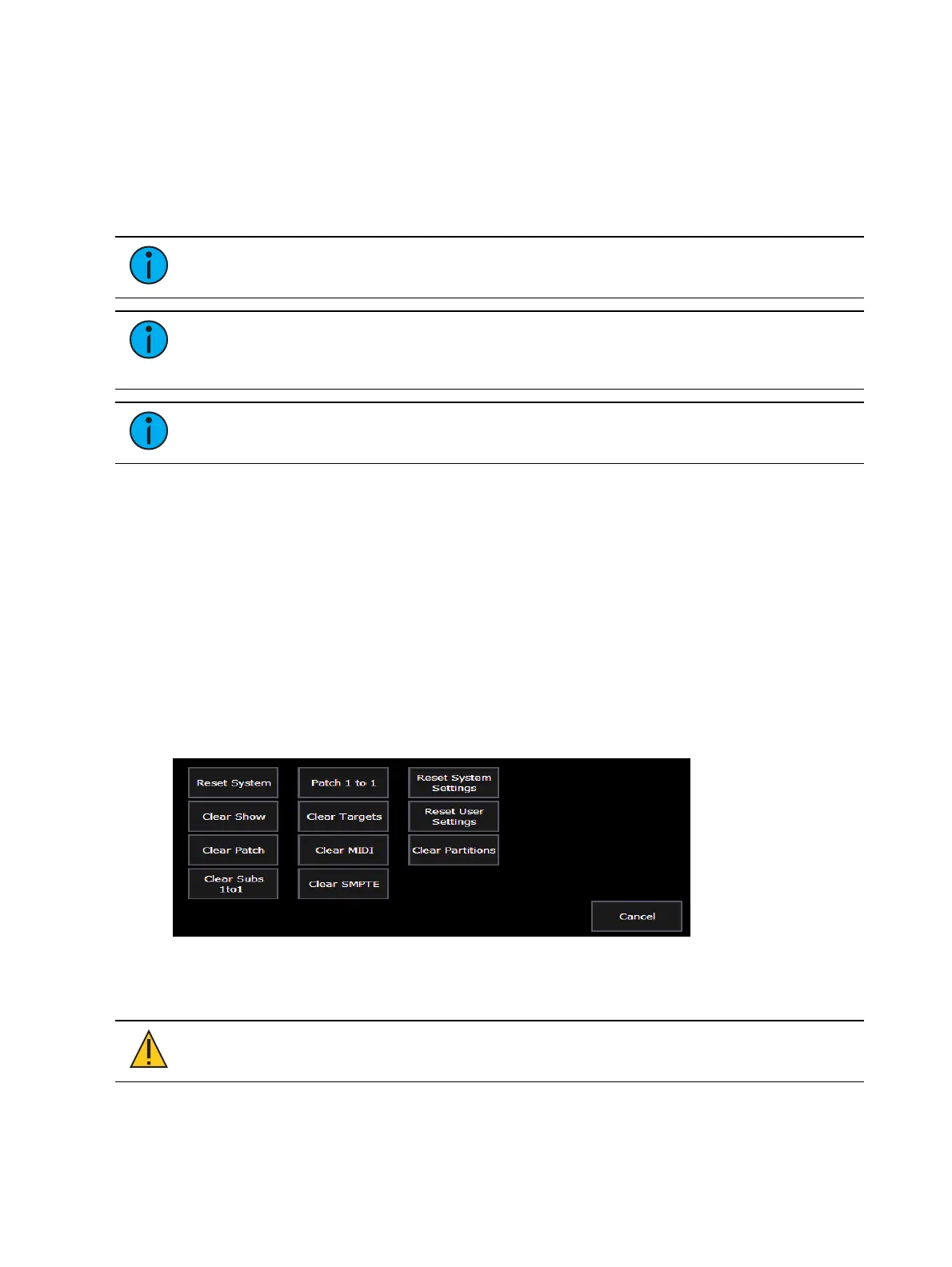
You can access the various clear options from the browser by selecting {Clear} from the main
browser menu. The clear functions window will open in the CIA.
From this menu you can select one of the available clear options by clicking on the desired
button in the CIA. Eos will ask you for a confirmation before performing the selected clear. For
{Clear Targets}, Eos will allow you to choose which record targets you want to clear.
CAUTION:
Clear functions cannot be undone by using the Undo option.



 To Next Page