110 Ion Classic User Manual
Playback Status Display Configuration
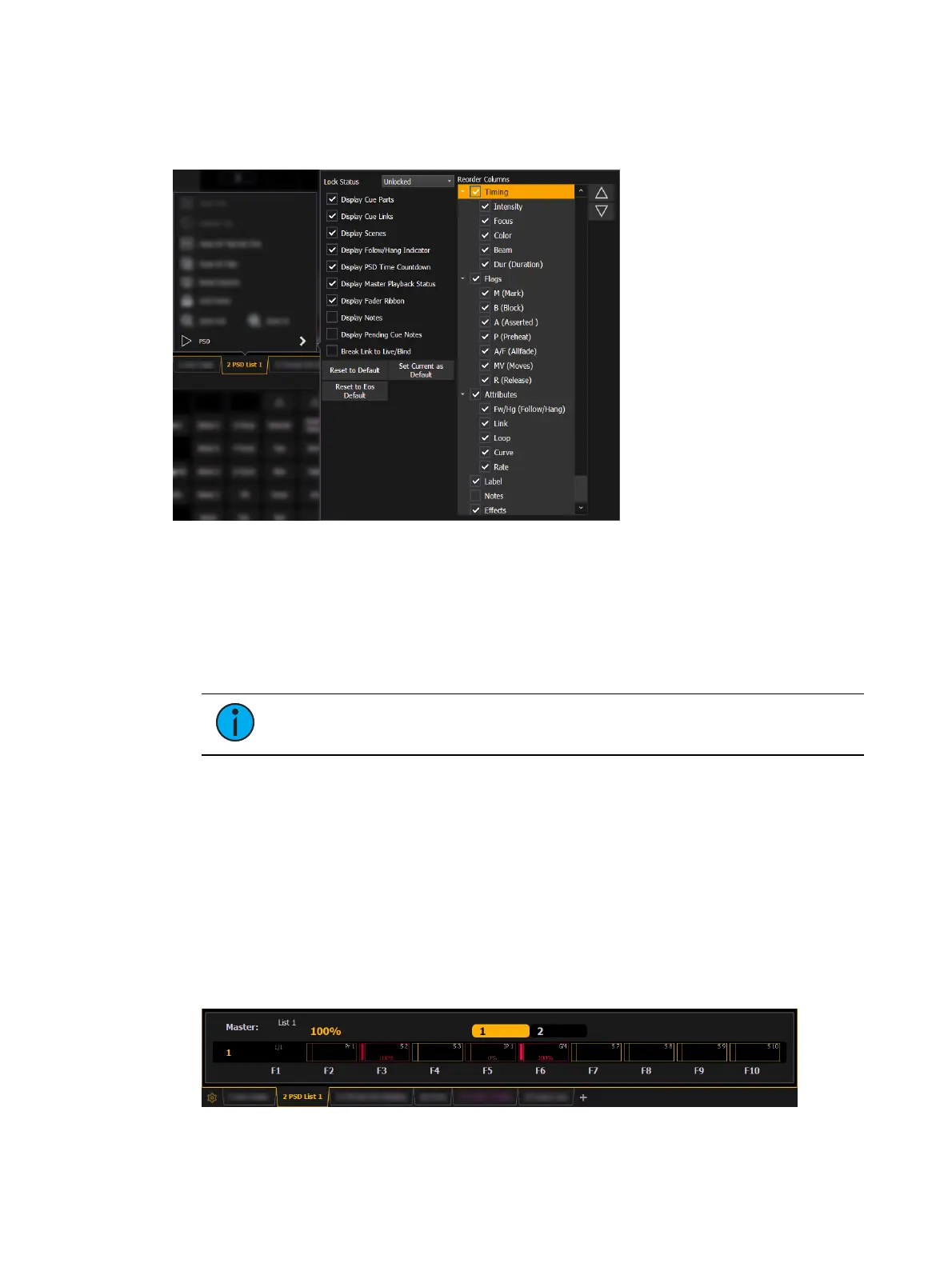
Playback Status Display (PSD) has a configuration menu, which is accessed by double clicking
or right-clicking on the PSD tab, or by selecting the gear icon, and clicking PSD.
The following options are available in the PSD Configuration Menu:
Target Grid - this option is only available when the PSDis split, and is used along with
the Lock Status option. Target Grid allows you to select either the top or bottom display.
Press [Format] to split the PSD.
Lock Status - allows you to lock the PSD to a certain cue list. When the PSD is split, you
will use Target Grid to first select top or bottom of the display, and then you can use
Lock Status to select the cue list.
Note:
Phantom cue lists will display but cannot be locked to. See Cue
List Properties (on page323) to learn more about phantom cue lists.
Display Cue Parts - displays the individual parts of a part cue. When not enabled, the
number of parts for that cue will display as a superscript number beside the cue's
number.
Display Cue Links - displays the
Link / Loop
information.
Display Scenes - displays cue scene information.
Display Follow/ Hang Indicator - displays the Follow/ Hang arrow indicator before the
cue number of any cue that will be triggered by a follow or hang.
Display PSD Time Countdown - displays the cue category times countdown in the PSD
as a cue is fading.
Display Master Playback Status - displays the current cue's status information.
Display Fader Ribbon - displays the fader ribbon, which shows the current fader page
under the Master Playback Status.
Display Notes - displays the
Cue Notes
in a horizontal bar at the bottom of the PSD.



 To Next Page