116 Ion Classic User Manual
Using Flexi Mode
Direct selects can be placed into a flexi mode. {Use Flexi} needs to be enabled in the direct
selects configuration menu. Once enabled, the {Flexi} button will display alongside the direct
selects grid. This mode removes most of the empty buttons from the grid, but leaves a single
blank tile between ranges. {Skip Empty Flexi Space} will remove this blank tile.
When in flexi mode, the {Flexi} button will be outlined in gold.
Custom Direct Selects
Whereas direct selects display lists of specific target types, custom direct selects allow you to
create a list with individual targets, regardless of type. The custom direct selects editor allows
you to choose the targets used in these lists, and apply them to a configurable grid.
To open the custom direct selects editor, select the custom direct selects icon on the
Workspace Layout Menu (on page90)
, or use [Tab] [3] [9]. You can also choose {Custom} on
the direct selects tab, and then selecting {Open Custom DSEditor}.
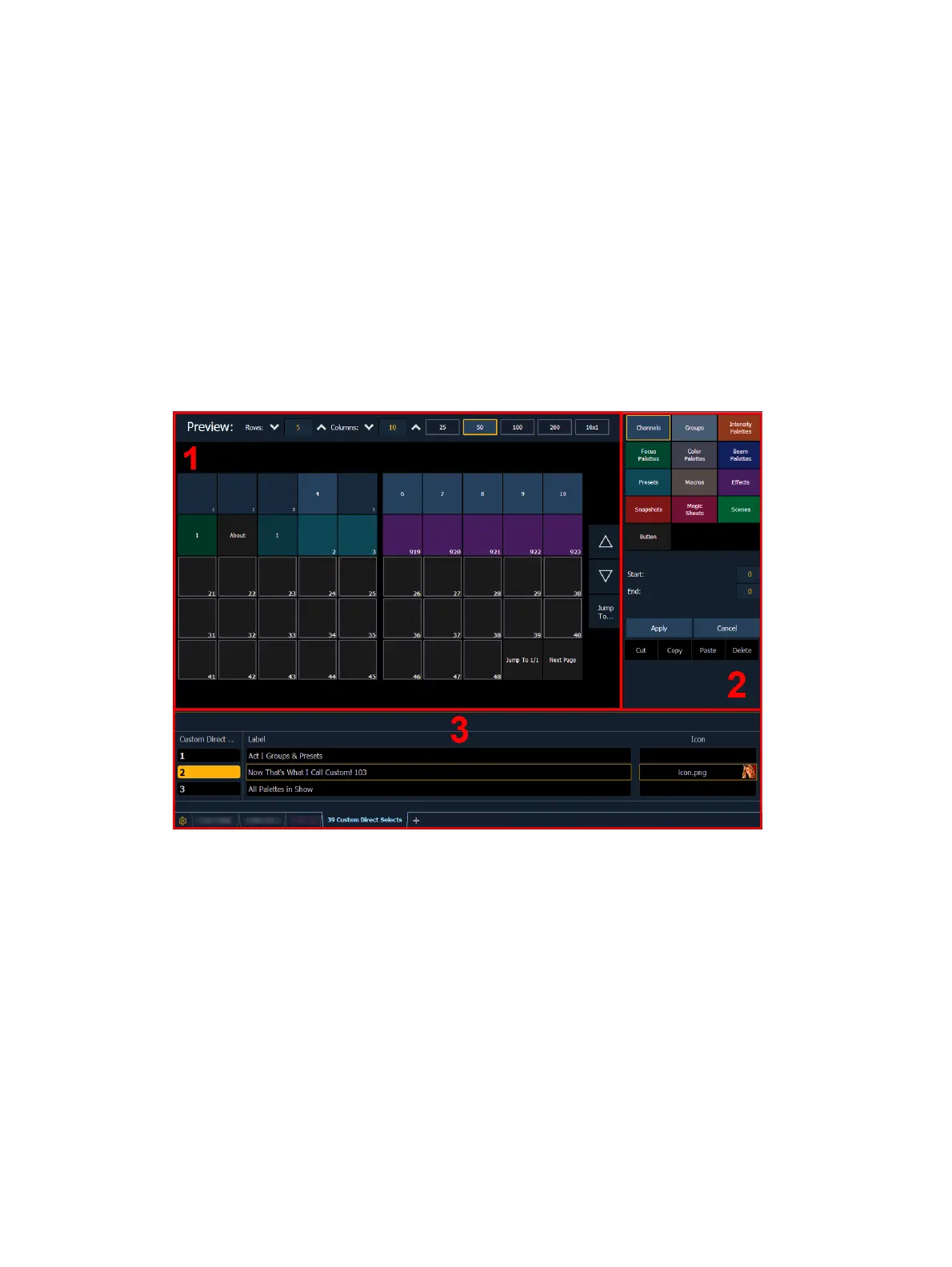
The editor is divided into a preview of your custom direct selects grid, a target selection menu
for configuring buttons, and an index of all custom direct select lists in your show file.
Custom direct select lists can be any number between 0.001 and 9999.999.
Preview (1)
This section displays the custom direct select list, laid out on a customizable grid for you to
preview layouts. The options at the top allow you to adjust the number or rows and / or
columns in your custom direct select grid, or choose from preset grid layouts.
Target Selection Menu (2)
This section allows you to configure which direct select targets are assigned to your custom
direct select buttons. All buttons default to empty.


 To Next Page