122 Ion Classic User Manual
Locking the Encoders
It is possible to lock out the encoders. To lock out the encoders, press [Escape] & [Encoder
Page Keys]. To unlock, press any of the [Encoder Page Keys].
Custom Encoder Maps
Custom encoder maps allow you to create and store unique parameter layouts for your
fixtures. A custom map can be assigned as a console-wide default, or applied more selectively
to specific fixtures, groups of channels, or console users.
Custom mode must be enabled to use custom encoder maps, by selecting {Custom}. With
custom mode toggled off, Eos will use the default parameter mapping.
In Snapshots, custom encoder mode, map assignments, and current positions can be stored
and recalled separately or together.
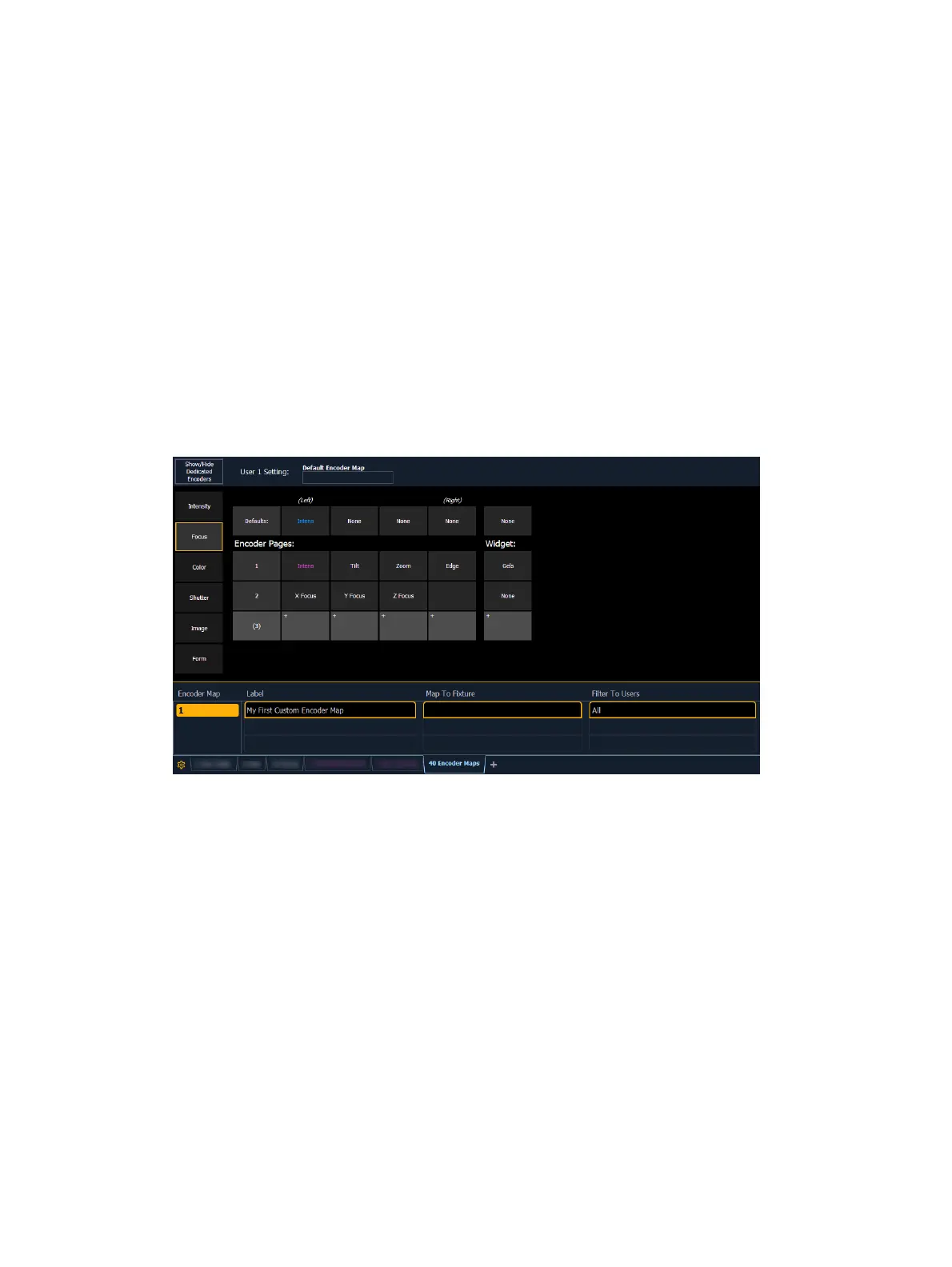
Encoder Maps Editor
To open the custom encoder map editor, select the encoder maps icon on the
Workspace
Layout Menu (on page90)
or use [Tab] [4] [0].
Creating Custom Maps
Create a map by entering the map number and pressing [Enter], and select a parameter
category (Intensity, Focus, etc) to customize.
Add parameters to the category by selecting an open encoder slot, and choosing a parameter
from the list to assign to it. You can also search for specific parameters.
To edit parameters that have already been assigned, select the parameter again and choose
from the following options:
Clear - removes the parameter assignment from the encoder slot, leaving it blank.
Delete - removes the parameter assignment from the encoder slot, moving all
subsequent parameters to the left
Insert Before - inserts a blank slot to the left of the selected parameter
Insert After - inserts a blank slot to the right of the selected parameter
Change Parameter - replaces the assigned parameter in that slot



 To Next Page