APOLLO user manual
Issue G
68
Specifying keyboard feature settings
You can control some aspects of the way a keyboard that is connected to the computer
will work. For example, you may want users to hear a sound each time they press a key,
or you might choose to switch on Num Lock by default each time they turn the computer
on.
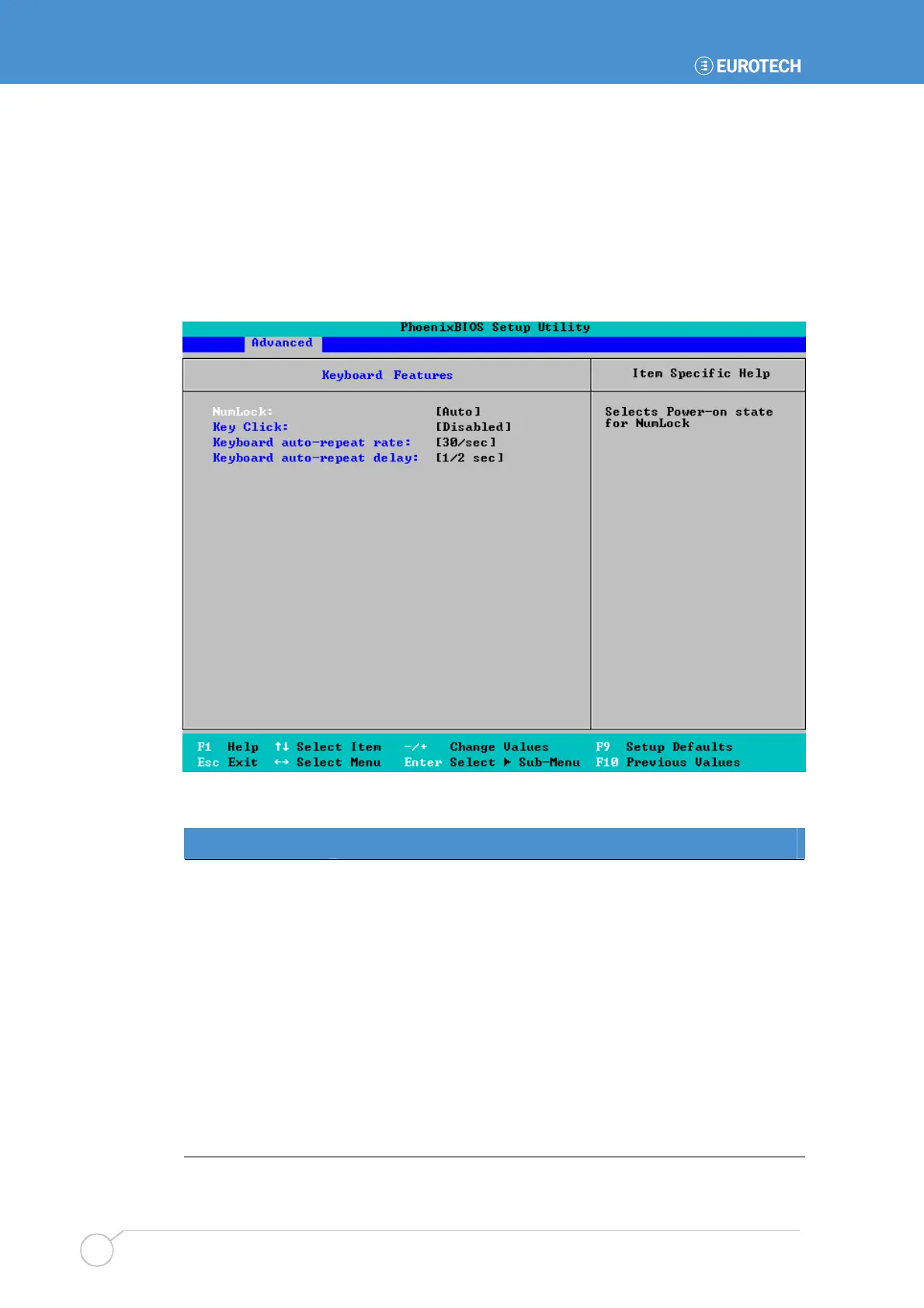
To specify keyboard feature settings, highlight Keyboard Features in the Advanced
menu and press Enter. The following screen is displayed:
The details you are prompted to specify for the keyboard are explained in the following table:
Field Explanation
NumLock
Determine whether Num Lock is to be turned on or off by default
when the computer is switched on. You can choose:
•
On. Num Lock is switched on when the computer starts up.
•
Off. Num Lock is switched off when the computer starts up.
•
Auto. If a numeric keypad is detected, Num Lock is turned on
automatically. Otherwise, it is turned off.
Key Click
Choose whether users should be able to hear a sound each time
they press a key. You can choose Enabled or Disabled.
Keyboard auto-
repeat rate
Choose how many times per second a keystroke is to be
repeated if the key is held down. You can choose 2, 6, 10, 13.3,
18.5, 21.8, 26.7 or 30 times per second.
Keyboard auto-
repeat delay
Choose how long a key must be held down before auto-repeat
begins. This can be ¼, ½, ¾ or 1 second.



 To Next Page