EVCO | 06.08.2021 | AZ | 18
CAN
005_c-pro3OEM_ON-OFF_Cieco_001_0.1_AZ
CAN
005_c-pro3OEM_ON-OFF_Cieco_001_0.1_AZ
114CP3OEE104
c-pro 3 OEM - Hardware manual
Housing and blind version conguration
Through a controller with user interface
Conguration
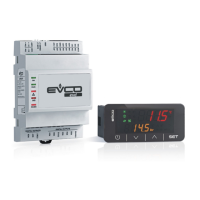
The following procedures show an example of how to congure a blind programmable controller through a programmable
controller with user interface (in the example c-pro 3 OEM LCD):
1. Disconnect the controllers power supply
2. Connect the blind controller to the controller with user interface through the CAN CANBUS port
3. Connect the controllers power supply
Switching ON/OFF the device
Progression Description
1
Connect the blind controller to the controller
with user interface through the CAN CANBUS
port
2
Touch UP and DOWN keys for 2 seconds:
the display will show the main menu
3
To switch OFF the device switch OFF the power
supply
Accessing the procedure from c-pro 3 OEM LCD
Key Instructions
Touch UP and DOWN keys for 2 seconds:
the display will show the main menu
Touch ESC key few times to return to the previous
displays
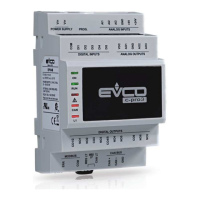
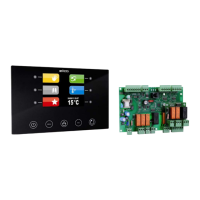
c-pro 3 OEM blind
c-pro 3 OEM blind
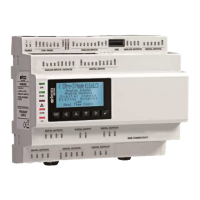
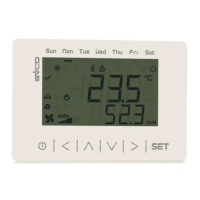
c-pro 3 OEM LCD
c-pro 3 OEM LCD
CAN node address setting
Key Instructions
Touch UP and DOWN keys for 2 seconds:
the display will show the main menu
Touch UP or DOWN keys to see the “Network” menu
Touch ENTER key to select the menu
Touch ENTER key to enter the password
Touch UP or DOWN keys to set-up the password
“-19”
Touch ENTER key to conrm the password
Touch UP or DOWN keys to see the “CAN Bus” menu
Touch ENTER key to select the menu
Touch UP or DOWN keys to see the “NetworkNode”
menu
Touch ENTER key to select the menu
Touch UP or DOWN keys to set-up the node [1]
Touch ENTER key to conrm the node
Touch UP and DOWN keys to select the right arrow
“>”
Touch ENTER key
Touch ESC key few times to return to the previous
displays
The default setting of the CAN node is 1.
Operate on the controller with user interface to set the
“NetworkNode” parameter to [ 1 ].




 To Next Page