4.3.3. Software Update (Parameters Only)
This function will allow only the Parameter settings to be loaded from a USB drive, but
basically requires the same procedure as were used in the Software Update above. To
perform a Parameter update please contact the manufacturer service support team for
the necessary files. These files will come in a zipped folder, containing the following files;
➢
CHILL.emi
➢
indexemi.arg
NOTE: the file index.arg changes according to the type of Software Update
(Software, Parameters or both Software and Parameters.
➢
parA.fac
A. Download the files onto a Pc.
B. Connect an empty, formatted USB drive to it.
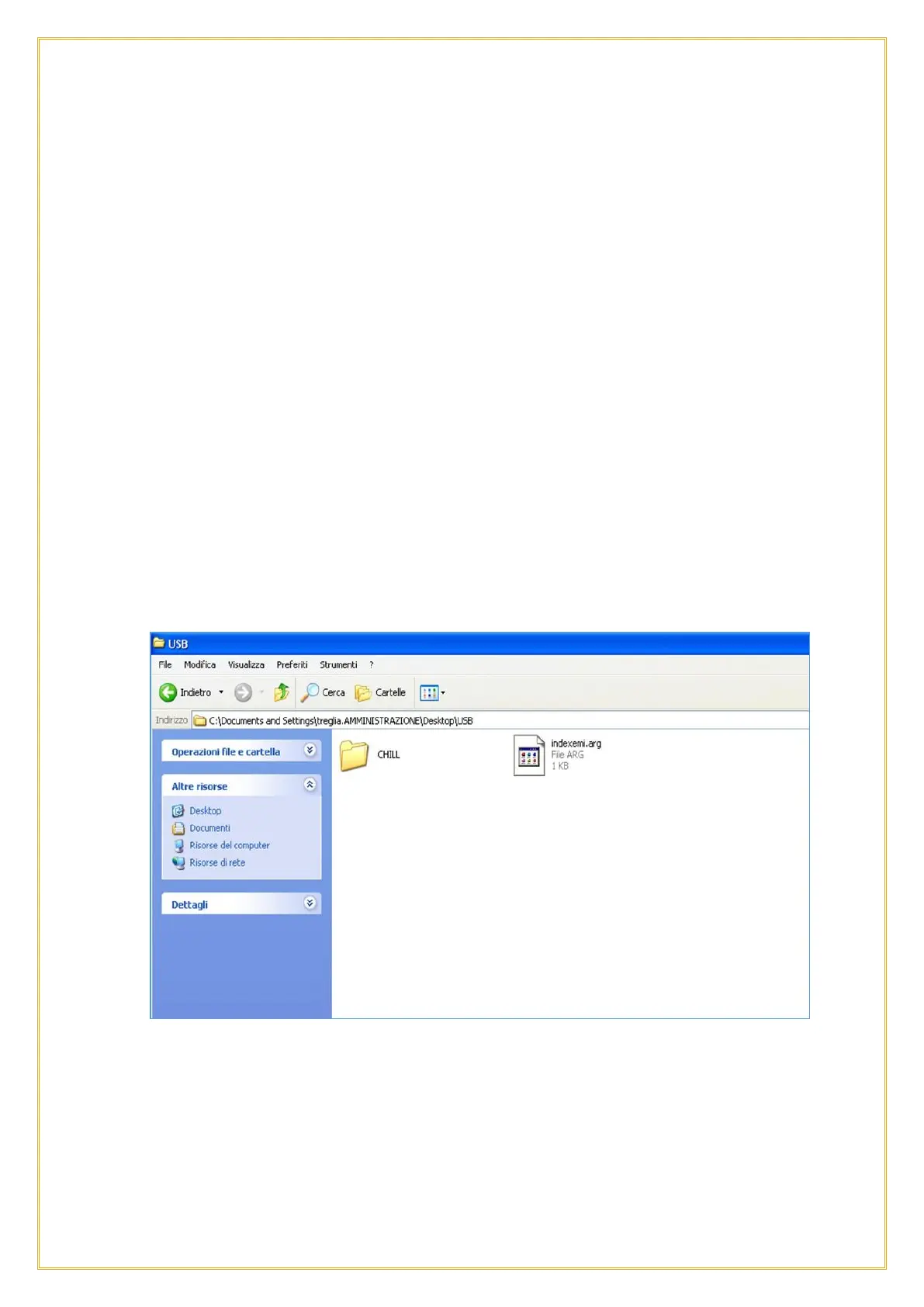
C. On the USB drive, create a folder and name it “CHILL.”
D. Copy the file CHILL.emi and parA.fac into the “CHILL” folder.
E. Exit from the “CHILL” folder and on the same USB drive, copy the files
indexemi.arg
The USB content will show as in the below picture:
A. Remove the USB from the PC, slide the right side of the Touch Screen bezel open
and connect the USB drive to the port.
B. Go to the USB function and select SOFTWARE UPDATE. A screen will pop up
asking to insert the USB key until the key is detected.


 To Next Page