© Boule Medical AB, March 2018. Article no. 1504496 Page 31
3. Operation (Sample Analysis)
Results
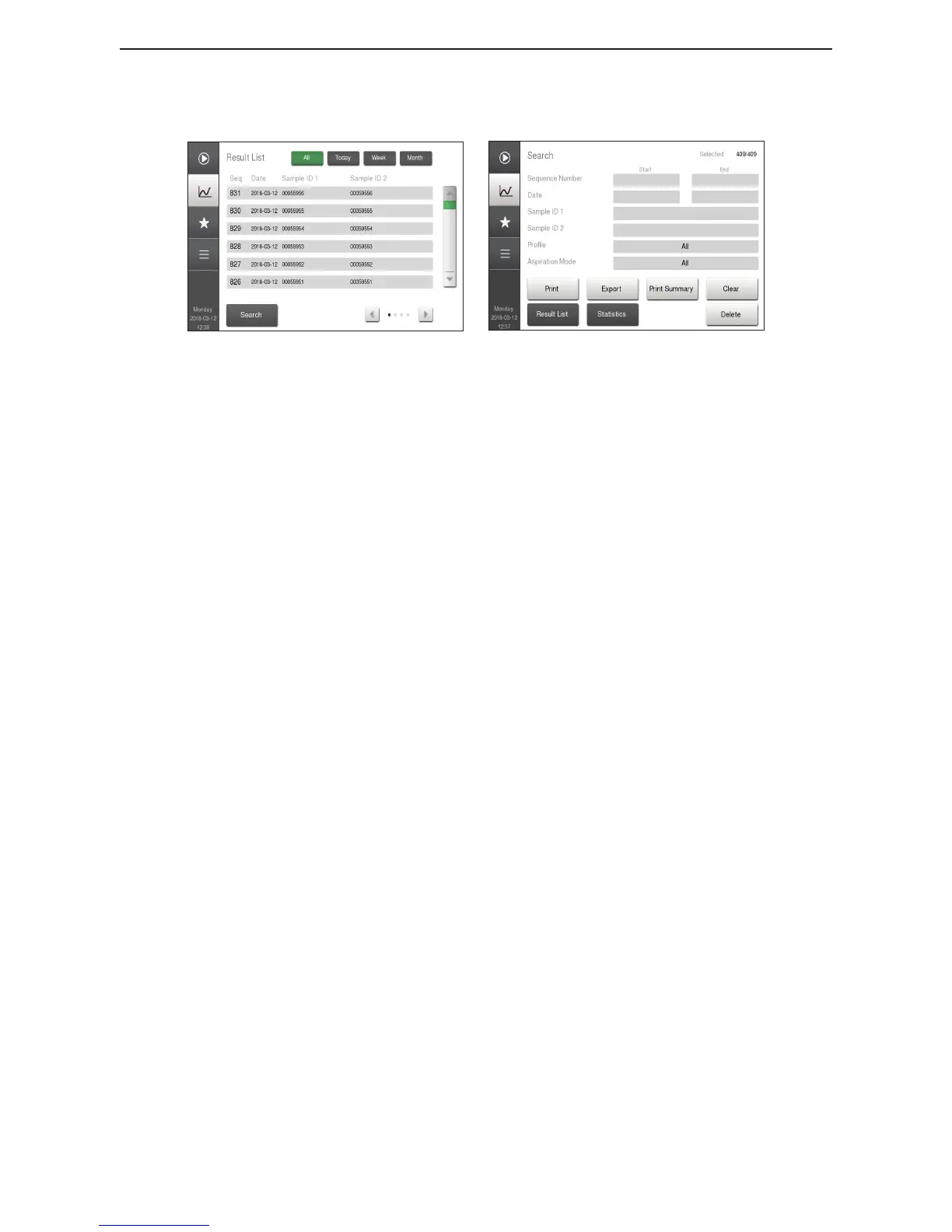
X Sample Result List and Search Function
Figure 42: Result List Screen
Figure 43: Search Screen
1 Enter Result List Mode Go to Result List screen to view list of results.
2 View Results To view a specic sample result from the list use the scroll
arrows to scroll to sample and then press on eld with desired
sample result.
3 Quick View of Results Quick View buttons have been setup to view the following
groups of sample analyses.
All
Tod ay
Week
Month
4 Search Function In Search mode the operator can search for samples using
specic search criteria.
Select the Search eld, in lower left-hand corner.
Press the eld to the right of the following criteria to narrow
search and then press Accept to view search criteria.
− Start Sequence number – End Sequence number
− Start date – End date
− Sample ID1
− Sample ID2
− Prole type
− Aspiration Mode
Press Clear button to Clear search criteria.
Press Result List button to cancel and return to list.
Search function will automatically clear search criteria
when another sample is analyzed or analyzer is turned OFF.


 To Next Page