Page 56 © Boule Medical AB, March 2018. Article no. 1504496
7. Menu Structure and Advanced Setup
Advanced Parameter Setup
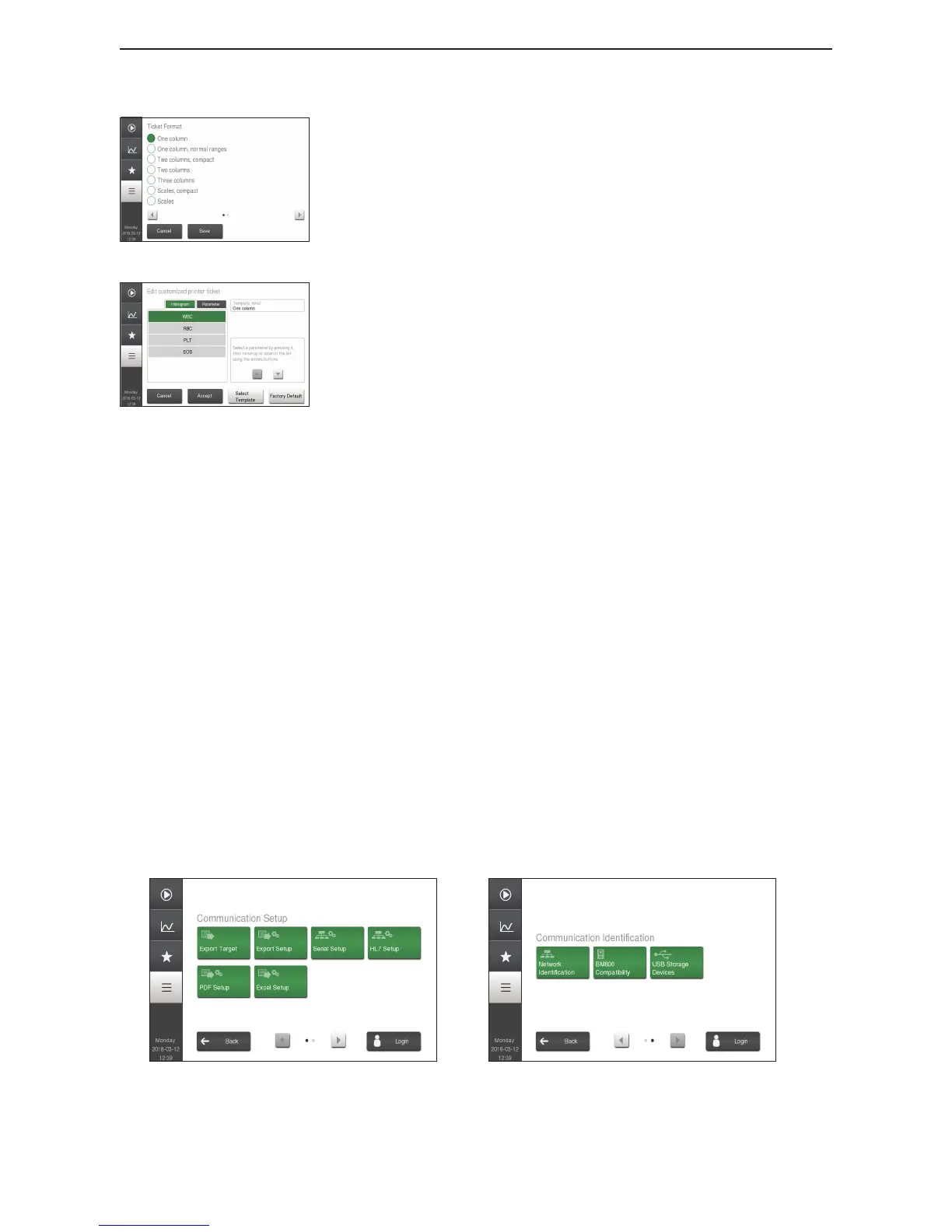
Figure 88: Edit Customized Ticket
Figure 89: Edit Customized Histogram Order
Parameter and Histogram order for custom ticket format
This function allows the user to choose the order of the
parameters and histograms on the printouts.
Firstly make sure the Printer Setup, Ticket Format is set
to Customized. Go to Printer Setup and Edit Customized
Ticket:
To change the Parameter order:
− Select the tab Parameter and press the button Select
Template to select a template to base the customized
ticket on.
− Select the parameter to change order for by pressing it
which will highlight it.
− Simply move the parameter up and down the list to a
new prefered position using the up/down arrows.
− Repeat for all desired parameters.
− Note: to insert a space before a parameter press New
Line, Insert.
− If a ticket with multiple columns has been used as a
template, it will be indicated by Column Delimeter
in the parameter list, and can then be highlighted and
moved in the same way as all parameters.
To change the Histogram order:
− Select the tab Histogram.
− Press the histogram to be moved, highlighting it.
− Move the histogram up and down in the list to the
prefered position using the up/down arrows.
− Repeat for all desired histograms.
X Communication Setup
In the Communication Setup menu the user is able to further dene communication format
settings:
Figure 90: Communication Menu
Figure 91: Communication Menu 2


 To Next Page