AvediaStream e2535/e3635 and e2655/e3655 Encoders V1.1
42 Administrator’s Guide
Test Pattern Mode
You can set the AvediaStream e2635/55 and e3635/55 encoders to output a test pattern
continuously (Always On), or when no input signal is detected (On when No Input). Select
Off (default) to turn the test pattern off.
To set the test pattern mode:
1. Click Test Pattern.
2. Choose Off, (default), Always On, or On when No input from the Mode drop down list.
3. Click the Apply button.
Test Pattern
You can choose the test pattern to be output. Select Solid Colour (default) to output a colour
selected from the Colour drop down list (or configure a custom colour), or select one of the
supplied patterns.
To specify the test pattern:
1. Click Test Pattern.
2. Select a test pattern or solid colour from the Pattern drop down list.
3. Click the Apply button.
Solid Colour
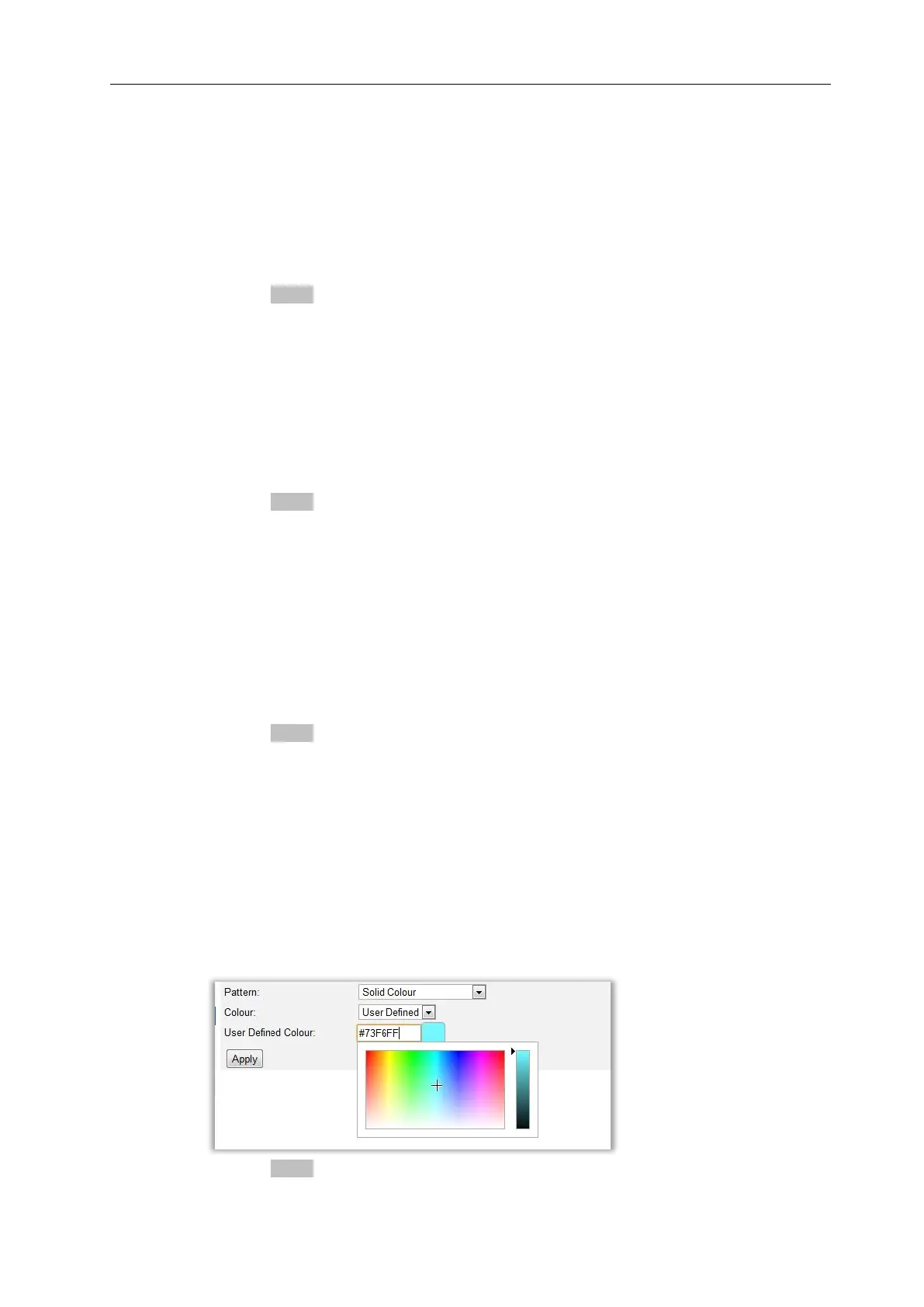
If you have selected the Solid Colour test pattern option, you can specify a preset or custom
colour to be applied. Custom colours are specified in RGB
format using the colour picker or by
entering the required values (#000000 to #FFFFFFF).The default is Black.
To specify a preset solid colour:
1. Click Test Pattern.
2. Ensure the Solid Colour pattern is selected.
3. Select the required preset solid colour from the Colour drop down list.
4. Click the Apply button.
To specify a custom solid colour:
1. Click Test Pattern.
2. Ensure the Solid Colour pattern is selected.
3. Select User Defined from the Colour drop down list.
4. Click in the entry field to either:
directly enter the RGB value and confirm the correct colour in the adjacent colour
swatch
click and drag in the displayed colour picker and brightness panels to display the
required colour in the adjacent colour swatch (Note that the RGB value is updated
accordingly)
5. Click the Apply button.


 To Next Page