3.5 Position on map
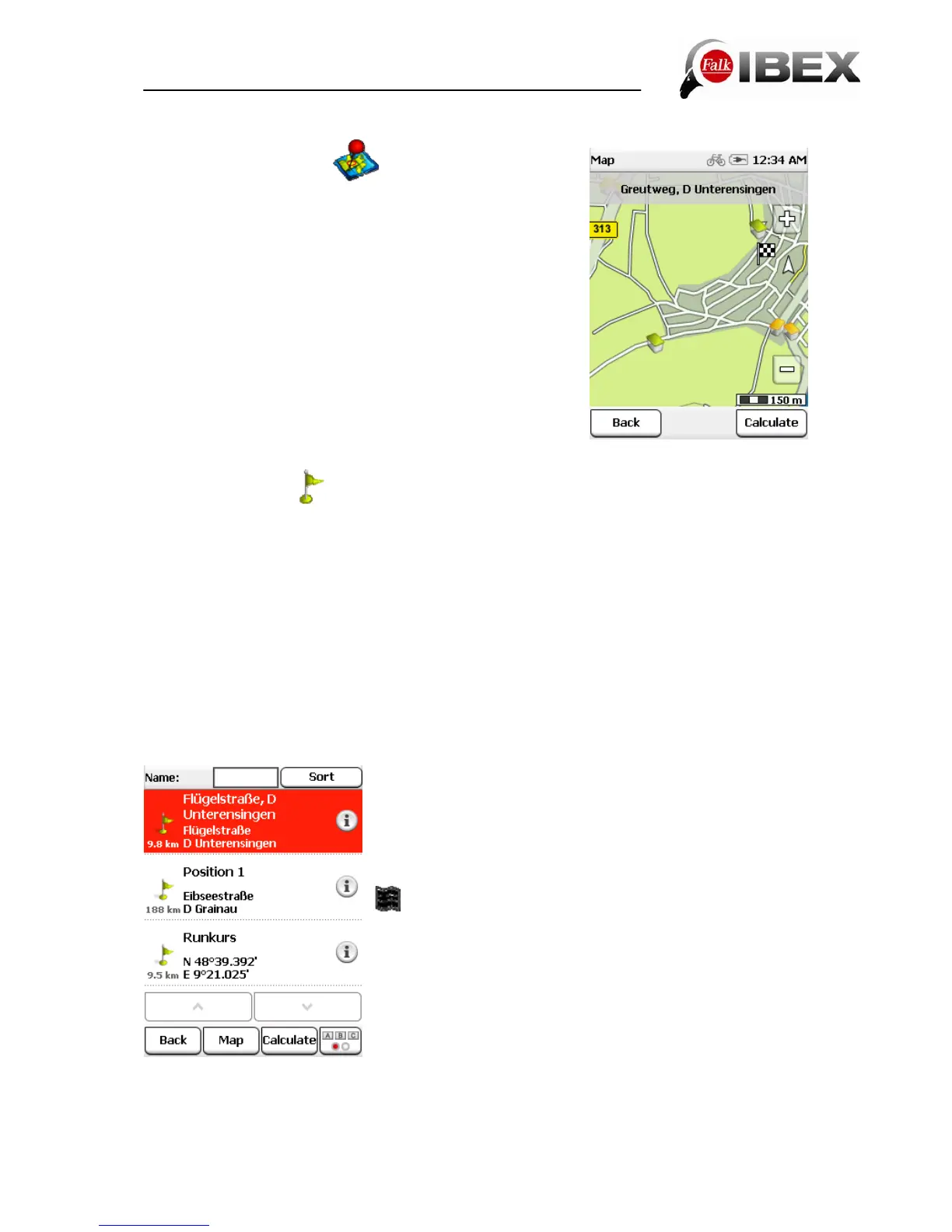
Here you can mark a point on the map in order to navigate
there. You can also move the map here using your finger.
If a point which is located in a city or on a street is marked,
the address for this point is displayed. Otherwise the
geocoordinates are displayed.
Tip: Zoom out via the "minus" button so that you can move
the map to the correct point more quickly.
3.6 Waypoints
A waypoint is a position or address which has been saved. You can create waypoints
yourself (see Chap. 10) so that you can then navigate to the point again at a later date.
Here you can now select a destination from the waypoints which are located on your device.
These may be waypoints you have created yourself or imported waypoints.
To do this, a search centre must first be stipulated.
The waypoints are then displayed sorted according to their distance from this point.
The search centre can be your current location, the current destination, along the route, a
city, an address, a position on the map or coordinates.
As an alternative to a search centre, you can also tap on "Display all waypoints"; all
waypoints will then be displayed sorted in alphabetical order.
The results are then displayed in a list.
You now have the following options:
Sort - the waypoints can be sorted in alphabetical order or
by distance.
- displays the currently selected waypoint on the map
Calculate - starts the route calculation to the selected
waypoint
Double click - opens the detailed view for a waypoint
The further functions in relation to waypoints are explained
in Chapter 10.
Falk IBEX User Manual 17


 To Next Page