4. Trip computer
The trip computer provides you with lots of data and figures
while you are on the move.
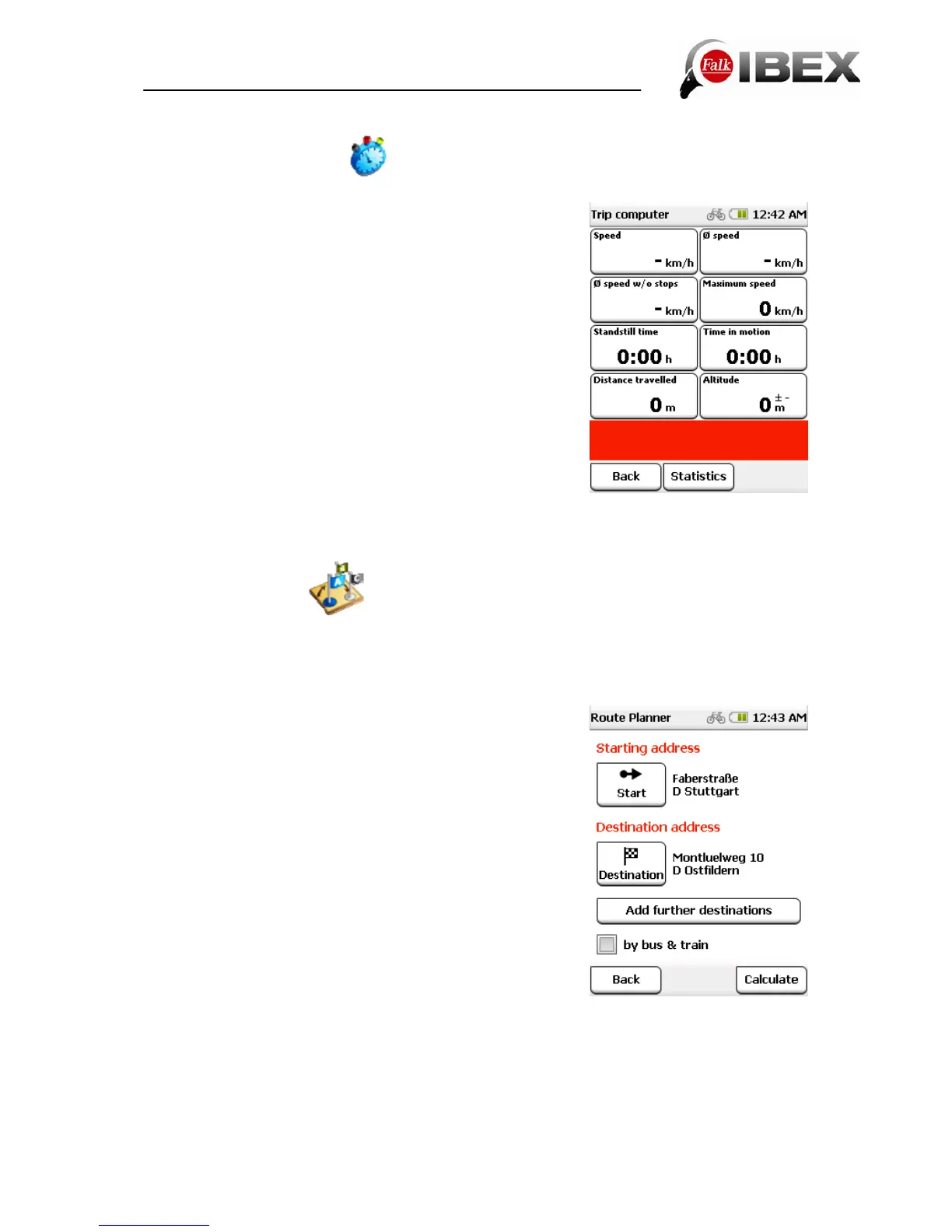
When you tap on trip computer, six preset figures are shown
to you.
However, lots of other figures can also be displayed.
To do this, tap on one of the boxes displayed. You can then
select from a list of all the available data which figure you
would like to have displayed in this box.
The destination is displayed in the red box at the bottom.
Back takes you back to the main menu.
Hidden beneath the Statistics button are further figures and
data which relate to the route you are currently travelling on.
There you can for example view the complete gain or loss of
altitude which you have experienced. With the Reset button
you can reset all values.
5. Tour planner
Tours are routes which contain several destinations one after the other. You can compile
your own tours on the device. You can use all sorts of destinations to do this.
5.1 Create new tour
Tap in the main menu on Tour planner.
Via "Plan tour" you can compile a tour for yourself.
The preset starting point is your current location.
To change this, simply click on the "Start" button. You then
have several options for entering a starting point (e.g.
address, previous destinations etc.)
You can then also enter the destination point in the same
way.
If you want to plan the route using public transport, tap on
by bus & train (see Chap. 3.13.2).
When you tap on Calculate, the route is calculated and
displayed on the map.
In addition to the functions for the calculated route from the normal destination entry, you can
also simulate the calculated route here (not where there are several stations).
The route is run through virtually here. You will see on the map how the route proceeds and
when and how turns are made. To do this, tap after calculation on Demo.
For routes with several stations, you can add destinations to the tour by tapping on the "Add
Falk IBEX User Manual 23


 To Next Page