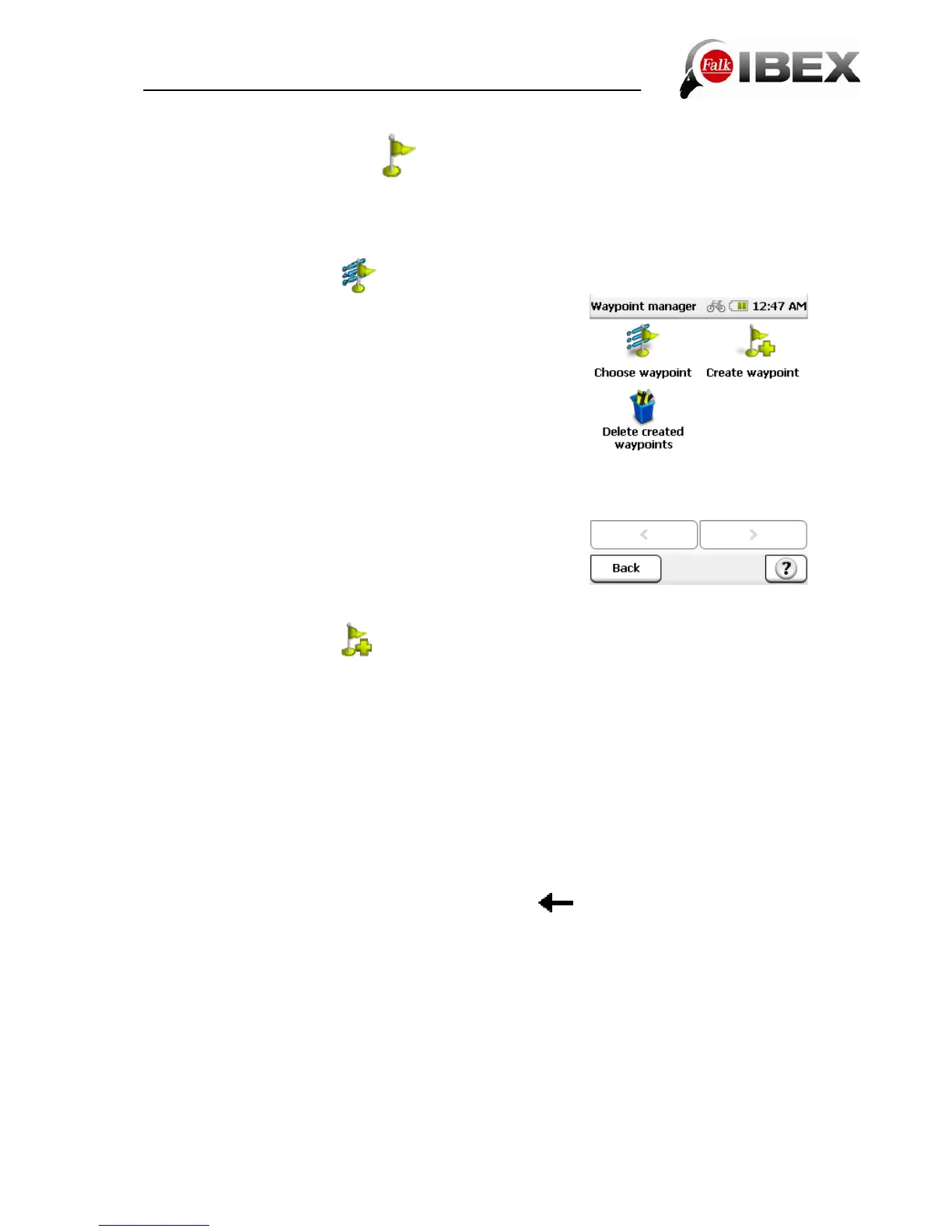
10. Waypoint manager
Here it is possible to select, create and delete waypoints.
10.1 Choose waypoint
If you want to navigate to a waypoint, tap on "Choose
waypoint". Then specify the search centre you want. The
waypoints will then be displayed, sorted by their distance
from this centre.
Alternatively, you can tap on "Show all waypoints". All
waypoints will then be displayed sorted in alphabetical
order.
Once you have selected a waypoint from the list, you can
display the waypoint on the map by clicking on Map,
navigate there directly by clicking on Calculate or call up the
detailed view with a double-click.
The detailed view offers similar possibilities to the detailed
view for a point of interest.
10.2 Create waypoint
You have various possible options for creating a waypoint.
You can:
Use your current position, enter an address, select a position on the map, use one of
your previous destinations, enter coordinates or select a point of interest.
Entry then takes place in the same way as when entering a destination (see Chap. 3.6).
Once the destination has been defined, you are asked to enter a name for the new waypoint.
In the row for the name, initially the address or the geocoordinates of the waypoint are
automatically displayed. However, it is advisable to assign an appropriate name to each
waypoint, particularly if several waypoints have already been created.
You can change the name by pressing the back button
for a long time and entering
another name.
Confirm the name with Ok and the waypoint is then saved.
Falk IBEX User Manual 45


 To Next Page