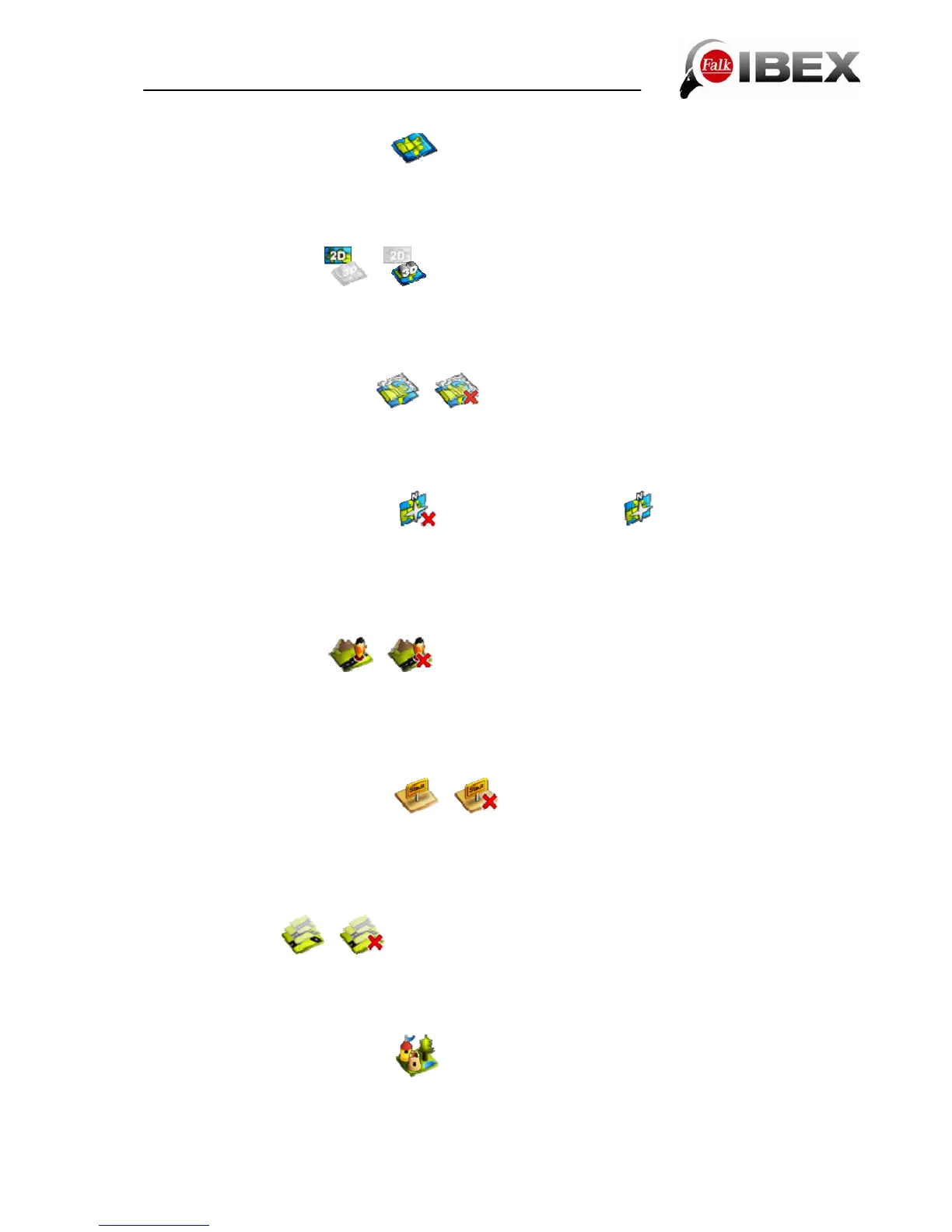
6.2 Presentation of the map
Here you can make various settings which affect the map view. To do this, click in the menu
on Settings > Presentation of the map.
The following options can be changed:
6.2.1 Map perspective
/
With the map perspective you can switch between the two-dimensional and three-
dimensional representation of the map. The respective setting is indicated by the symbol and
the text 2D or 3D.
6.2.2 Raster maps (optional)
/
With the raster maps you can view landscapes and cities from a bird's-eye perspective via
topographic maps. The raster map thus makes it easy for you to get your bearings.
Requirement: You have activated the 2D map view and installed raster maps.
6.2.3 In direction of movement
/ map orientated north
The map can be orientated either in the direction of movement or always to the north.
Note: If you select "In direction of movement", the positional arrow always points upwards.
This setting facilitates orientation. If you select "Map orientated north", the positional arrow is
located in the middle of the map and rotates according to the direction of movement.
6.2.4 Position on road
/
Here you can stipulate whether your current position should be mapped onto the route
network.
Note: For geocaching and for navigation on open terrain, it is essential that you switch off
this function.
6.2.5 City names on basic map
/
If you do not have maps for a continent or country, this function still allows you to display the
city names on the basic map to allow better orientation.
If you then subsequently go on to purchase more maps, you can deactivate the labelling on
the basic map here.
6.2.6 Auto zoom
/
When auto zoom is activated, the scale of the map is adjusted on the basis of your speed (at
high speed the map zooms out). If you switch off the auto zoom, you can set the scale of the
map on the map view screen yourself. This is then retained.
6.2.7 Points of interest on map
Here you can choose which points of interest should be displayed with small symbols on the
map. To do this, select the categories you want. All points of interest in the chosen
categories will then be displayed on the map.
Falk IBEX User Manual 30


 To Next Page