12.4.2 Create map error while travelling
If you discover an error in the maps while you are out and about, you can also record this
quickly and easily while you are travelling.
To do this, go to Report map error on the rapid access menu on the navigation view. Your
current position is used as the error location. However, you can also change this at a later
date.
You should then select the type of error and click on Ok.
Note: All created map errors can be edited and changed afterwards (see Chap. 13.4.4).
12.4.3 Create POI error
If you notice an error with a point of interest, you can also record this. In the detailed view for
a point of interest, you will find all of the information for this destination.
To create an error for this point of interest, tap on the Options tab at the top and then on
Report error. You can then select an error type from the list and, if you wish, enter a
comment about it (Comment).
Confirm your selection with Ok.
12.4.4 Edit map and POI errors
If you want to change a map or POI error that you have created, tap under Extras > Map
errors on Saved map errors or on Saved POI errors depending on which error you would
like to edit.
On the map view you will then see all of the map and POI errors which you have created.
You can use the arrows at the bottom to switch back and forth between the errors.
Select the error that you would like to change and tap on Edit.
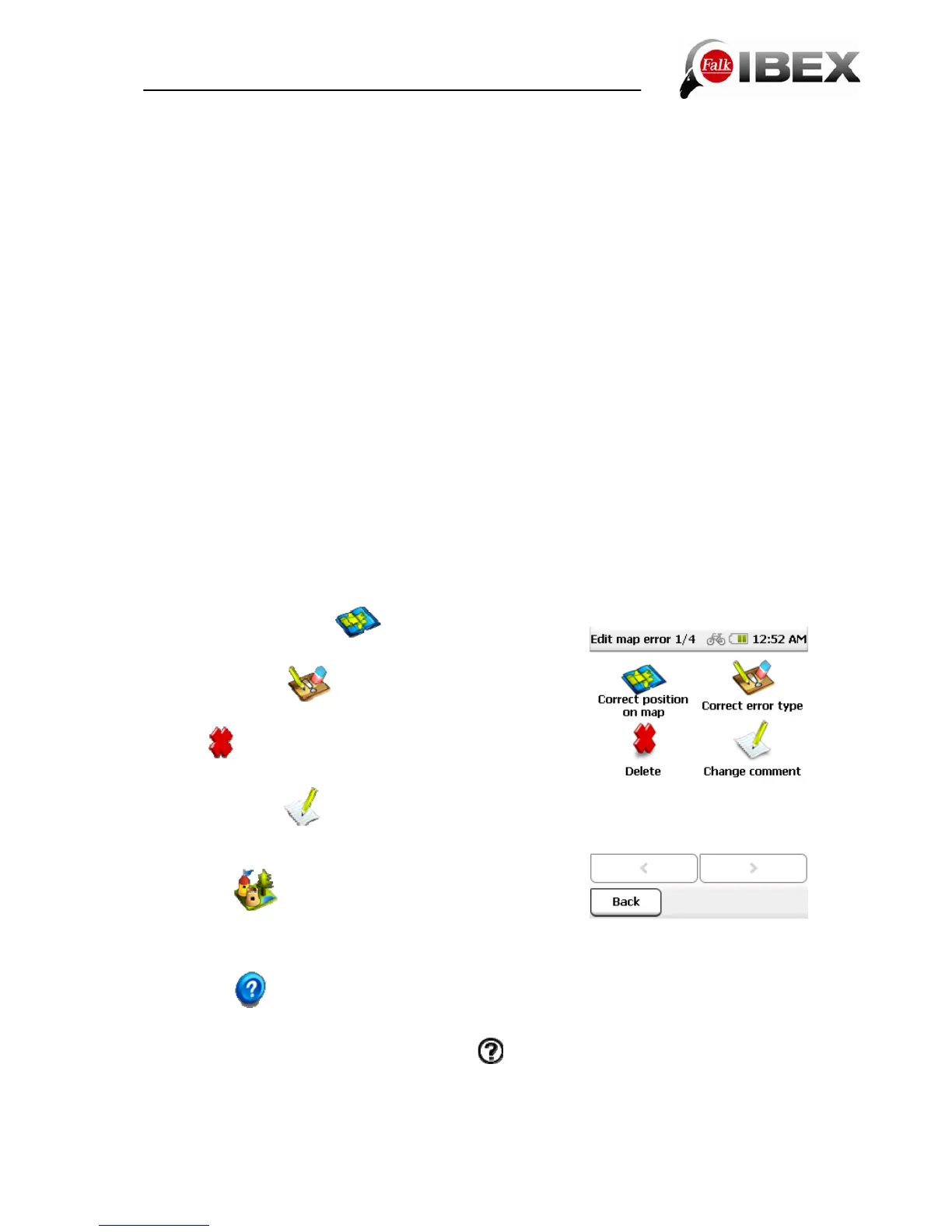
You have the following possible options for editing the error:
Correct position on map
– Here you can change the
position of the error if it was not entered correctly.
Correct error type
– Here you can change the type
of error.
Delete
– Here you can delete errors that have been
entered.
Change comment
– If you would like to change your
comment about the recorded error or would like to enter a
comment at a later date, you can do this here.
POI details
(only for POI errors) – Here you can
once again view the information about the POI for which you
have created an error.
12.5 Help
Help takes you to the online help containing brief operating instructions for your navigation
system. On each screen on which you see the
symbol, you can tap on it and you will be
guided directly to the chapter in the Help section which deals with the corresponding topic.
This allows you to find an explanation about the respective function quickly in lots of different
contexts.
In addition, in the Help section you can select "Demonstrate functions" to get a
Falk IBEX User Manual 55


 To Next Page