Falk IBEX User Manual 58
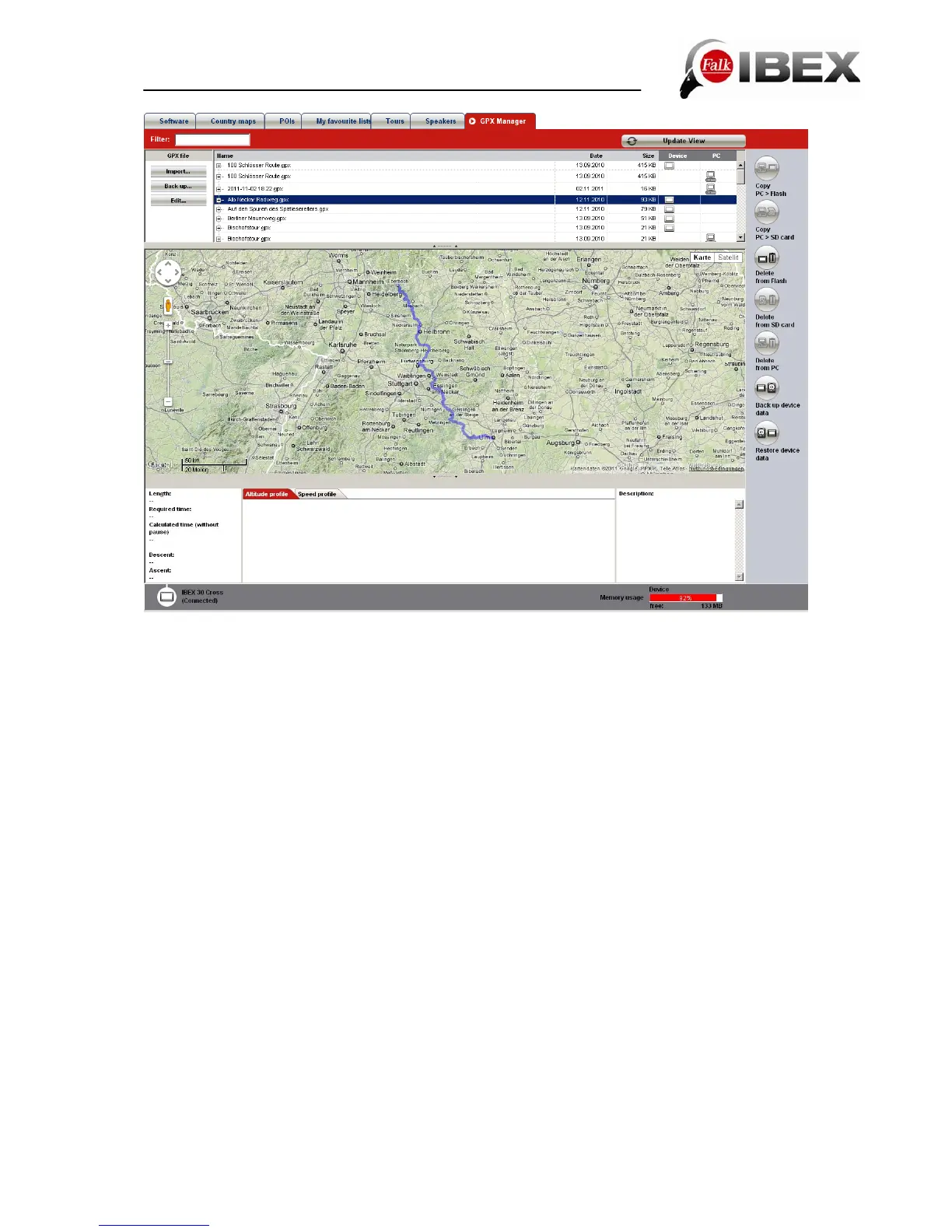
You then have the following possible options:
Back up to PC – The selected GPX file from one of the two windows can be saved to a
freely selectable directory on the PC.
Delete – Deletes the selected GPX file from the device.
Import – Imports a GPX file from a PC to your device. To be able to manage the GPX files,
the files to be imported must first be imported to the Navi-Manager.
Update – Updates the content of the windows if, for example, you have imported a GPX file
again.
You can display your waypoints, tracks and geocaches on the map.
Altitude and speed profiles and the time required for the tracks can be called up.
Transfer and save GPX files to the PC
To save imported GPX files and GPX files you have created yourself to the computer,
proceed as follows:
1. Select the file you want and use the "Save" button.
2. Once you have acknowledged the notice about the intended storage location with "OK",
two entries will appear in your list. There is an entry for the GPX file on your navigation
device and an entry for the GPX file on your computer.
3. To find the file you want again on your PC, mark the file and, by clicking the right mouse
button, call up the menu item "Show folder". The folder in which the GPX file has been saved
is automatically opened.
Import GPX files from your PC to the navigation device


 To Next Page