19
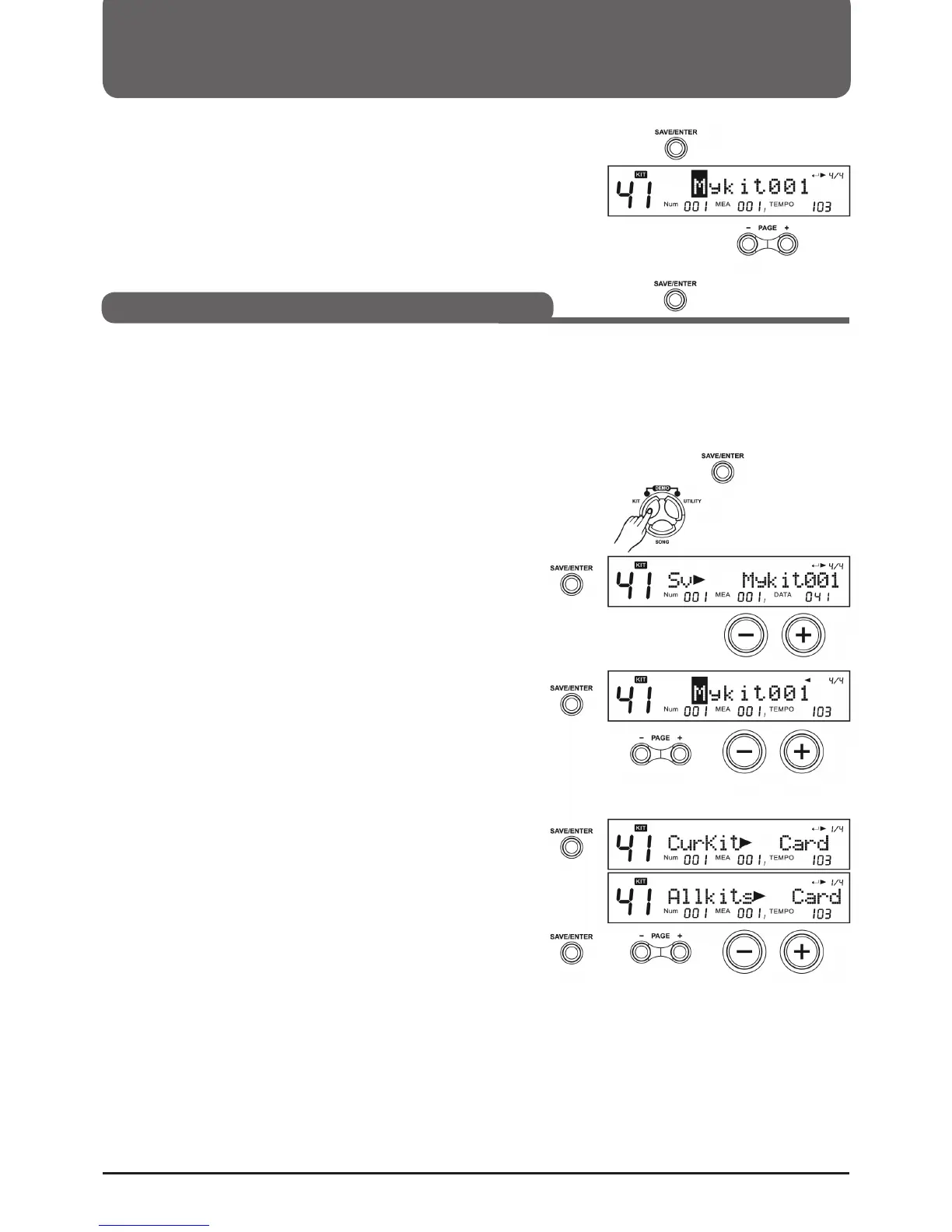
3. Press (SAVE/ENTER) and the user name appears in the display.
4. Use the PAGE +/- buttons to move the cursor to the desired
position. Use the +/- buttons or the function dial to change the
letters.
5. Press (SAVE/ENTER) again to complete the operation.
The module allows you to modify kits and then save them. You can
do this locally or on an SD card.
Saving a kit locally
Note:
In the KIT menu, press the (SAVE/ENTER) button or use the menu
to save.
1. Press KIT, then use the +/- buttons or the selection dial to select
a kit as the source.
2. Press (SAVE/ENTER) and then use the +/- buttons or the
selection dial to select a kit as the destination.
3. Press the (SAVE/ENTER) button. The Rename page appears.
4. Use the PAGE +/- buttons to move the cursor to the desired
position. Use the +/- buttons or the function dial to change the
letters.
5. Press the (SAVE/ENTER) button again to complete the operation.
Saving a kit to an SD card
1. Make sure there is an SD card in the card slot.
2. From the KIT menu, select a kit to save as the source.
3. Press (SAVE/ENTER), then PAGE +/- buttons to select
"CurKit > Card" or "AllKits > Card" pages.
4. Press (SAVE/ENTER) to go to the Rename page. Use the
+/- buttons or the function dial to change the name.
5. Press the (SAVE/ENTER) button again to complete the operation.
Note:
If the edited kit is not saved before you select another kit or turn off
the power, all changes will be lost.
If you save a kit to an SD card, it will also automatically be saved
locally if the SD card does not work, the display will show "No
Card" or "Card error!
Selecting a Drumkit (KIT)
Save kit


 To Next Page