EN
101
DEBUG SETTINGS
In the Debug Settings sub-menu it’s possible to enable or disable the Debugging access for Fimer Service purposes.
MODBUS
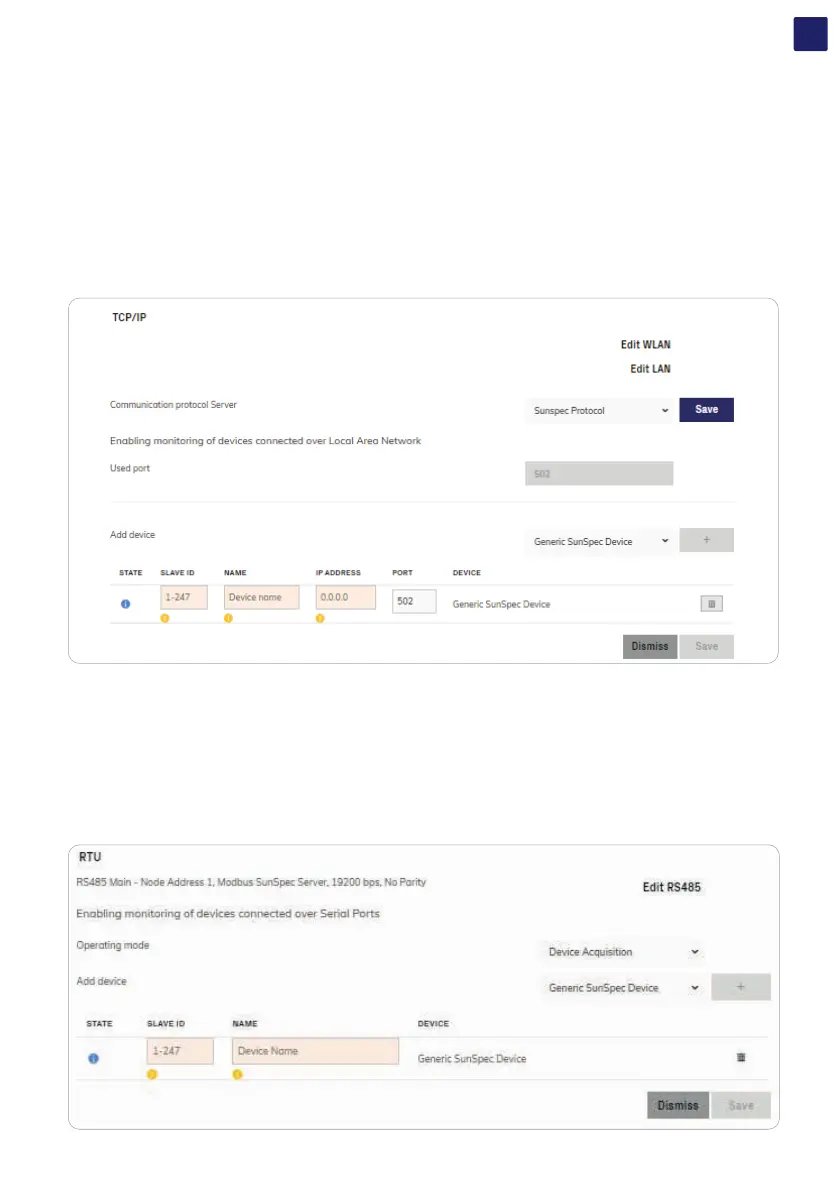
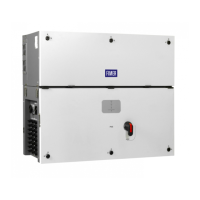
In the Modbus sub-menu it’s possible to enable and set parameters related to external monitoring and control systems over ethernet/
wireless channels (“TCP/IP” section) or over RS485 communication line (“RTU” section).
• TCP/IP
In the TCP / IP (WLAN / LAN) section there are different settings based on the type of external device connected to the inverter.
1. If the inverter acts as CLIENT and the external device as SERVER:
- Click the “Edit” button and select the type of external device
- According to the device, select the communication protocol
- Click the [+] button and the added device is displayed
- Change the SLAVE ID / NAME / IP ADDRESS / DEVICE settings and save them.
2. If the inverter acts as a SERVER, set the port communication protocol only (Communication protocol server)
RTU
Select one of the following Operating Modes: Modbus SunSpec, Device Acquisition.
1. Modubus SunSpec Server:
- Select “Edit RS485”, - Select Protocol Type as “Modbus SunSpec Server”.
- Configure Node Address, Baud Rate, Parity. - Please note that this will delete the previous configuration.
2. Device Acquisition:
- Select “Edit RS485” - Select Protocol Type as “Device Acquisition”
- Configure Baud Rate, Parity. - Please note that this will delete the previous configuration.
- Click “Edit” button
- Select device type in the “Add device” field. It’s possible to choose between “Generic SunSpec Device” and “ABB B23/24 Power Meter”,
then click the [+] button to add the new device.
- Change the SLAVE ID / “NAME” if necessary and save


 To Next Page