EN
82
7.2.2 Commissioning Via Web User Interface - Wireless connection
CONNECTION TO THE INVERTER - WIRELESS
Commissioning could be carried out via wireless connection through the inverter’s Web User Interface. Initial setup of the system must
therefore be carried out via a tablet, notebook or smartphone with a wireless connection.
• Close the DC disconnect switches (15) to supply the inverter with input voltage from the photovoltaic generator or (only in case PVS-
100/120 PRE-CHARGE BOARD KIT is installed) close the AC switch downstream of the inverter (and AC disconnect switch (09) for the
-S2, -SX2, SY2 wiring box version) to supply the inverter with AC grid voltage. In the pre-commissioning phase the “Alarm” LED keeps
quickly flashing, “Power” and “GFI” LEDs are OFF.
ATTENTION – A This inverter can be powered both with DC or (only in case PVS-100/120 PRE-CHARGE BOARD KIT is installed)
AC sources. In case of DC source is used, make sure that irradiation is stable and adequate for the inverter commissioning procedure
to be completed.
• Once powered, the inverter will automatically create a wireless network (approx. 60 seconds after switching-on).
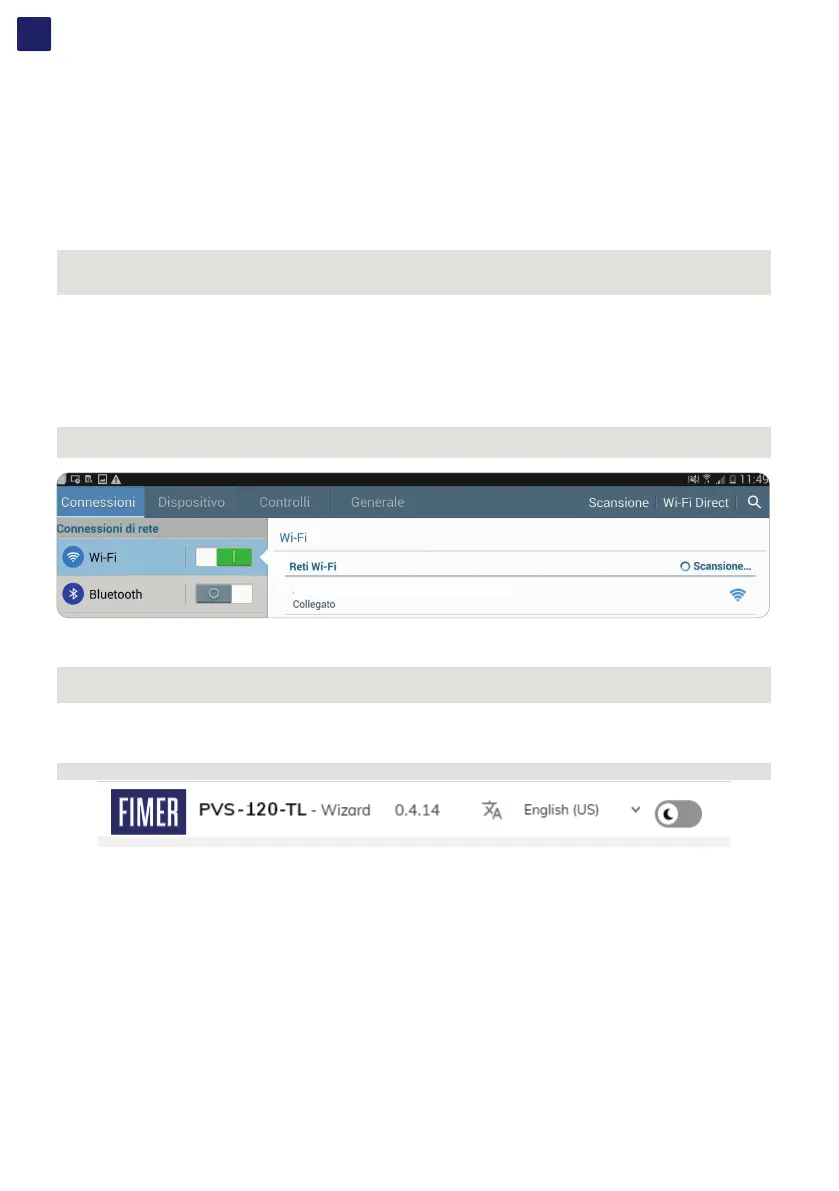
• Enab le t he w ire le ss c on ne ct io n on t he dev ic e w hic h is b ei ng us ed f or th e bo ar d set up (ta bl et, s ma r tp ho ne or P C) and c on ne ct i t to th e Ac c es s Poi nt
created by the inverter system: the name of the wireless net work created by the system that the connection should be established with, will be:
ABB-XX-XX-XX-XX-XX-XX
where “X” is a hex digit of the wireless MAC address (MAC address can be found on the “Communication Identification Label” placed
on the side of the inverter).
NOTE – D The screens shown below pertain to a tablet with the Android operating system. Screens on other devices or operating
systems may differ.
ABB-XX-XX-XX-XX-XX-XX
• When required enter the PRODUCT KEY (printed on the “Communication Identification label” and applied during the commissioning
phase to the plant documentation) as access point password.
NOTE – D It’s required to digit also the dash “-” characters of the Product Key in the password field.
NOTE – D In case of need, product key can be recovered by Aurora Vision Cloud or by calling Fimer technical support.
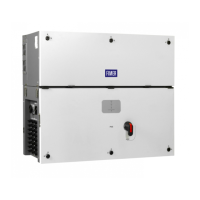
• Open an internet browser (recommended browser: Chrome versions from v.55, Firefox versions from v.50) and enter the pre-set IP
address 192.168.117.1 to access the Web User Interface. Web User interface has easy wizard procedure to commission the inverter.
NOTE – D The language of the wizard could be changed by clicking on the upper status bar


 To Next Page