Finder2.0 User Guide |
www.flashforge.com
7.2.4 Print from FlashForge Cloud connection
1) Turn on [WiFi] connection on printer’s setting interface to connect the printer to Internet with
WiFi. ( Make sure the printer has connected to Internet.)
Turn on [FlashForge Cloud] connection on printer’s setting interface.
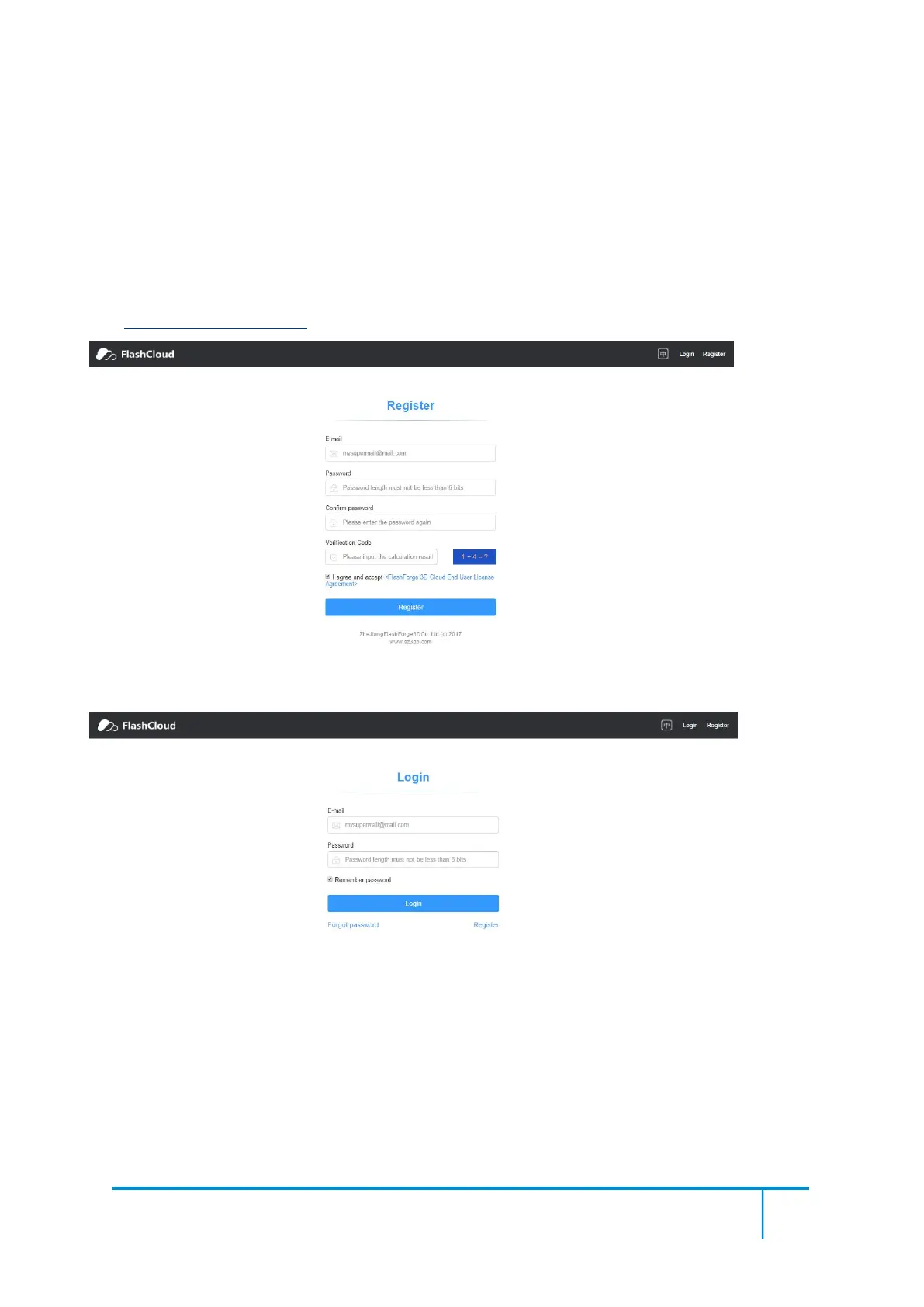
2) Register a FlashForge Cloud account with your computer, on website:
https://cloud.sz3dp.com/
3) Register your account on FlashForge cloud: After activate your account through your email
box, login in Flashforge cloud with your account.
4) After login in cloud with your own account, click[My printer]—click[Add printer].
Input your Printer's Name and Flashcloud Registration Code in [Add printer] interface. Printer's
Name is edit and input by yourself, it can help you identify printer type, user name or using date.
Registration Code is showed in your printer's [About] interface.












 To Next Page