Hunter User Guide | www.FlashForge.com 400-699-1063
Click [File]--[Save Project] in the menu bar to save the file as a project file with the
“.fpp” suffix, all models in the scene (include support) are independent. After
reloading the files, extruder configuration information and model position will be the
same as the configuration during saving.
Click on [File]--[Save as...] to save the model as project file .fpp or .stl and .obj.
For .stl and .boj, models are integrated as one (include support part). If load it again,
only the position of the model was saved, not included the printing parameters.
③ Preferences
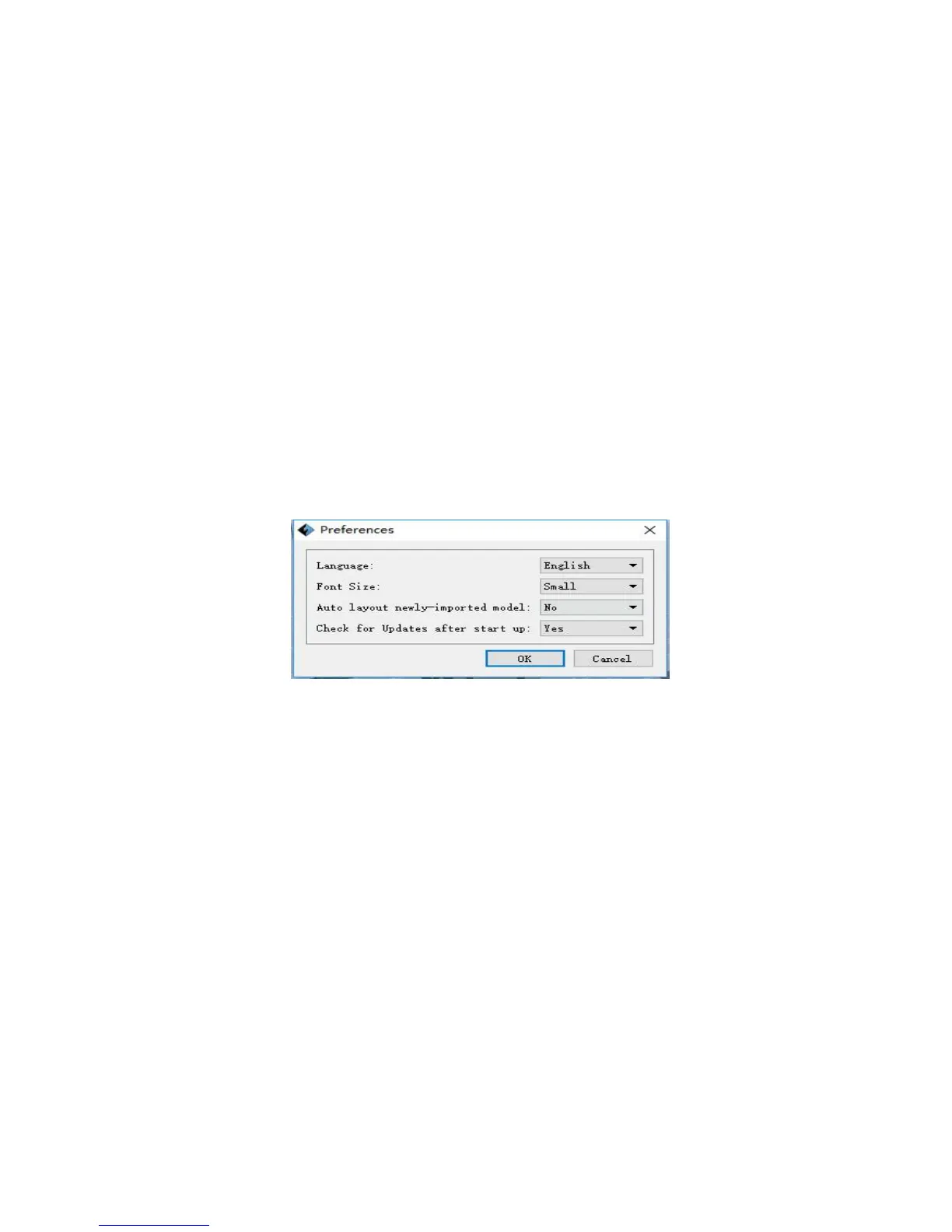
Click [File]--[Preferences], you can choose language and if needs detecting update
● Language: The software supports several languages, namely, Chinese (simplified
Chinese and traditional Chinese), English, French, Korean, Japanese and so on.
● Font Size: Set the font size.
● Auto layout newly-imported model: Set Yes or No.
● Check for Update after start up: It is used to preset if it is necessary to activate
the online automatic update function, if choose yes, every time when you open
software, it can online detect if it is a new version software, once new version found,
it will reminds users to download and install new version firmware.











 To Next Page