FOM16 Installation Description
FOM16-V2.0-20021114
-35-
7.2.1 Toolbar
Toolbar consists of four click bottoms.
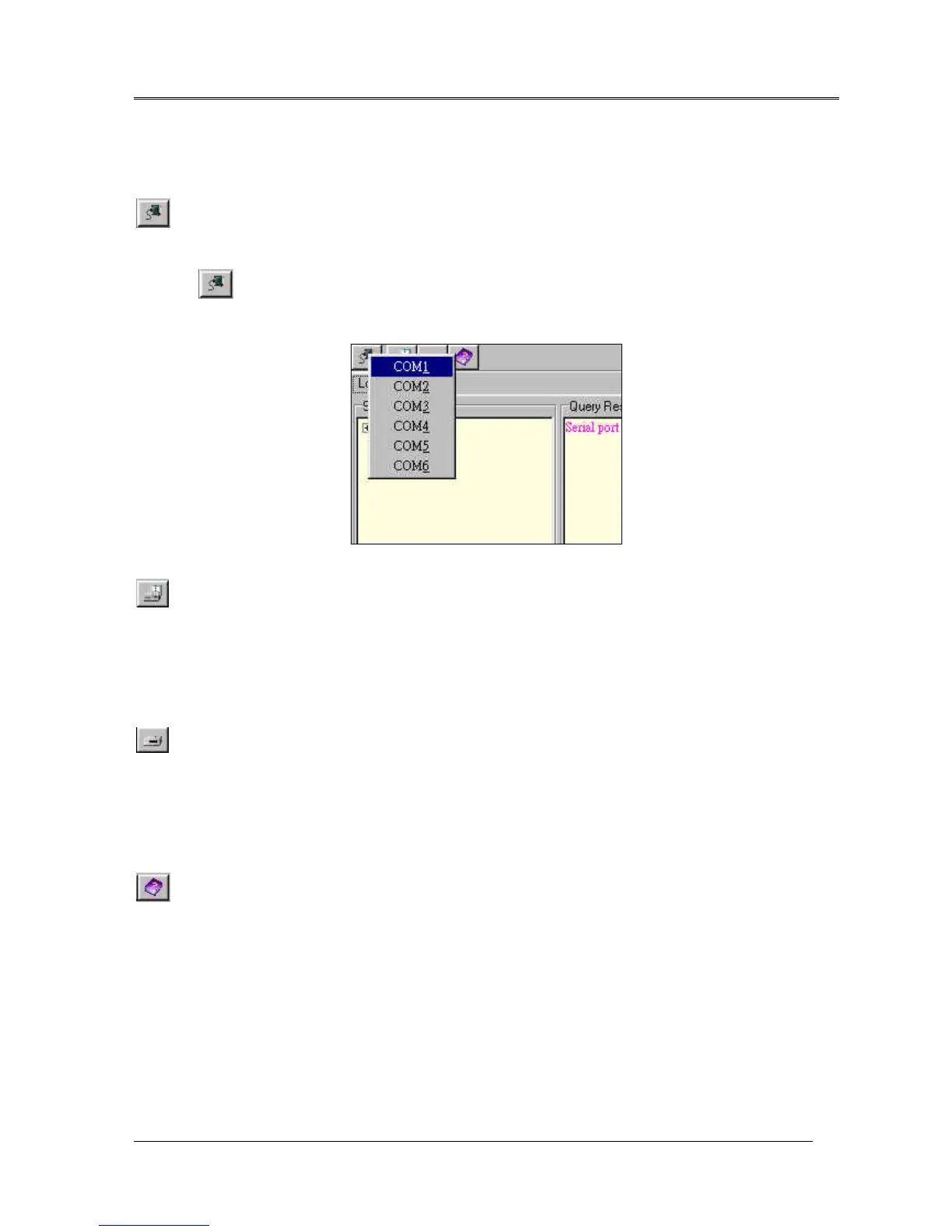
User chooses a communication port to communicate with FOM16. Set the Communication Port by
clicking bottom. A popup menu is shown as Fig.16. User needs to connect PC COM port to the
9-pin CID connector on the front panel of FOM16.
Fig.16 Communication port setup
Click the Local Log bottom, and a log file is opened. Log File is run under Text editor or WordPad. If
user wants to clean Log file contents, user selects all contents and deletes them. Save the contents by
press the “SAVE” bottom on Text editor or WordPad. Log file is saved on PC, not on FOM16. User can
check the log file to view the history items.
Remote Log bottom is clicked, and the log file is opened. Text editor or WordPad opens log file. If user
wants to clean Log file contents, user chooses all contents and deletes them. And users click “save”
bottom on Text editor or WordPad. Log file is saved on PC, not on FOM16. User can check the log file
to view the history items of Remote stored in the FOM16.
Help bottom provides an on line help HTML format Document.
7.2.2 System tree command window
The system tree command window provides a user friendly command input. User can choose the desired
item and click, the response will be shown immediately. The system tree command window is shown in
Fig.17. System tree command consists of three main command sets. They are system control, optical unit,
and low speed unit.


 To Next Page