14
PATCH MANUAL
STORED ROUTINGS MENU
Routings Menu Options
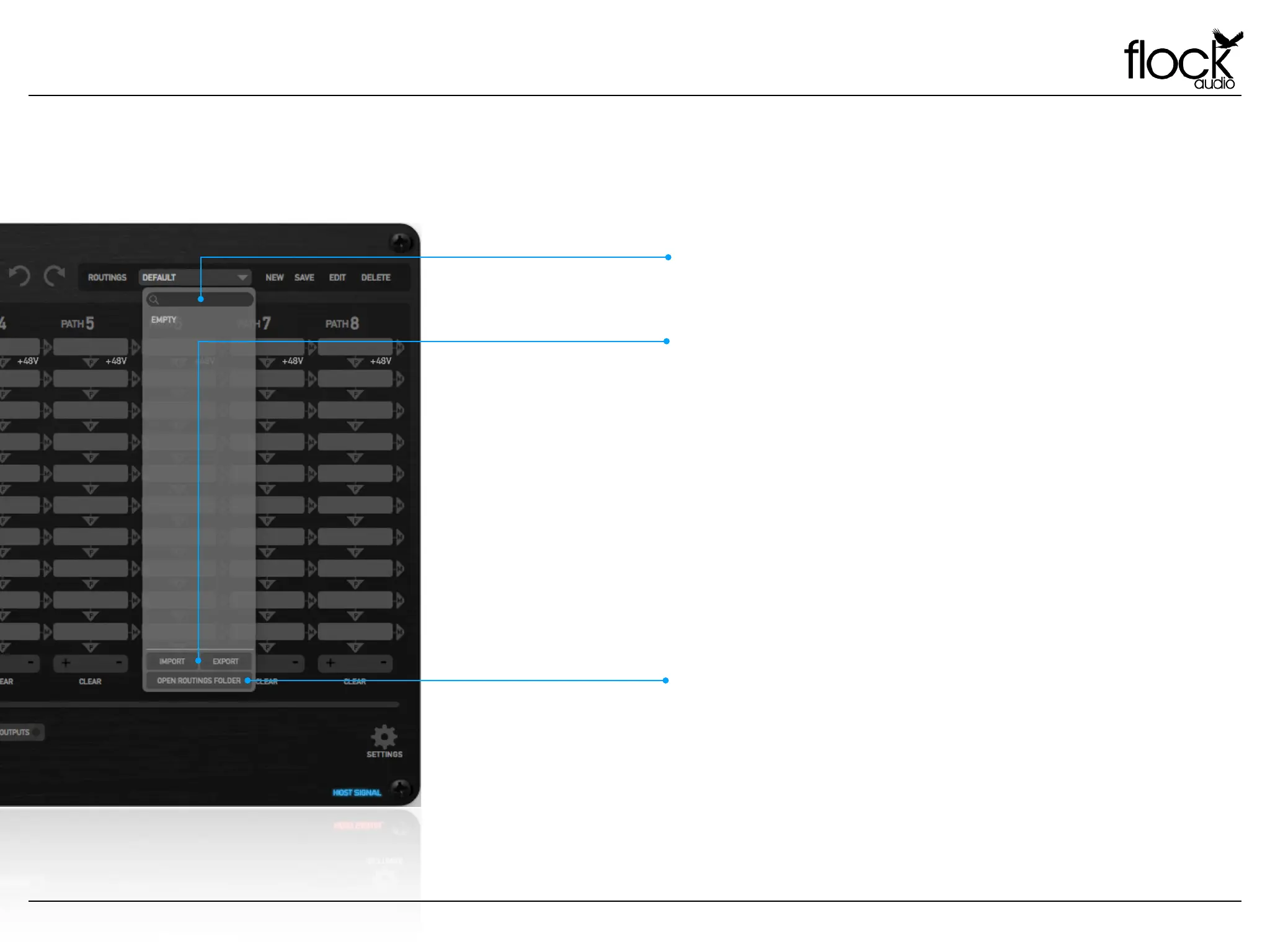
Users can easily Import or Export selected routings by opening the Routings
Dropdown Menu. Once a Routing is “Saved” or “Stored”, users can select
to “Export” this routing into a clients session or desired folder of choice for
further archiving.
Once the Routing is “Exported” into a another folder, users can choose
“Delete” in the Dropdown Menu to avoid taking up space in the Routings
Dropdown Menu. “Deleting” this routing in the Dropdown Menu after
“Exporting” to a separate folder will not delete the new copy in the new
desired folder location.
Users can also Import saved routings from other folder locations by
selecting “Import” to add it into the Routings Dropdown Menu.
IMPORT & EXPORT ROUTINGS
By Default all routings “Saved” are stored in a community routings folder
that is easily accessible with-in the PATCH APP Routings Dropdown Menu.
By selecting “Open Routings Menu” it will open a dialog window, allowing
the user to remove or modify any “Saved” routings.
OPEN ROUTINGS FOLDER
SEARCH FIELD
Searchable Field for “Saved” Routing Configurations.
STORED ROUTINGS MENU OVERVIEW


 To Next Page