15
ACTIVE ROUTINGS SECTION
PATCH MANUAL
ACTIVE ROUTINGS SECTION
Active Routings Section Details
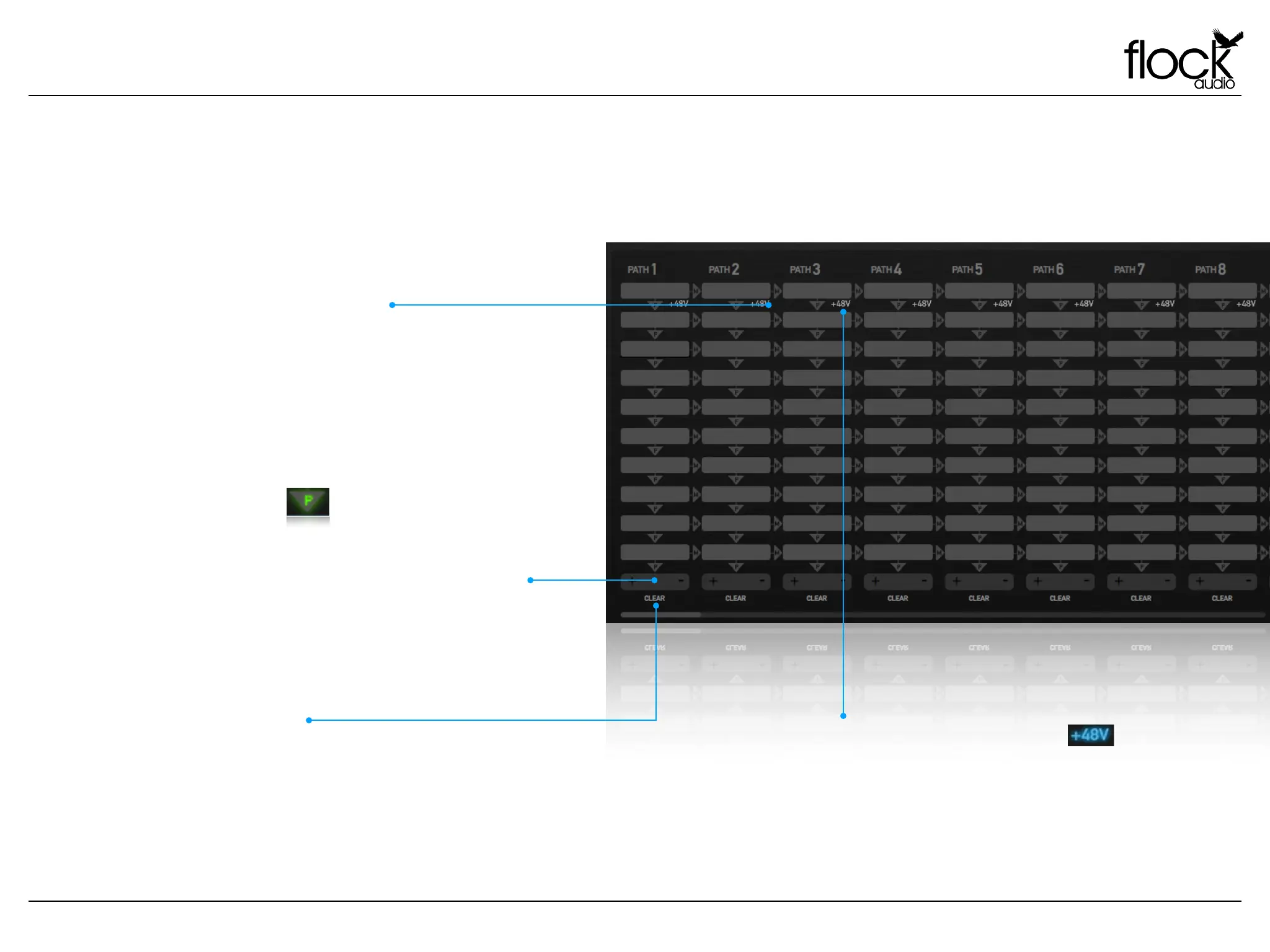
The Active Routings Section of the PATCH APP is where users will
drag + drop preferred analog audio equipment cataloged in the
Hardware Index in the form of digital racks into desired PATH
signal flows. All PATH signal flows go from top (start) to bottom
(end).
Each active digital rack space inserted into a PATH will illuminate a
Green “P” below it (P=PATH) showing that the connection of that
desired signal flow is active.
ACTIVE ROUTINGS SECTION
Add or Subtract digital rack spaces by clicking the (+ or -) icons
below the last digital rack space. By default the PATCH APP’s
Active Routings Section always displays 10 digital rack spaces but
can be further increased if desired by the user.
ADD OR SUBTRACT DIGITAL RACK SPACES
You can clear single PATH signal flows by clicking the “Clear”
button at the bottom of each PATH signal flow. When clicking the
“Clear” button the system will prompt a user to notify them that
they are deleting a single active PATH signal flow.
CLEAR SINGLE PATH
Every top digital rack space has a 48V Phantom Power icon
located to the bottom righthand side. A user can enable 48V
Phantom Power to the top digital rack space by clicking the
48V icon. 48V can only be enabled if permission is granted
“48V Safeguard” in the Hardware Setup Menu
48V PHANTOM POWER


 To Next Page