22
SETTINGS MENU OVERVIEW
PATCH MANUAL
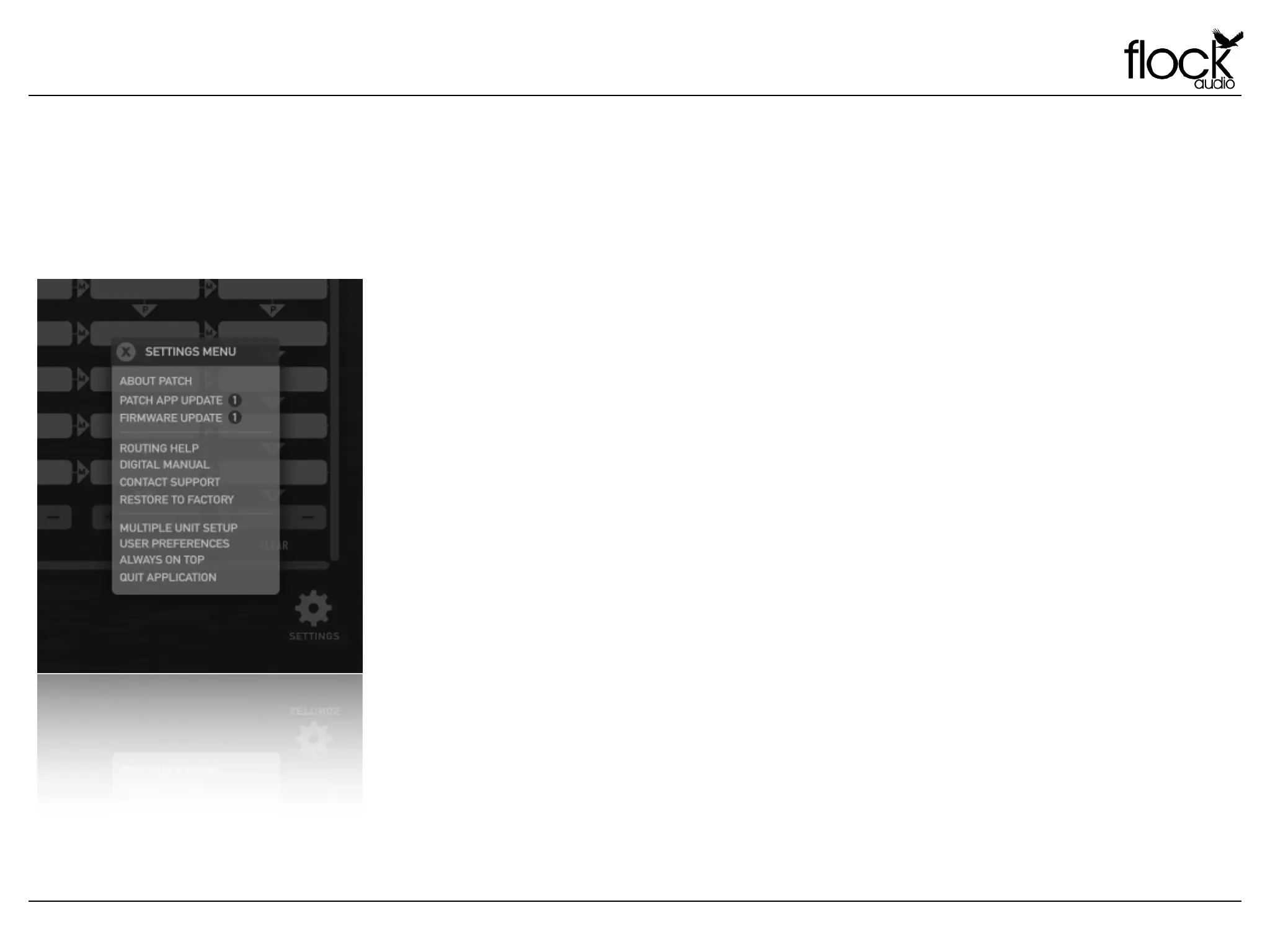
SETTINGS MENU
Settings Menu Overview
Manage all your Software User Preferences from the
Settings Menu, located at the bottom right side of the
PATCH APP.
About PATCH - Selecting “About PATCH” will open an
information window stating the active installed versions of
both the PATCH APP Software and Firmware. !
PATCH APP Update - This option will notify a user when
an available update is present for the PATCH App.
Selecting this option from the menu will open a web
browser and navigate to the PATCH Downloads
Webpage.
Firmware Update - This option will notify a user when an
available update is present for the PATCH Hardware.
Selecting this option from the menu will open a web
browser and navigate to the PATCH Downloads
Webpage.
Routing Help - Selecting this option from the settings
menu will open a default web browser navigating the user
to a Routings Help page with further routing examples. !
!
Digital Manual - To view this Manual directly from the
PATCH APP a user will be able to select this option and
open the most recent version of the User Manual. !
Contact Support - The PATCH APP allows you contact
Flock Audio Support right from the Settings Menu of the
application. Selecting this menu option will open a web
browser and navigate to the Flock Audio Support
webpage.
SETTINGS MENU
Restore to Factory - If you ever require a complete
Factory Reset on your PATCH System, selecting “Restore
to Factory” will revert your PATCH APP to Factory Default
Settings. Please Note: This function cannot be undone
and will delete all of the user inputted information and
settings. Its recommended to Export/Save: Routings &
Hardware Index Setups prior to Restoring to Factory. !
Multiple Unit Setup - When using more than one PATCH
System with-in the PATCH APP a user must select and
open the Multi-Unit Setup menu. Further details on the
operation of this menu is located further in this manual.
User Preferences - The Preferences menu will allow a
user to select a preferred language to use with-in the
PATCH APP. Please Note: Some languages may not
appear aesthetically formatted correctly due to various
character lengths.
Always On Top - Selecting “Always On Top” will keep the
PATCH APP above all other applications open with-in the
present viewing display. !
!
Quit Application - This will close the PATCH APP and
stop any activate routings from being connected. Please
Note: If you have an activate routing present, the PATCH
APP will prompt you to Save or Continue prior to closing
the PATCH APP. !


 To Next Page