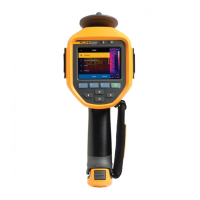
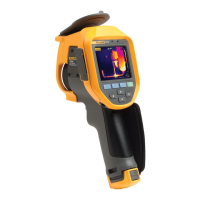
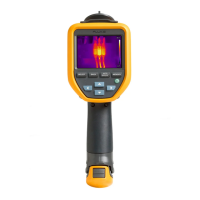
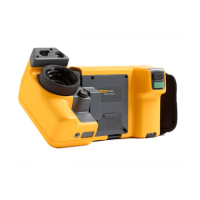
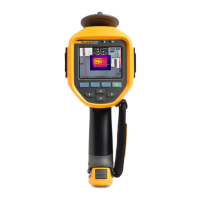
Ti200, Ti300, Ti400, Ti450, Ti450SF6, Ti480
Users Manual
20
SuperResolution
SuperResolution uses a sensor to capture micro movements to create an image with double the
resolution. See Detailed Specifications for the resolution available based on the model of the Imager.
To use:
1. Capture an image.
2. Hold the Imager still for ∼1 second.
• In SuperResolution mode, the Imager captures the data and processes the image. The image
shows on the display of the Imager in ∼18 seconds.
• In SuperResolution (in PC only) mode, the image is not processed on the Imager so you cannot
view the image on the Imager. Use SmartView software to view the image on your PC.
Distance
Use the Laser Pointer/Distance Finder to measure the distance, up to 30 meters, from the Imager to
a target. You can choose to show the distance on the display in feet or meters. The distance is saved
as part of the image.
Warning
To prevent eye damage and personal injury:
• Do not look into the laser. Do not point the laser directly at persons or animals or
indirectly off reflective surfaces.
• Do not open the Product. The laser beam is dangerous to eyes. Have the Product
repaired only through an approved technical site.
To use the distance measurement feature:
1. Turn on the distance feature and select the units to show on the display.
2. Point the Imager at the target.
3. Pull and hold the Secondary Trigger.
shows at the top of the display.
4. Position the red laser dot on the target.
5. Release the Secondary Trigger.
The distance measurement shows on the bottom of the display. The measurement shows as “- - - -”
when the Imager cannot take a measurement. If this is the case, use a tripod or steady the Imager
and retake the measurement. If there is excessive laser movement, an error message shows on the
display due to an out of range distance.


 To Next Page