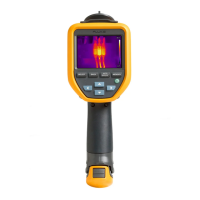
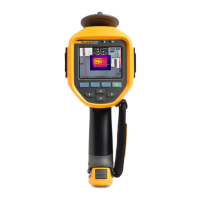
Thermal Imagers
Remote Control of Imager
37
To stream live to a PC, wirelessly:
1. On the Imager, turn on the WiFi Hotspot. See WiFi Hotspot.
2. On the PC:
a. From the networks screen, select Fluke-Camera.
Note
Fluke-Camera is the default name of the Imager. If you changed the name of the Imager, select
the new name of the Imager from the networks on the PC.
b. Open the SmartView software.
appears on the SmartView software toolbar menu.
c. Choose Remote Display from .
Stream Live with Fluke Connect Software
To stream live with Fluke Connect software, see Fluke Connect Wireless System.
Stream Live to an HDMI Device
HDMI (High-Definition Multimedia Interface) is a compact audio/video interface that transfers
uncompressed data and compressed/uncompressed digital audio data from the Imager to a compatible
HDMI device.
To stream live to an HDMI device:
1. Attach the included HDMI cable to the HDMI port on the Imager.
2. Connect the other end to an HDMI video device.
Remote Control of Imager
Use SmartView software on a PC or the Fluke Connect app on a mobile device to remotely control the
Imager.
To remotely control the Imager with a PC:
1. Turn on Remote Display. See Stream Live to a PC.
2. In SmartView software, select SmartView (Camera is the default selection).
When in remote control mode, use the SmartView software to control all the menus on the Imager. The
menus cannot be changed directly on the Imager.


 To Next Page