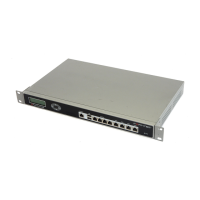
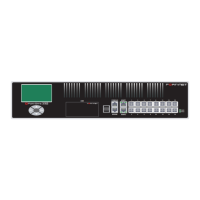
FortiGate-200, FortiGate-300, FortiGate-400, FortiGate-500 and FortiGate-1000 FortiOS 3.0 MR4 Install Guide
60 01-30004-0267-20070215
Testing a new firmware image before installing it FortiGate Firmware
Restoring the previous configuration
Change the internal interface address, if required. You can do this from the CLI
using the following command:
config system interface
edit internal
set ip <address_ip4mask>
set allowaccess {ping https ssh telnet http}
end
After changing the interface address, you can access the FortiGate unit from the
web-based manager and restore the configuration.
For more information, see the FortiGate Administration Guide.
If you are reverting to a previous FortiOS version (for example, reverting from
FortiOS v3.0 to FortiOS v2.80), you might not be able to restore the previous
configuration from the backup configuration file.
Testing a new firmware image before installing it
You can test a new firmware image by installing the firmware image from a system
reboot and saving it to system memory. After completing this procedure, the
FortiGate unit operates using the new firmware image with the current
configuration. This new firmware image is not permanently installed. The next
time the FortiGate unit restarts, it operates with the originally installed firmware
image using the current configuration. If the new firmware image operates
successfully, you can install it permanently using the procedure “Upgrading to a
new firmware version” on page 53.
Use this procedure to test a new firmware image before installing it. To use this
procedure, you must connect to the CLI using the FortiGate console port and a
null-modem cable. This procedure temporarily installs a new firmware image
using your current configuration.
For this procedure you:
• Access the CLI by connecting to the FortiGate console port using a
null-modem cable.
• Install a TFTP server that you can connect to from the FortiGate internal
interface. The TFTP server should be on the same subnet as the internal
interface.
To test the new firmware image
1 Connect to the CLI using a null-modem cable and FortiGate console port.
2 Make sure the TFTP server is running.
3 Copy the new firmware image file to the root directory of the TFTP server.
4 Make sure the internal interface is connected to the same integer as the TFTP
server.
You can us the following command to ping the computer running the TFTP server.
For example, if the TFTP server’s IP address is 192.168.1.168:
execute ping 192.168.1.168



 To Next Page
 Loading...