30
program and try to login to the camera.
d). Firefox Version 52 or below (Windows OS)
Launch Firefox and in the address bar type about: addons and press enter. Click Plugins and find
nplIPCRegDLL and choose the opon Always Acve. Close Firefox and re-launch the browser. Aempt
to login to the camera.
NOTE: Firefox version above 52 has blocked Foscam plugin completely, please use Internet Explorer instead.
● Why my camera doesn’t show in the Equipment search tool ?
This is usually because camera doesn’t get an IP in same network segment as the computer. Please follow
below steps to fix the problem:
Step 1: Make sure both camera and computer are connected to same router;
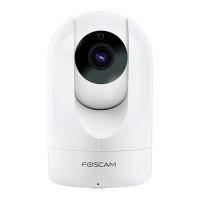
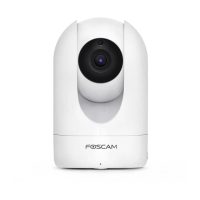
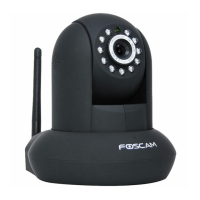
Step 2: Make sure camera’s connected to router properly and camera status is normal; For indoor pan/lt
cameras, when powered on you will see a red power light and solid green light and camera will pan/lt;
Step 3: Reset camera to have a check. Just keep pressing rest buon on camera with power on for about
30 seconds unll it reboots. Reset buon is usually on back/boom of camera, or on the end cords;
Step 4: Try another Ethernet cable or hook into another LAN port on router;
Step 5: Make sure the router DHCP server is enabled and there is no Mac address filter; Check router’s
DHCP list as well, to see if you can find camera’s IP address there; If yes, please try to log-in the camera
directly by manually input the IP address and port (default hp port for camera is 88) of camera into
address bar of web browser;
Step 6: Please turn off any virtual machine or mulple connecon (use only wired or wireless connecon)
that is running on computer;



 To Next Page