1.5.2 Loading Software from an SD card to an M2007 Computer
To update M2007 and ATO software in the field, follow these steps:
1. Switch all computers to OFF. With the computer displaying OFF, press the TEMP
button to check current M2007/MIB/AIF software version.
2. With the computer displaying OFF, remove the two screws on the left side cover plate of
the M2007 board.
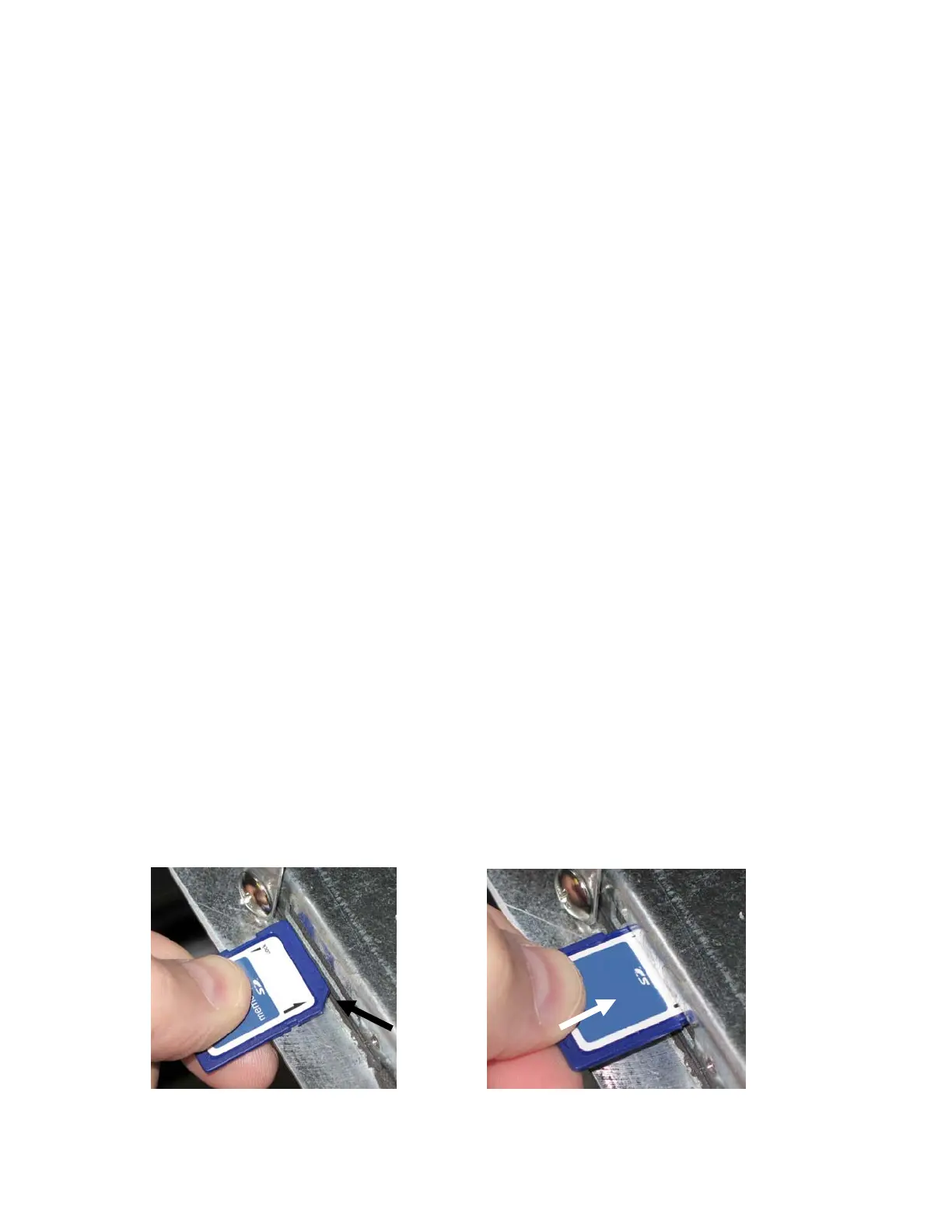
3. With the computer folded down and the MIB displaying A, insert the SD card, with the
contacts facing down and the notch on the bottom right (see Figure 19 and 20), into the slot
on the left side of the M2007.
4. Once inserted, FWUPD appears on the left display and SCCRCOK appears on the right.
Numbers count up on the right display.
5. The display then changes to FWLOAD on the left; numbers count up on the right.
6. The computer displays OBFCRC. If updating ATO software the computer will display
FWU ATO on the left and will count down from 2500 on the right.
7. When the update is complete the M2007 displays DONE on the left and RM SDCRD on
the right.
8. Remove the SD card using the fingernail slot on the top of the SD card.
9. If updating the M2007 or ATO board, remove power to the M2007 by removing the 20-pin
J2 plug on the rear of the computer, or remove power to the fryer to reboot the computer. If
updating all the software update the MIB and then the M2007 and then remove all power
from the fryer using the five-pin control power cord on the rear of the unit.
10. Restore power to the M2007 – There is short delay prior to the computer powering up and
displaying OFF.
11. Repeat steps 1-10 for all computers.
12. With the computer displaying OFF, verify software update by pressing the TEMP button
to check updated M2007/MIB/AIF version.
13. If the software is adding fields that require passwords, enter Level 2 mode and change
passwords.
Figure 19 Figure 20



 To Next Page