p. 77
Conguring G-SPEED Studio R
Performing a Manual Rebuild
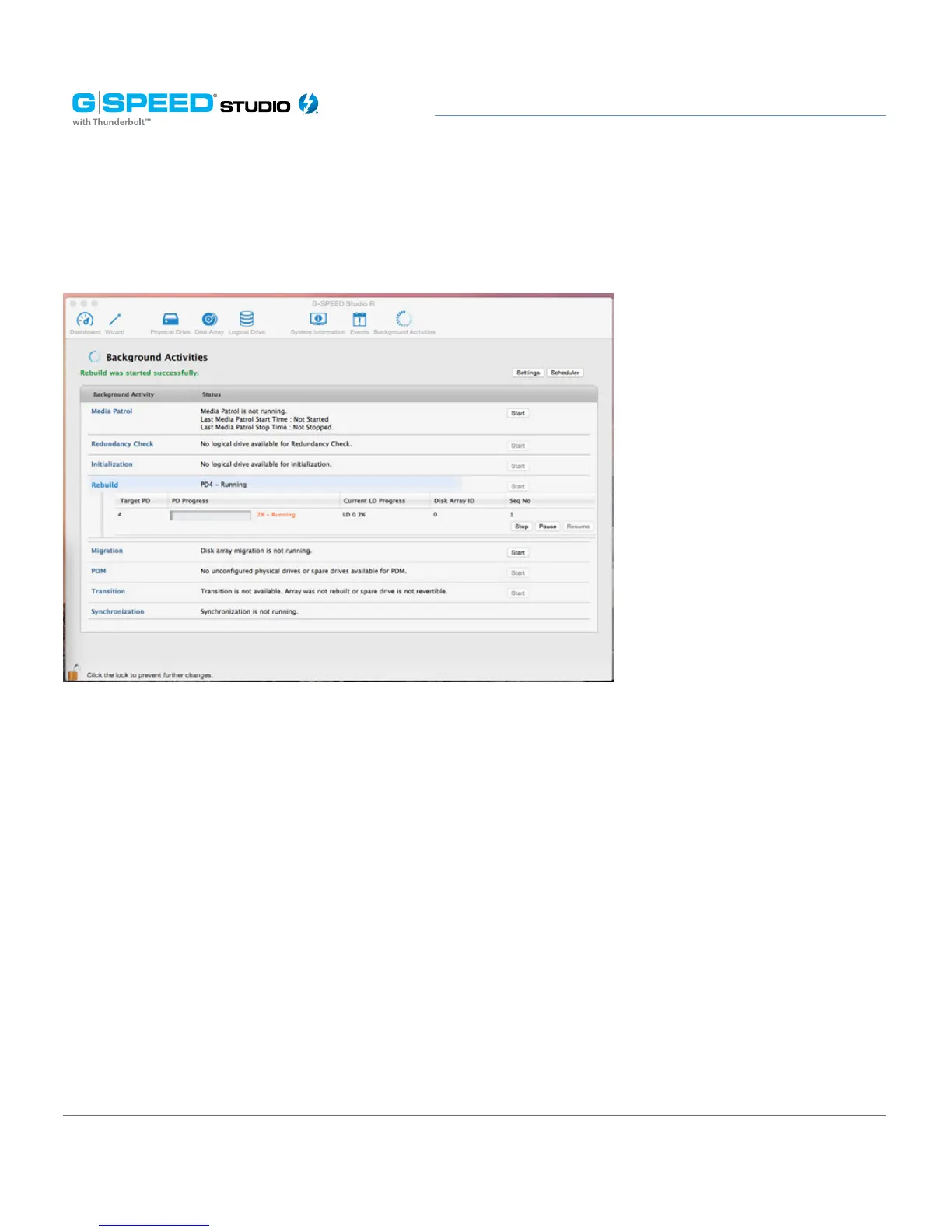
To perform a manual rebuild:
1. Click on the Background Activities icon.
2. Mouse-over Rebuild, then click the Start button.
3. From the Source Physical Drive drop-down menu, choose a Source disk array and
physical drive. Arrays have an ID number. Physical drives have a sequence number.
4. From the Target Physical Drive drop-down menu, choose a Target physical drive.
5. In the Confirmation box, type the word “CONFIRM” in the field provided, then click the
Conrm button. While the disk array is rebuilding:
• The disk array will show a green check icon and a Rebuilding status.
• Logical drives under the disk array will continue to show a yellow “!” icon and a
Critical, Rebuilding status.
• If the buzzer is enabled, your G-SPEED Studio R unit will emit two quick beeps
every five seconds. When the beeps stop, the rebuild will be done.












 To Next Page