GPSMAP
®
2008/2108 Owner’s Manual 9
Us i n g Ch a r T s
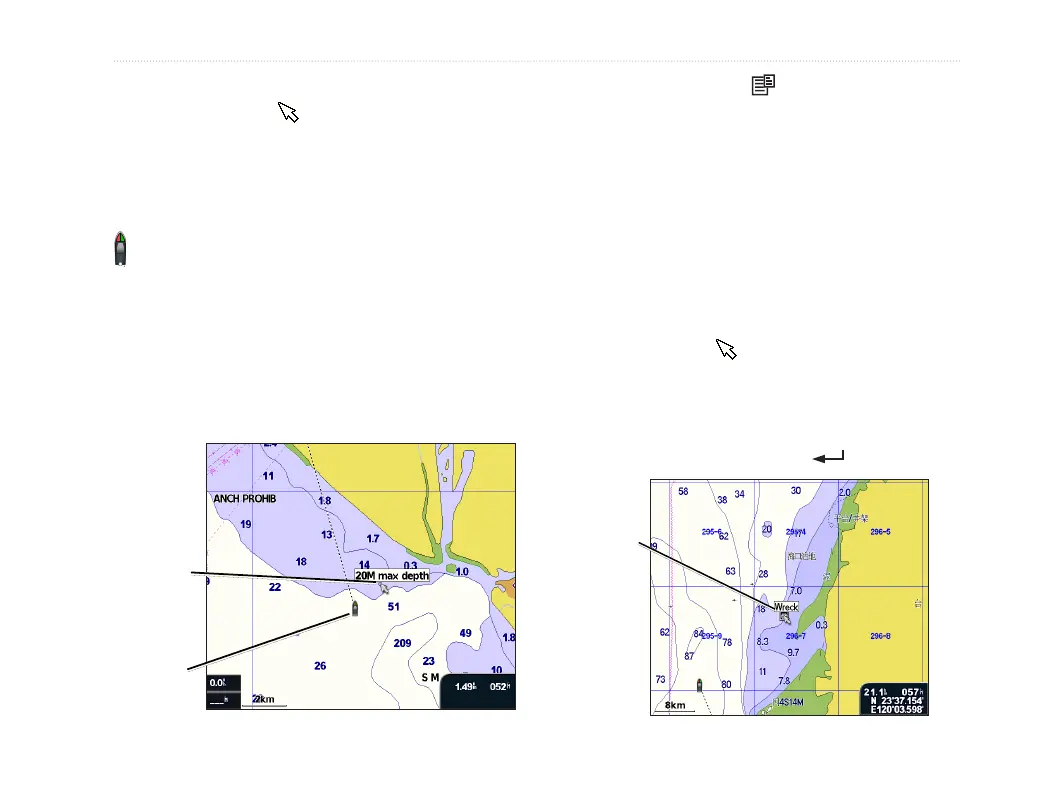
Panning the Navigation Chart
Use the map pointer ( ) to pan away from your
current location, and scroll to other areas on the
navigation chart. As you pan past the edge of the
current map display, the screen scrolls forward to
provide continuous map coverage. The position icon (
) stays at your present location.
As you move the map pointer, you can view the
distance and bearing from your current location, and
the map pointer’s location coordinates in the lower-
right corner of the map.
To pan the map, press up, down, right, or left on
the ROCKER.
Map
pointer
Position
icon
To stop panning, press , and then select Stop
Panning.
Zooming In and Out on the Map
The Range (+/-) keys control the zoom level, indicated
by the scale at the bottom of the navigation chart
(8km). The bar under the number represents that
distance on the map.
Accessing Additional Object Informa-
tion
Use the map pointer ( ) to view information about
on-screen map items and waypoints.
To access additional object information:
1. On the navigation chart, highlight an item with
the map pointer, and press .
Selected
item





 To Next Page