190-02692-00 Rev. A
Garmin G1000 Pilot’s Guide for the Piper PA-32 Saratoga
213
FLIGHT MANAGEMENT
SYSTEM
OVERVIEW
FLIGHT
INSTRUMENTS
EIS
AUDIO PANEL
& CNS
FLIGHT
MANAGEMENT
HAZARD
AVOIDANCE
AFCS
ADDITIONAL
FEATURES
APPENDICES INDEX
PARALLEL TRACK
The Parallel Track (PTK) feature allows creation of a parallel course offset of 1 to 50 nm left or right of
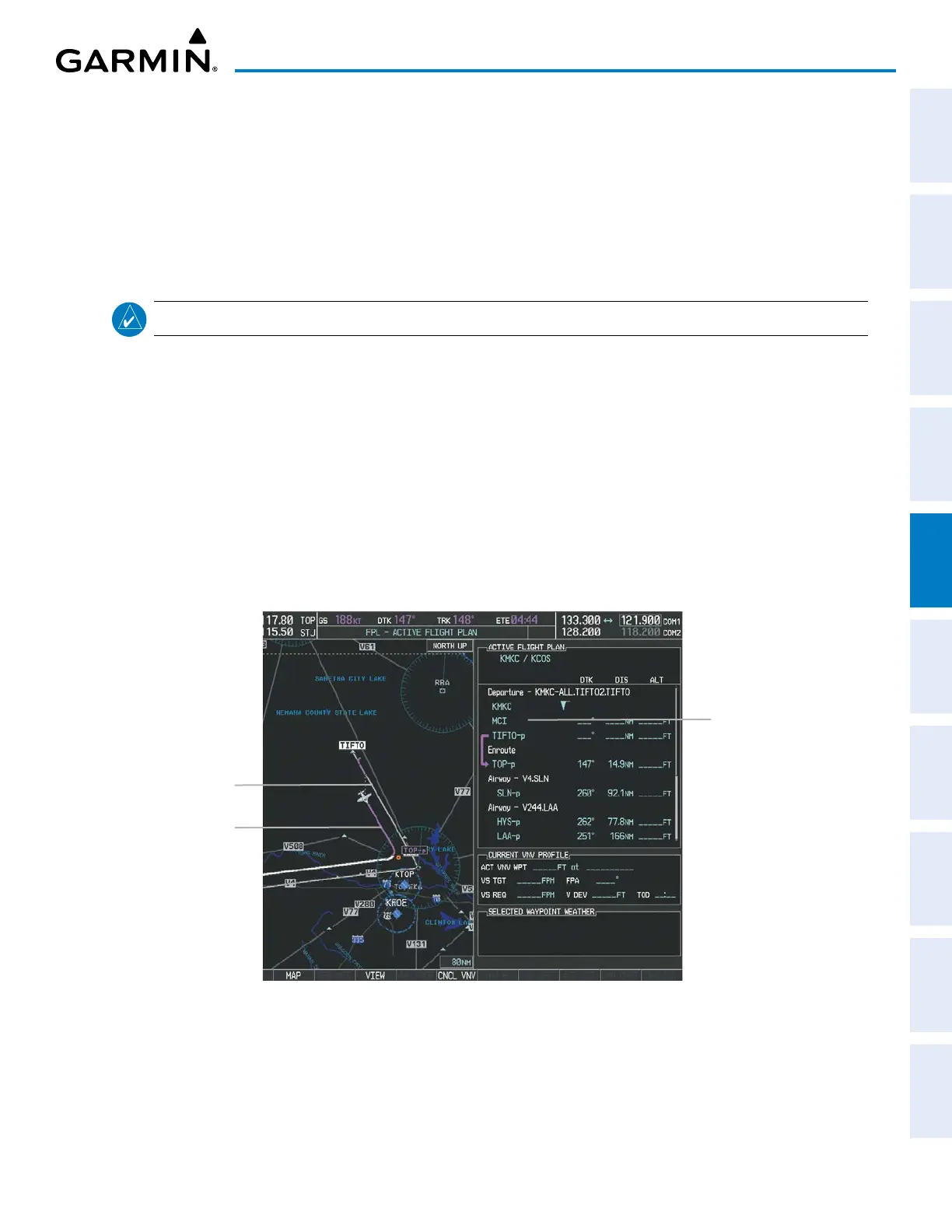
the current flight plan. When Parallel Track is activated, the course line drawn on the map pages shows the
parallel course, and waypoint names have a lower case “p” placed after the identifier.
Using direct-to, loading an approach, a holding pattern, or editing and activating the flight plan automatically
cancels Parallel Track. Parallel Track is also cancelled if a course change occurs greater than 120° or the
parallel tracks overlap as a result of the course change.
NOTE: Vertical navigation is unavailable while the Parallel Track feature is active.
Activating parallel track:
1) Press the FPL Key.
2) Press the MENU Key, highlight ‘Parallel Track’, and press the ENT Key. The PARALLEL TRACK Window is
displayed with the direction field highlighted.
3) Turn the small FMS Knob to select LEFT or RIGHT and press the ENT Key. The DISTANCE Field is highlighted.
4) Turn the small FMS Knob to enter a distance from 1-99 nm and press the ENT Key. ACTIVATE PARALLEL TRACK
is highlighted.
5) Press the ENT Key to activate parallel track. Push the FMS Knob or the CLR Key to cancel the parallel track
activation.
Figure 5-63 Parallel Track Active
Parallel Track Waypoints
– TIFTO-p
– TOP-p
– SLN-p
– HYS-p
– LAA-p
– …
Activating Parallel Track affects
the active flight plan from the
current position on (will not
affect an approach)
Original Track
Parallel Track


 To Next Page