MAP PILOT owner’s manual 15
4
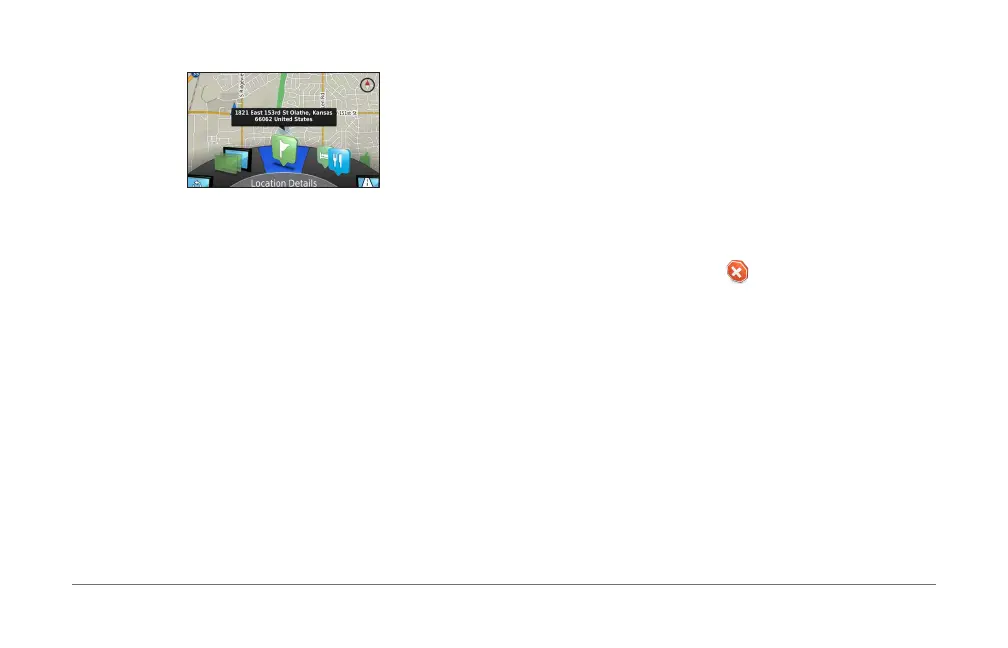
Rotate the browse map tools wheel to select an option:
• Select Set Location to set your current location� You
can maneuver the controller over the map to nd specic
locations�
NOTE: You must have your MAP PILOT set to simulation
mode and you must not be navigating a route to set
locations�
• Select Layers to select which map layers to display on
the map� You can select any combination of Trafc, 3D
Buildings, 3D Terrain, and Points of Interest�
• Select Rotate Mode to enable a rotated view of the map�
• Select View Toggle to view the map in 3-D or 2-D North
Up�
• Select Points of Interest to browse for businnesses and
attractions near the current map section�
• Select Locations Details to display details of your
current or selected location�
Starting a Route
1
Search for a location (page 8)�
2
Select a location�
3
Select Go!�
Stopping the Route
From the main menu, select �
Following a Route
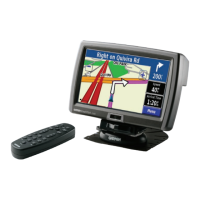
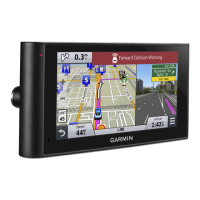
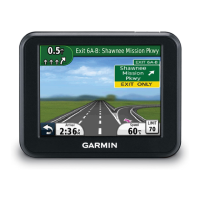
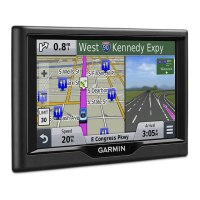
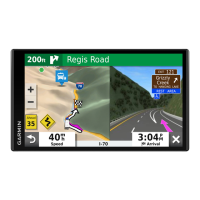
The route is marked with a magenta line� A checkered ag
marks your destination�
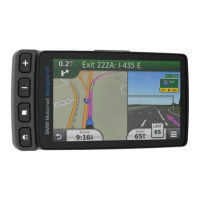
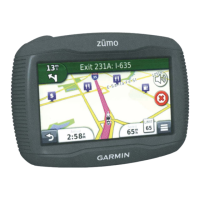
As you travel, the navigation system guides you to the
destination with voice prompts, arrows on the map, directions at
the top of the map, and guidance information in the instrument
cluster display� If you depart from the original route, the system
recalculates the route and provides new directions�






 To Next Page