8 MAP PILOT owner’s manual
• Select ➑ to view bearing and current location�
• Select
➒ to view turns for a route, add waypoints, or
take a detour�
• Select
➓ to hear the most recent navigation prompt�
• Select
to mute navigation prompts�
• Select
to open the menu of tools and settings�
• Select
to view driving related notications�
Using the On-screen Keyboard
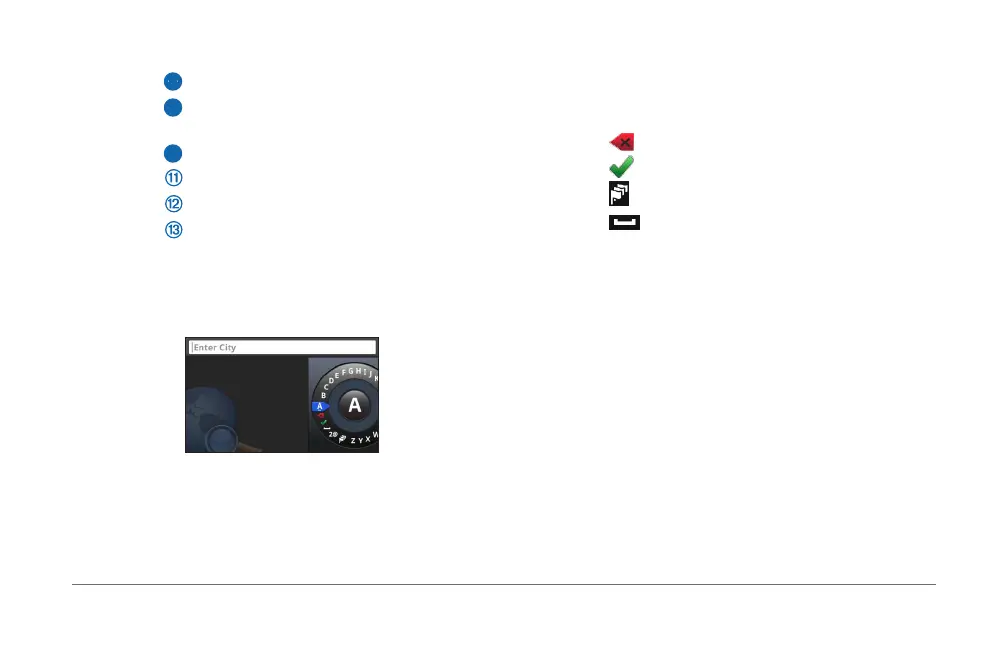
Use the controller to select letters, characters, diacritics and
other options when making a search entry�
NOTE: If diacritics are available, a “���” displays under the
character� You can push the controller to the right to select
diacritic characters�
NOTE: For some languages, an inner ring appears showing
additional characters� You can push the controller to the right to
select the inner ring�
• Select
to backspace and erase an entry�
• Select
to accept an entry�
• Select
to change the keyboard language�
• Select
to add a space between entries�
• Select 2@ to change to numbers and characters�
• Select ABC to change to letters�
• Select Alt to view all diacritic characters�
Finding Locations
The system offers many methods for nding locations�
• By category (page 9)
• Near another location (page 9)
• By spelling the name (page 9)
• By address (page 10)
• Using coordinates (page 10)
• Using recently found locations (page 11)






 To Next Page