26
Video Panorama Mode
You can use Video Panorama Mode to take consecutive photos. The video camera
will automatically combine them to a super wide angle panorama photo.
Follow the steps below:
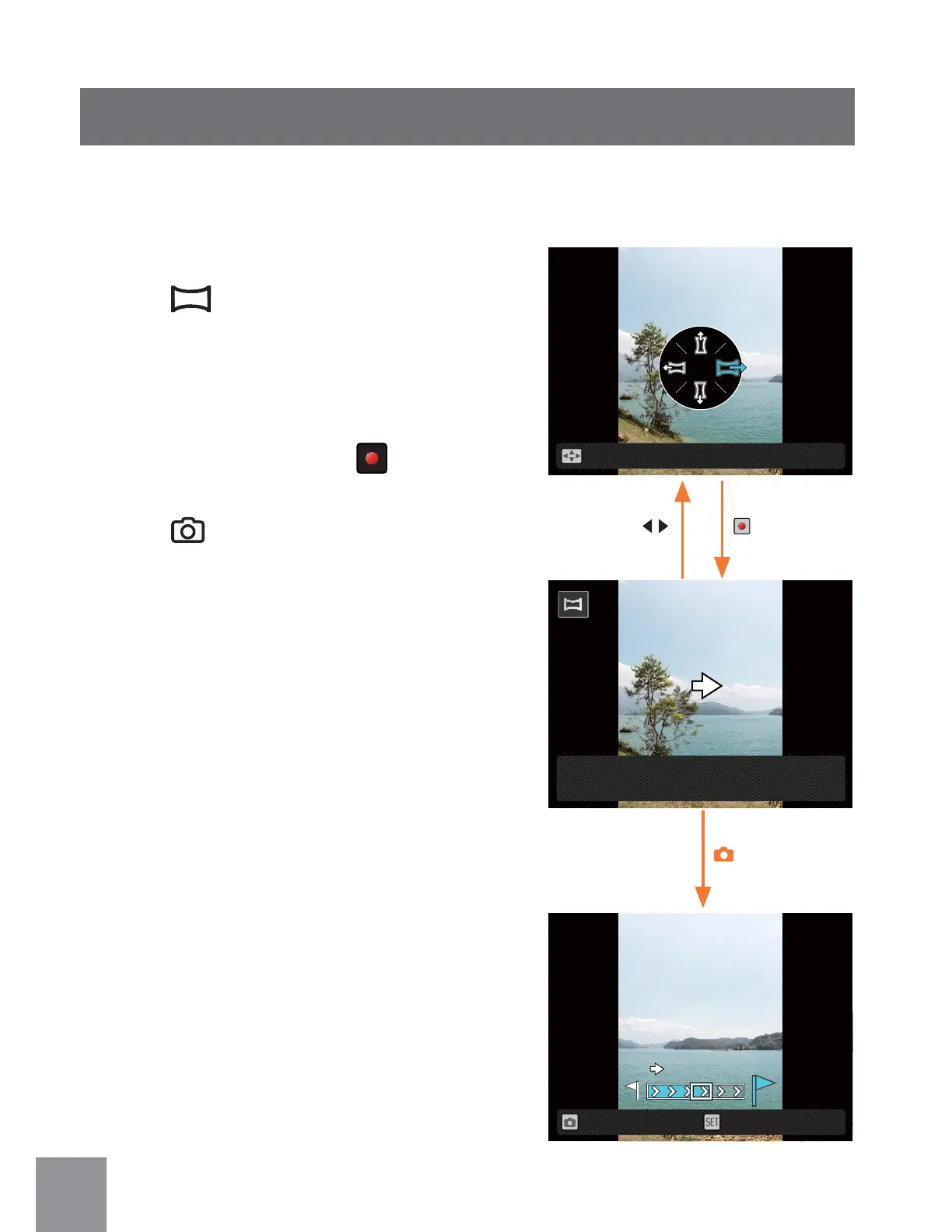
1. Press
button to enter video panorama
mode.
2. Press direction button to select shooting
direction (the default direction is Right),
it will automatically enter shooting mode
after 2 seconds. Pressing
button can
enter the shooting mode immediately.
3. Press
button to take a single photo,
then the video panorama mode progress
box will show on the camera screen.
4. Press the setting direction to move or
rotate the video camera. When moving or
rotating range meets the setting value, the
progress box with an arrow will turn green
and blink. When the progress box turns
completely green,it indicates the video
panorama shooting is complete.
5. The video camera will automatically
stitch the photos into a panoramic photo,
then preview for 2 seconds after finishing
stitching.
Direction Select
Press Shutter button and follow the arrow
Save
Cancel


 To Next Page