Chapter 3. Using the Settings Menu
40 moisture.IQ User’s Manual
3.2 Display Settings
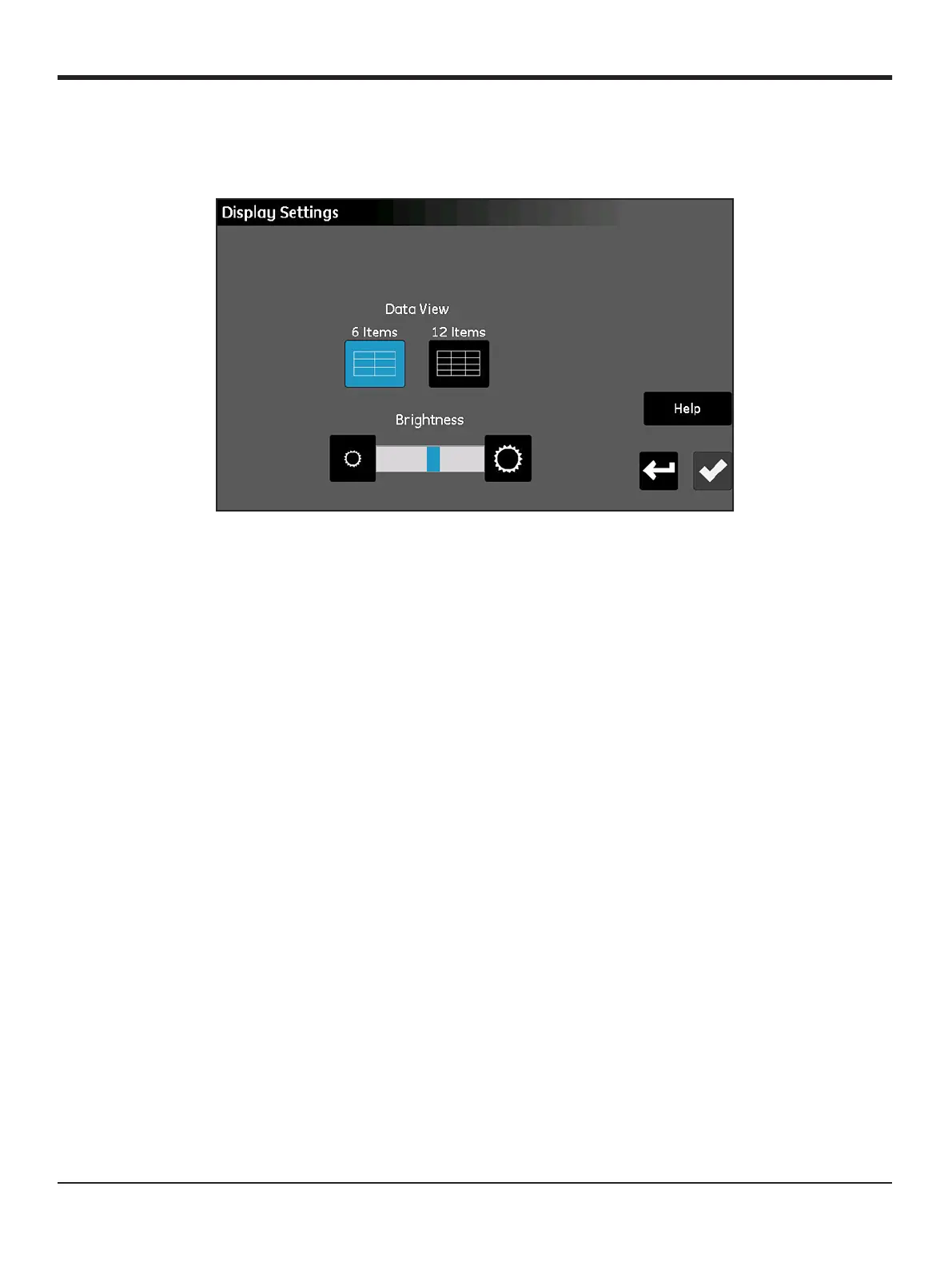
The Display Settings menu (see Figure 34 below) allows you to configure the measurement screen.
Figure 34: The Display Settings Screen
• Tap the 6 Items or 12 Items button to toggle between a main screen with 6 measurement displays or
one with 12 measurement displays. The current setting is highlighted in blue.
• To adjust the screen brightness, tap the button at the right end of the Brightness slider to increase the
screen brightness or the button at the left end of the slider to decrease the screen brightness, until the
desired setting is achieved.
The blue indicator bar on the slider indicates the current setting location.
• After completing your settings, either tap the Check button to save your changes, or tap the Cancel
button to discard the changes and keep the original settings.


 To Next Page