moisture.IQ User’s Manual 85
Chapter 6. Setting Up Communications
6.8 Setting Up a Remote Connection to a PC
As a practical example of using the communications features described in the previous sections, the procedure
for connecting the moisture.IQ to a remote PC via a Local Area Network (LAN) is described below.
1. Ensure that the PC is properly connected to the LAN and that the user has logged in.
2. Refer to “Configuring the Ethernet TCP/IP Connection” on page 77, and ensure that the TCP/IP
connection is Enabled and that the IP Address is set to Automatic.
3. Refer to “Configuring a VNC Connection” on page 82, and ensure that the VNC Server is Enabled.
4. Use a standard ethernet cable to connect the ethernet port on the back of the moisture.IQ to the LAN.
Then, open the TCP/IP Setup screen and record the IP Address shown in the text box.
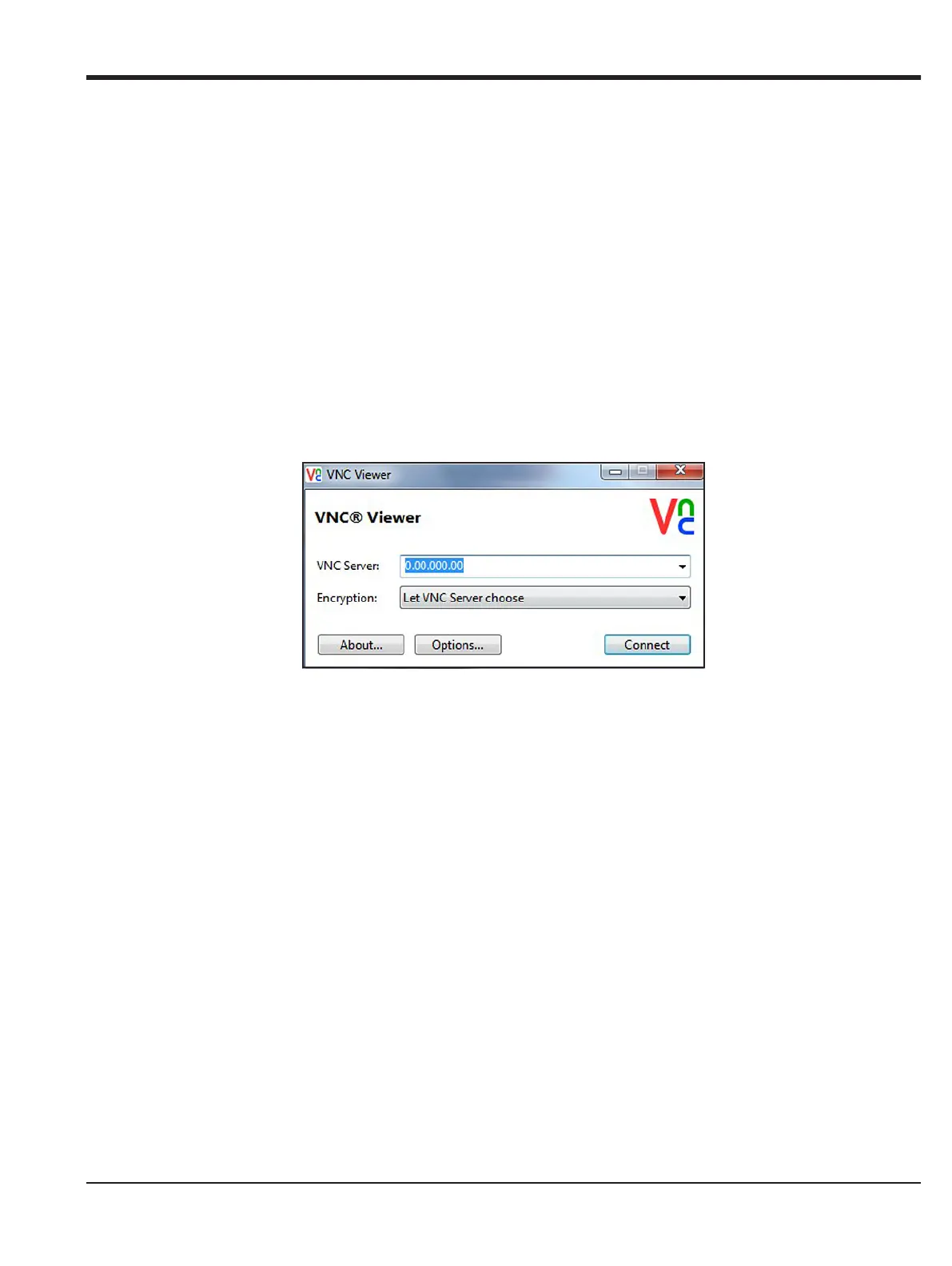
5. From the PC, go to the RealVNC web site and download the VNC Viewer. Then, launch the VNC Viewer
and enter the recorded moisture.IQ IP Address when prompted (see Figure 74 below). Click the
Connect button.
Figure 74: VNC Viewer Screen
6. A Log In screen should now be open on the moisture.IQ. Enter your
Password and Log In. The
moisture.IQ display should now be replicated on your PC monitor.
7. You can now control the moisture.IQ remotely by using your mouse to click on the display buttons. Note
that keyboard input from the PC is not accepted by the moisture.IQ.


 To Next Page