Chapter 5. Using the Configuration Menu
72 moisture.IQ User’s Manual
5.4.3 Entering User Constants
User-defined constants can be substituted for Dewpoint (°C), Temperature (°C) and Pressure (Pa) measurements
in all meter calculations. In addition, you can multiply all measured moisture PPMv values by a specified
constant (the default multiplier is 1.000).
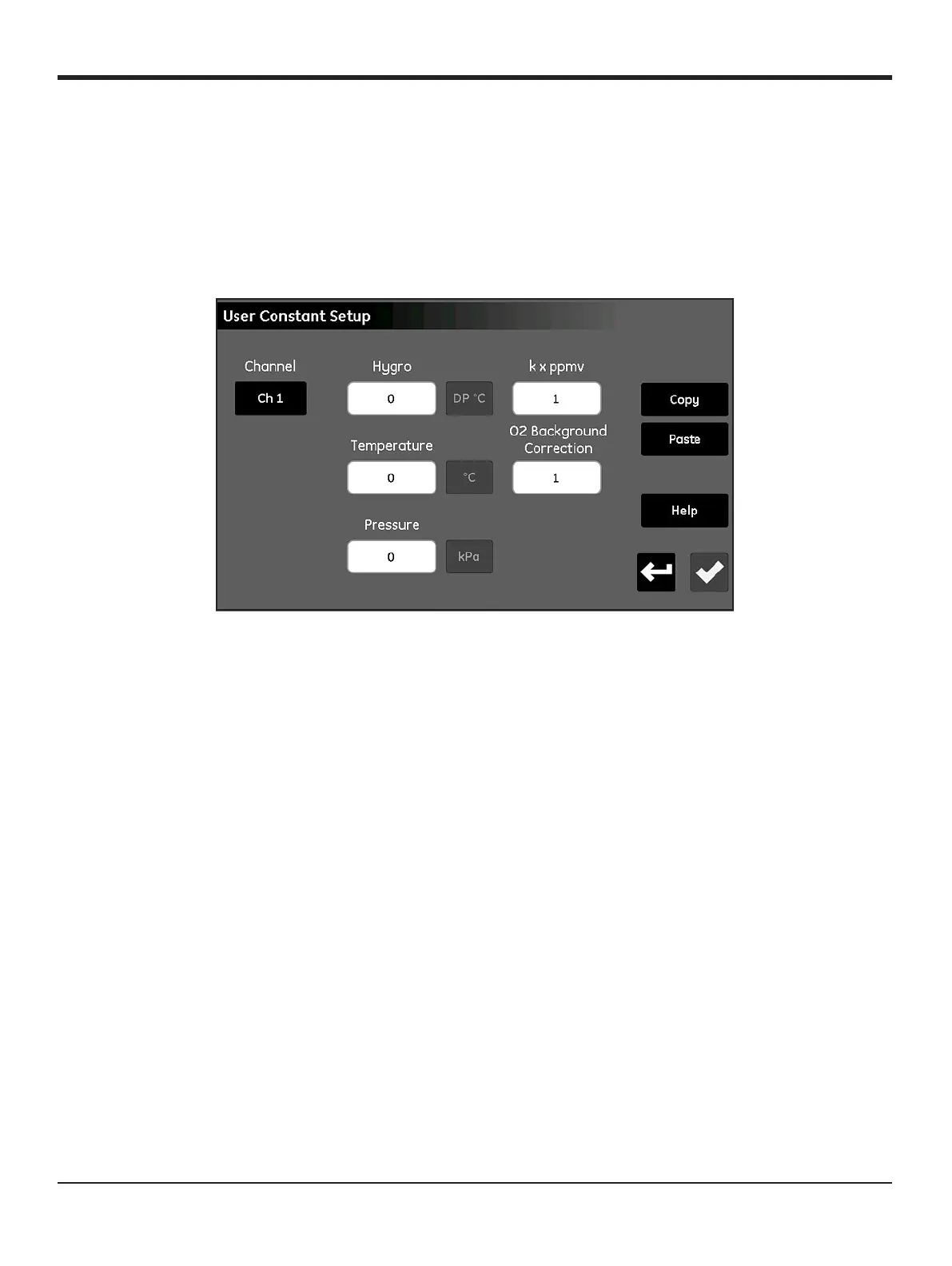
From the Configuration Menu screen (see Figure 52 on page 59), tap the Constants button to open a User
Constant Setup screen similar to Figure 63 below.
Figure 63: User Constant Setup Screen
To enter user constants, complete the following steps:
1. Tap the
Channel button to select the channel for which the constant should be applied.
2. Tap the text box for the Hygro, Temperature and/or Pressure values and enter the desired constant for
each measurement type. The specified values will then be used as a constant multiplier for that
measurement type in all future meter calculations.
IMPORTANT: Before the moisture.IQ can use the constants entered above, the probe type on the specified
channel must be properly configured for Constant Value (kH, kT or kP), as described in “The
Probe Configuration Screen” on page 60.
3. If desired, tap the k x ppmv text box to enter a constant multiplier for all PPMv moisture measurements.
Note that no special probe configuration setting is required for the constant multiplier to be used.
4. If you are using a Delta F Oxygen Cell probe and your background gas is not Nitrogen, you must apply a
correction factor to all measurements (see “Delta F Oxygen Cell Background Gas Correction Factors” on
page 91). To do so, tap the O2 Background Correction text box and change the multiplier from the
default value of 1.00 to the required value.
5. After all constants have been entered, tap the Return button to return to the Configuration Menu screen.


 To Next Page