Chapter 4. Using the Outputs, Alarms and Logger Menus
56 moisture.IQ User’s Manual
4.3 Setting Up and Running Logs
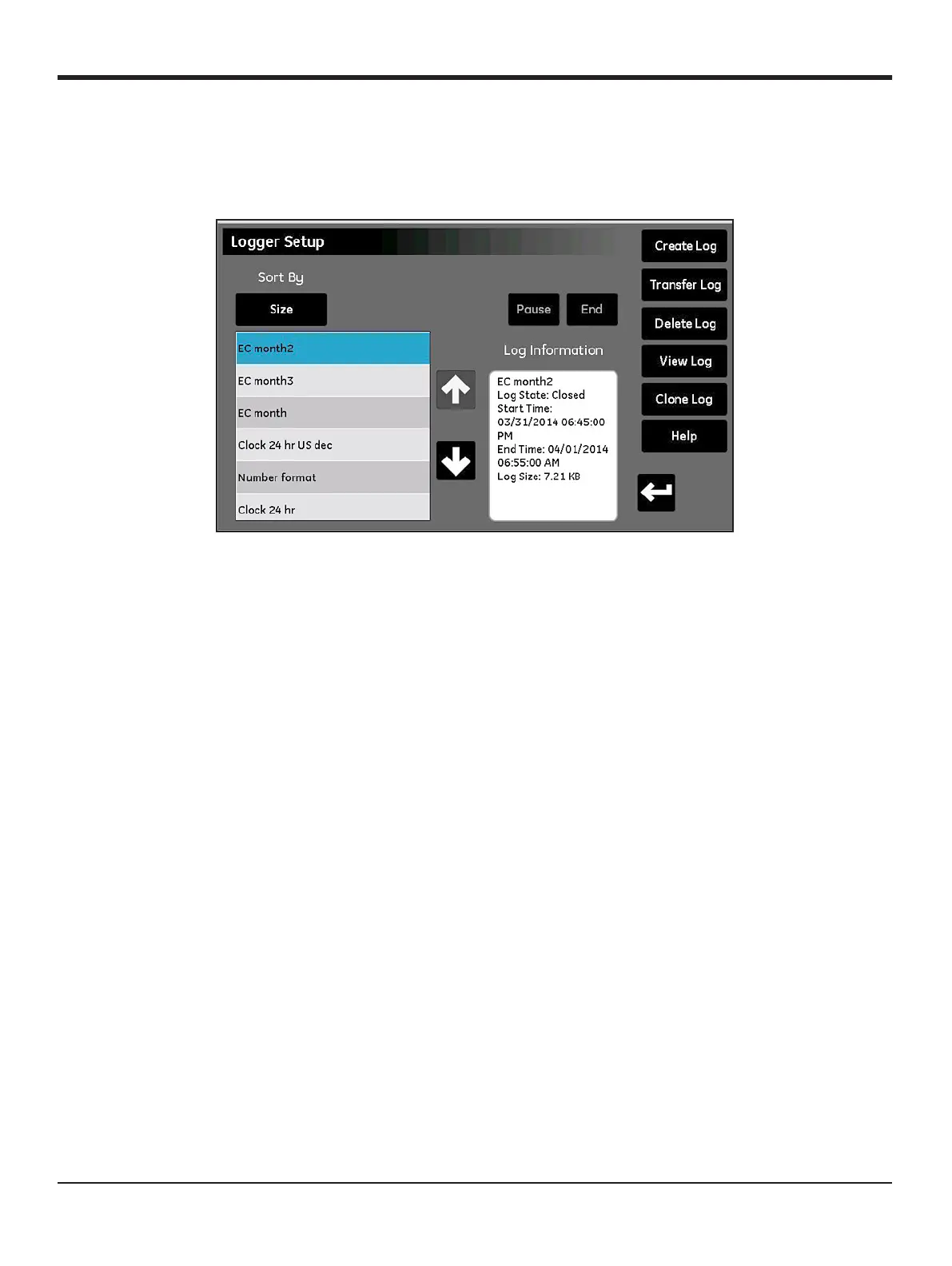
To set up and run logs, refer to the menu map in Figure 77 on page 110 and tap the Logger button on the main
touch screen to open a screen similar to Figure 50 below.
Figure 50: Logger Setup Screen
The following logging functions are available on the Logger Setup screen:
• The pane on the left lists all current log files in memory. Tap the Sort By button and then select Name,
Date, Size
or Running from the drop-down list to specify the manner in which the list of log files is
sorted.
• To see more details about any of the listed log files, highlight the desired files and the available
information for that log will be displayed in the
Log Information pane.
• The two buttons above the Log Information pane are used to control a Running log. Tap the End button
to permanently end the log or tap the
Pause button to temporarily suspend the log. After a log is
paused, that button changes to a Start button. Tap this button to resume a paused log or to start a new
log.
• The Transfer Log button is used to move a highlighted log file from the internal moisture.IQ memory to
a connected USB drive. Tap the
Transfer Log button and follow the instructions.
• The Delete Log button is used to delete a highlighted log file. Tap the Delete Log button and then
confirm your choice.
• The View Log button is used to view the measurements selected for a highlighted log file. Tap the View
Log
button, and the measurements are shown in the Log Information pane.
• The Clone Log button is used to create a new log based on the settings of a highlighted existing log. If a
log has ended, you can create a new log with identical measurements and options. Tap the
Clone Log
button, edit the filename for the cloned log, and modify the Start Time and End Time. If desired, you
may also modify the Separator, Log Type or Measurements settings. When the setup is complete, tap
the Return button and start the new log.


 To Next Page